
Lightroom Classic's Import dialog can feel a little daunting. There is a lot going on—previews, file naming, metadata, destination folders, presets, and several other choices competing for your attention.
Before worrying about any of those settings, make one more fundamental decision: Where are your photos now, and where do you want the original files to live when the import is finished?
That decision determines whether I use Copy, Move, or Add.
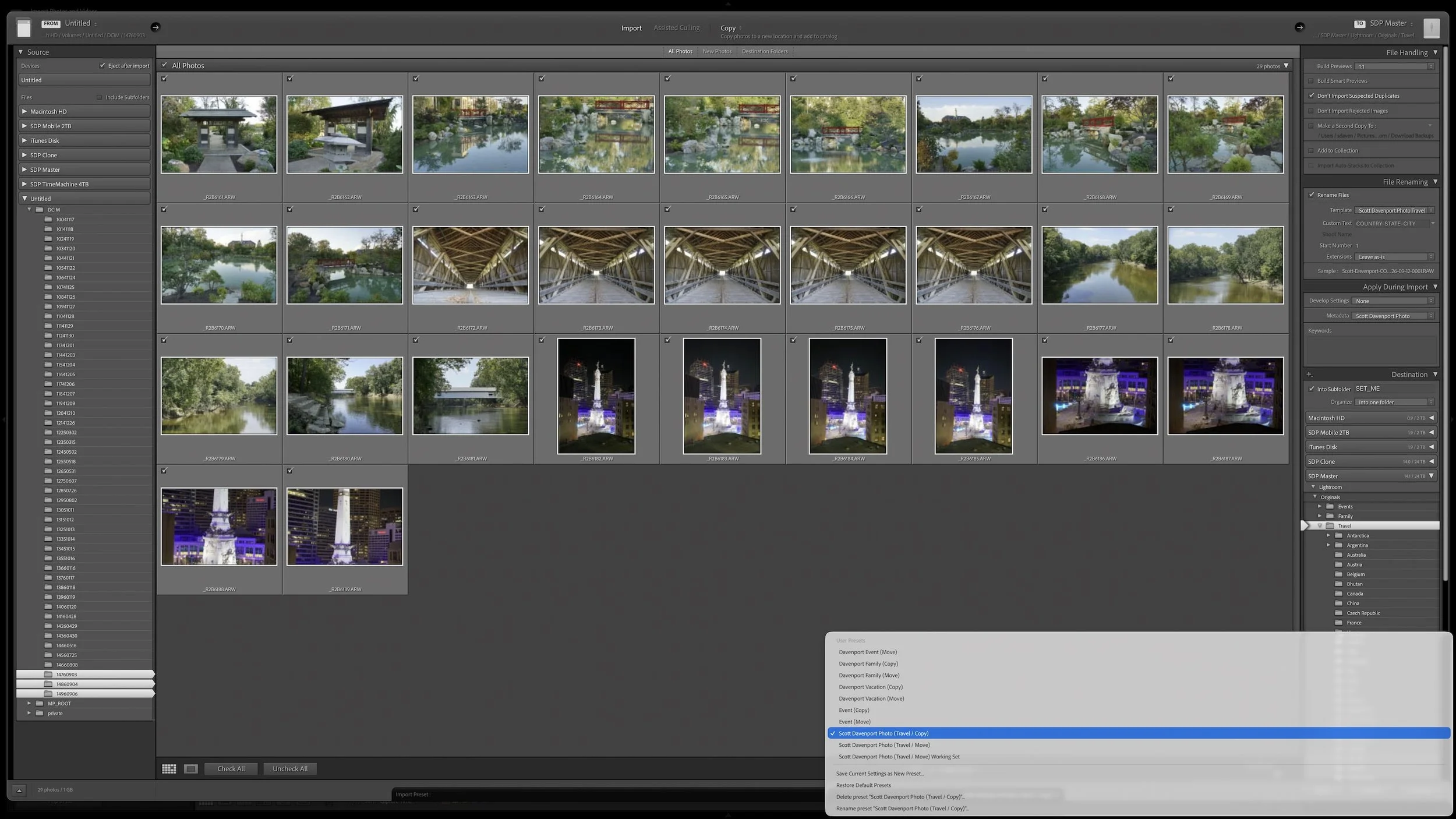
Import is the entry point into my larger Lightroom workflow. Yet here, I want to concentrate on what Lightroom Classic is doing with the actual files as they enter the catalog.
Start With the Source and Destination
Lightroom Classic's catalog does not contain your original photos. The catalog stores information about those photos, including where the original files live. When you import photos, you are telling Lightroom where to find those files.
Depending on the import method you choose, Lightroom may also copy or move the original files to their intended destination.
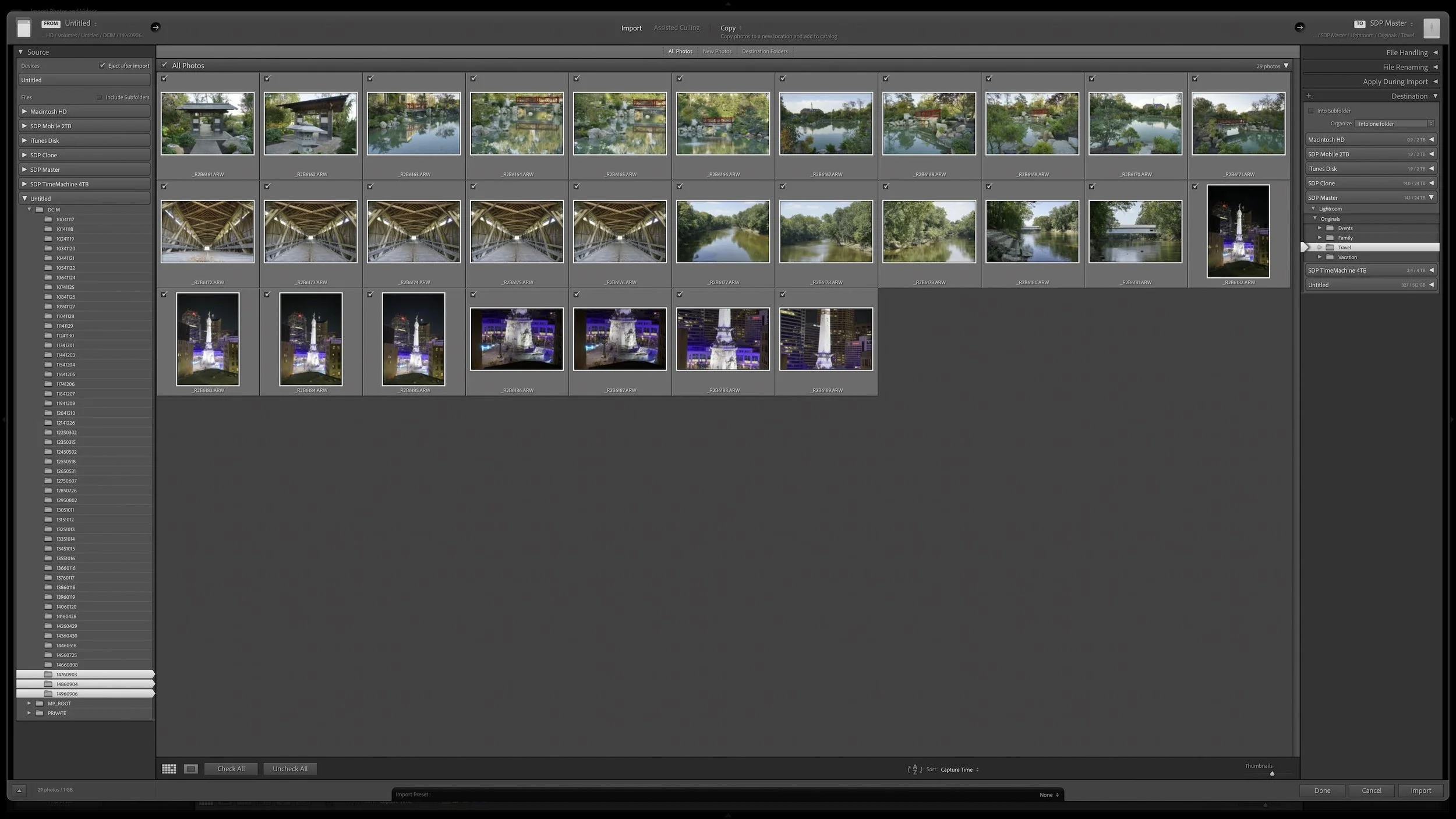
It helps to think about the Import dialog from left to right. On the left is the source: where are the photos right now? They might be on a memory card, in a temporary folder on a hard drive, or already sitting in their permanent location.
Across the top, you choose what should happen to those files: Copy, Move, or Add. If you choose Copy or Move, you also need a destination: where should those files end up?
That gives me a simple way to think about the process:
Source → Copy, Move, or Add → Destination
The important part isn't memorizing which button to click. It's understanding what I want to happen to the physical files.
Think of Lightroom import as a simple path: where the photos are now, what should happen to them, and where they should end up.
Copy When the Photos Need a New Permanent Home
Copy creates a copy of the source photos in the destination I specify. Lightroom then adds those copied files to the catalog and records their new location. The original source files remain where they were.
A memory card is the most obvious example. The card contains the photos, but it isn't their permanent home. I need those files copied into my photo library before I can consider the import complete.
When importing directly from a memory card, Copy is the natural choice. In fact, Lightroom Classic doesn't offer Move or Add when the source is a camera or camera card. The files need to be copied somewhere else.
Suppose I have a card containing photos from a trip. The card is my source, and a folder in my permanent photo library is the destination. Copy tells Lightroom to create new copies in that destination and add those copies to the catalog. The files on the memory card remain untouched.
Lightroom Classic also offers Copy as DNG, which copies supported camera raw files while converting them to Adobe's DNG format. I don't use DNG in my workflow, so I don't have a reason to introduce that additional conversion. If DNG is already part of your workflow, that option may make sense for you. For the file-management decision we're discussing here, the important idea is that both choices create a copy in a new location.
Move When the Photos Are in the Wrong Place
Sometimes my photos are already on a hard drive, but they're not yet where I want them to live permanently. In that situation, making another copy would leave me with duplicate files that I don't need.
That's where I use Move.
Move relocates the original photos from their current location to the destination I specify. Lightroom adds the photos to the catalog and records that destination as their location. Unlike Copy, the original files do not remain behind at the source.
My own workflow provides a good example. After a shoot, I often use the Finder on my Mac to copy the contents of the memory card into a temporary folder on a hard drive. On Windows, I could do the same thing with File Explorer. This happens before I open Lightroom Classic. I'm simply making a quick copy of my original captures so they aren't sitting only on the memory card.
When I'm ready to import, those photos are already on a hard drive, but that temporary folder isn't where I want them to remain. I use Move during import to relocate them from that temporary folder into my permanent photo library. Lightroom handles the relocation while adding the photos to the catalog.
The exact folder structure I use isn't important to the Copy-versus-Move decision. Your permanent photo library may look completely different from mine. What matters is that the photos currently live in one place and need to permanently live somewhere else.
Article 03 – A Simple Lightroom Folder Structure That Can Grow With You
Add When the Photos Are Already Where They Belong
Photos that are already in their permanent location don't need to be copied or moved simply because I want Lightroom Classic to know about them.
In that situation, I use Add.
Add leaves the physical files exactly where they are. Lightroom creates records for the photos in the catalog and records their existing location. There is no new copy and no relocation of the original files.
For example, suppose I've already copied a group of photos into the folder where I intend to keep them permanently. When I open Lightroom Classic, I don't need Lightroom to reorganize those files. I only need to tell Lightroom where the photos live and add them to the catalog.
Add is also particularly useful if you already have an organized photo library on your drives and you're building a Lightroom Classic catalog around it. You don't need Lightroom to copy or rearrange those existing files. Point Lightroom to where they already live, choose Add, and Lightroom can catalog them in place.
That's an important distinction. Importing photos does not necessarily mean moving them somewhere. If the files are already where I want them, I prefer to leave them alone rather than add another file operation that doesn't solve a problem.
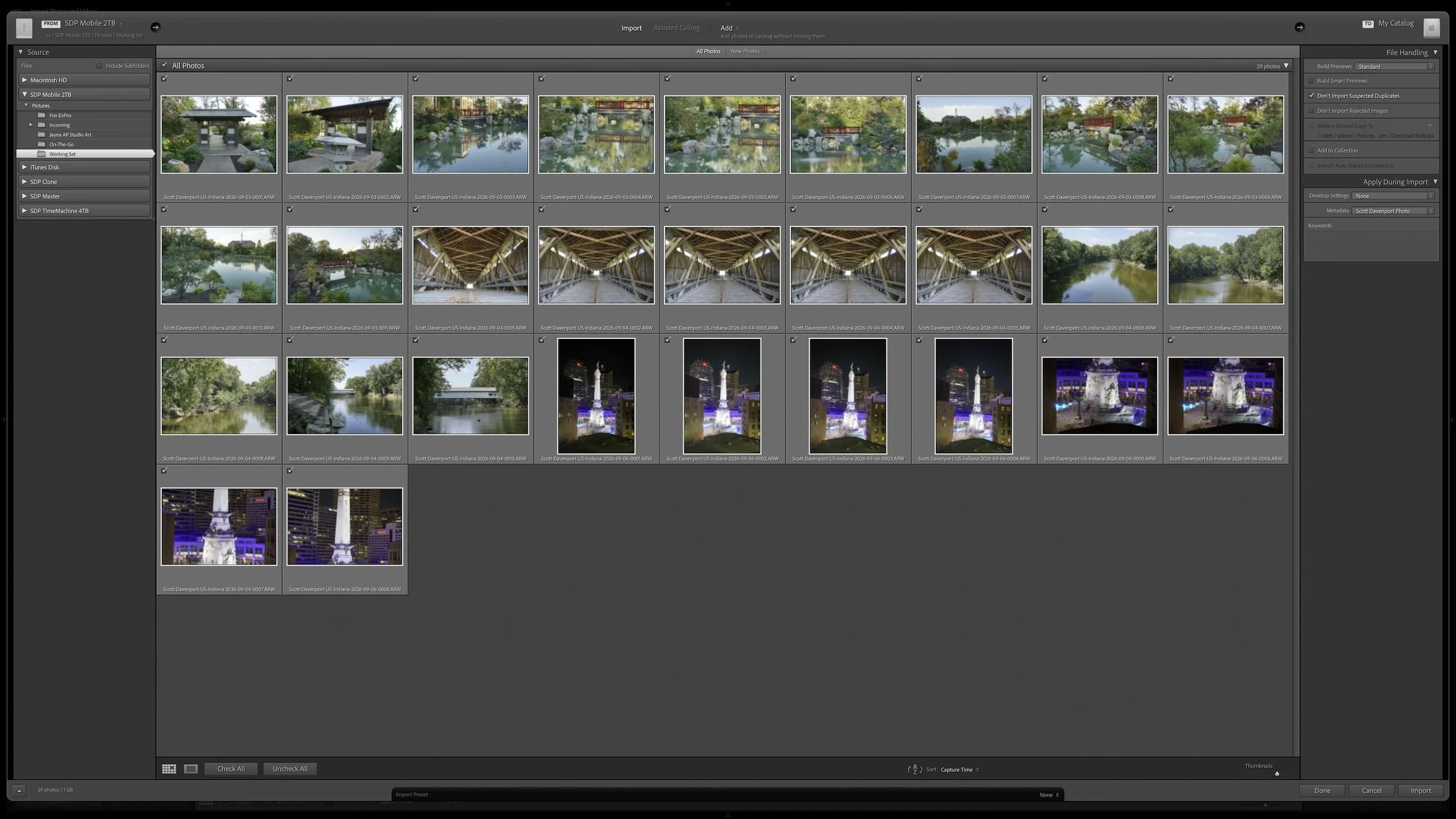
When photos are already in their permanent location, Add catalogs them without copying or moving the original files.
Choose the Method by Asking What Should Happen to the Files
Copy, Move, and Add become much easier to remember when you stop treating them as Lightroom terminology and instead describe what needs to happen to the physical files.
The photos are on a memory card and need to become part of my permanent photo library: Copy.
The photos are already on a drive but need to relocate to their permanent home: Move.
The photos are already exactly where I want them to live: Add.
There are other situations, of course, but the same questions still work. Where are the photos now? Where should they be afterward? Do I need another copy, do I need the existing files moved, or should Lightroom simply leave them where they are?
That is the decision I want to make before I start thinking about all the other controls in the Import dialog.
The Other Import Choices Come After This Decision
Once I know what should happen to the files themselves, I can turn my attention to the repetitive work that accompanies an import.
I may want Lightroom Classic to rename the files, apply standard metadata, or build previews. Those are useful import settings, but they come after the more fundamental decision about what should happen to the original files.
Article 04 – Should You Rename Your Photos When You Import Them?
In my workflow, I combine many of those repetitive settings into import presets. That lets me make the important choices once and reuse them instead of rebuilding the Import dialog every time I bring in photos.
The preset doesn't eliminate the need to understand what Lightroom is doing. I still need to look at the source and make sure the import method and destination make sense for the photos in front of me. Once I understand those decisions, however, Lightroom can take care of much of the repetitive setup.
Article 09 – Build a Lightroom Import Preset That Does the Repetitive Work for You
Final Thoughts
The Lightroom Classic Import dialog contains a lot of controls, but the choice between Copy, Move, and Add comes down to what I want to happen to the original files.
I start with two questions: Where are the photos now, and where do I want them to live afterward?
If they need to be copied from a memory card into my permanent photo library, I use Copy. If they're already on a drive but need to be relocated, I use Move. If they're already exactly where they should be, I use Add.
Once that relationship between the source, the destination, and the Lightroom catalog is clear, those three choices stop feeling like Import dialog jargon. They simply describe what I want Lightroom to do with my photos.
This article is part of my Lightroom Photo Organization series.
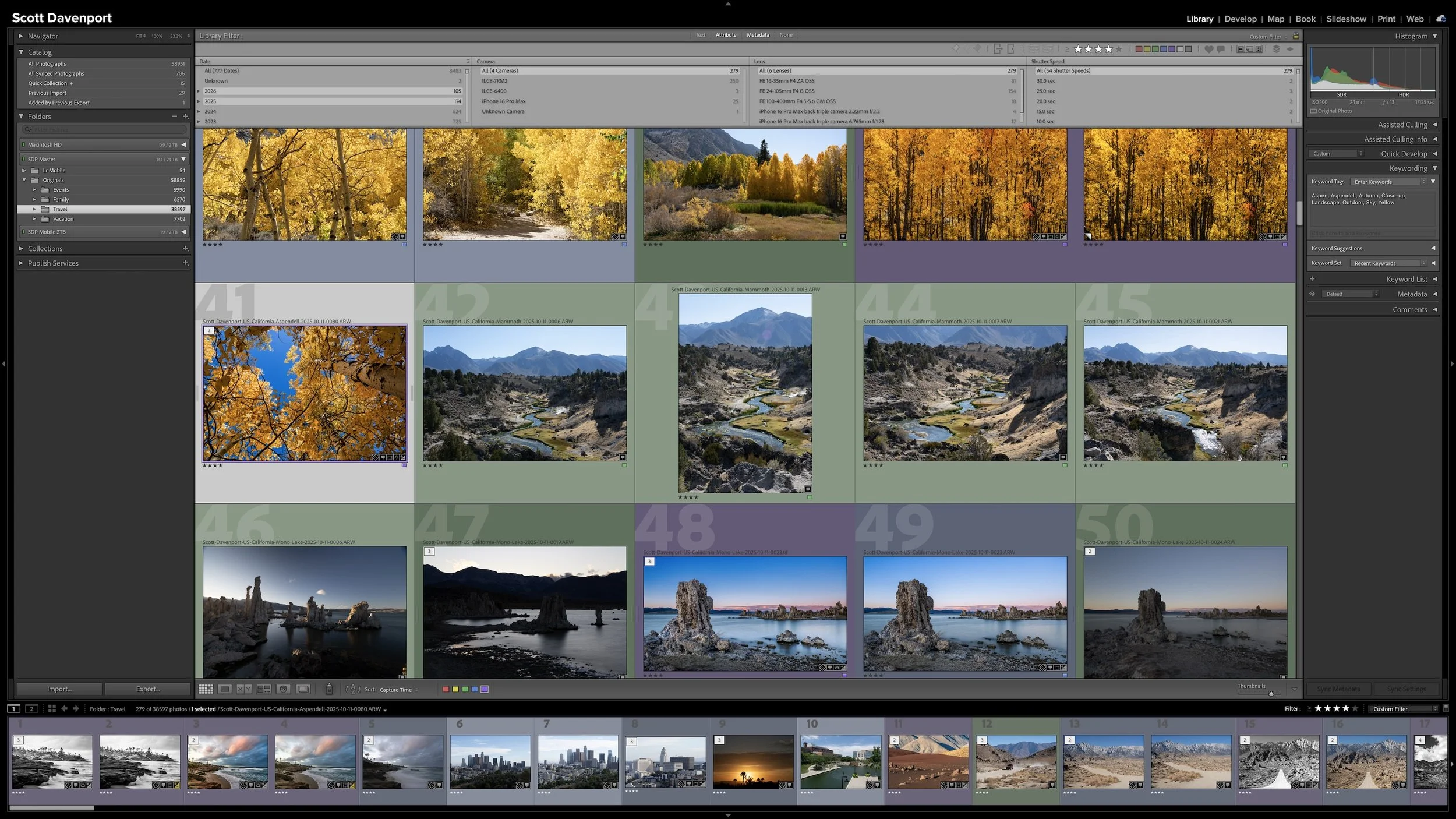
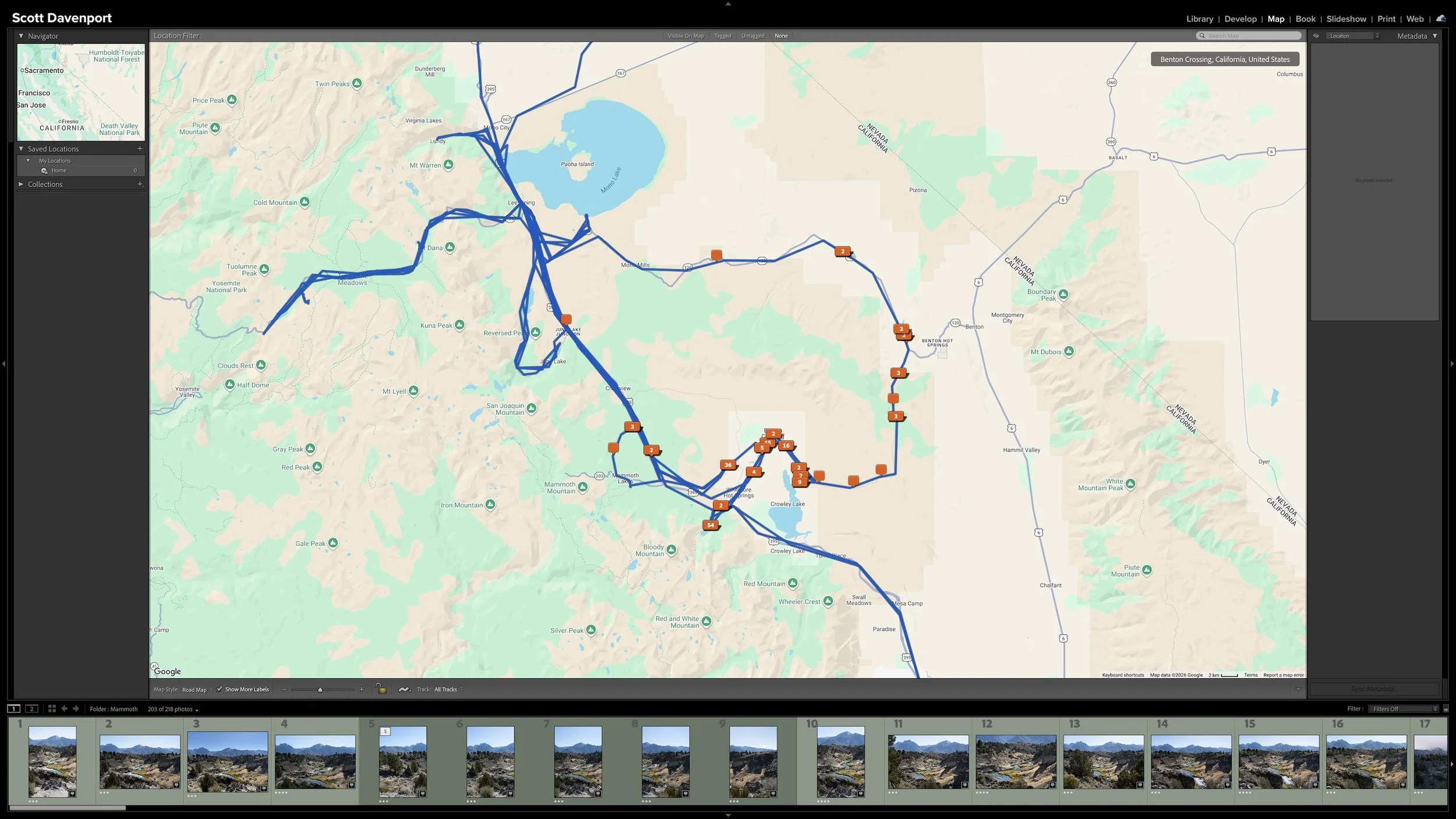
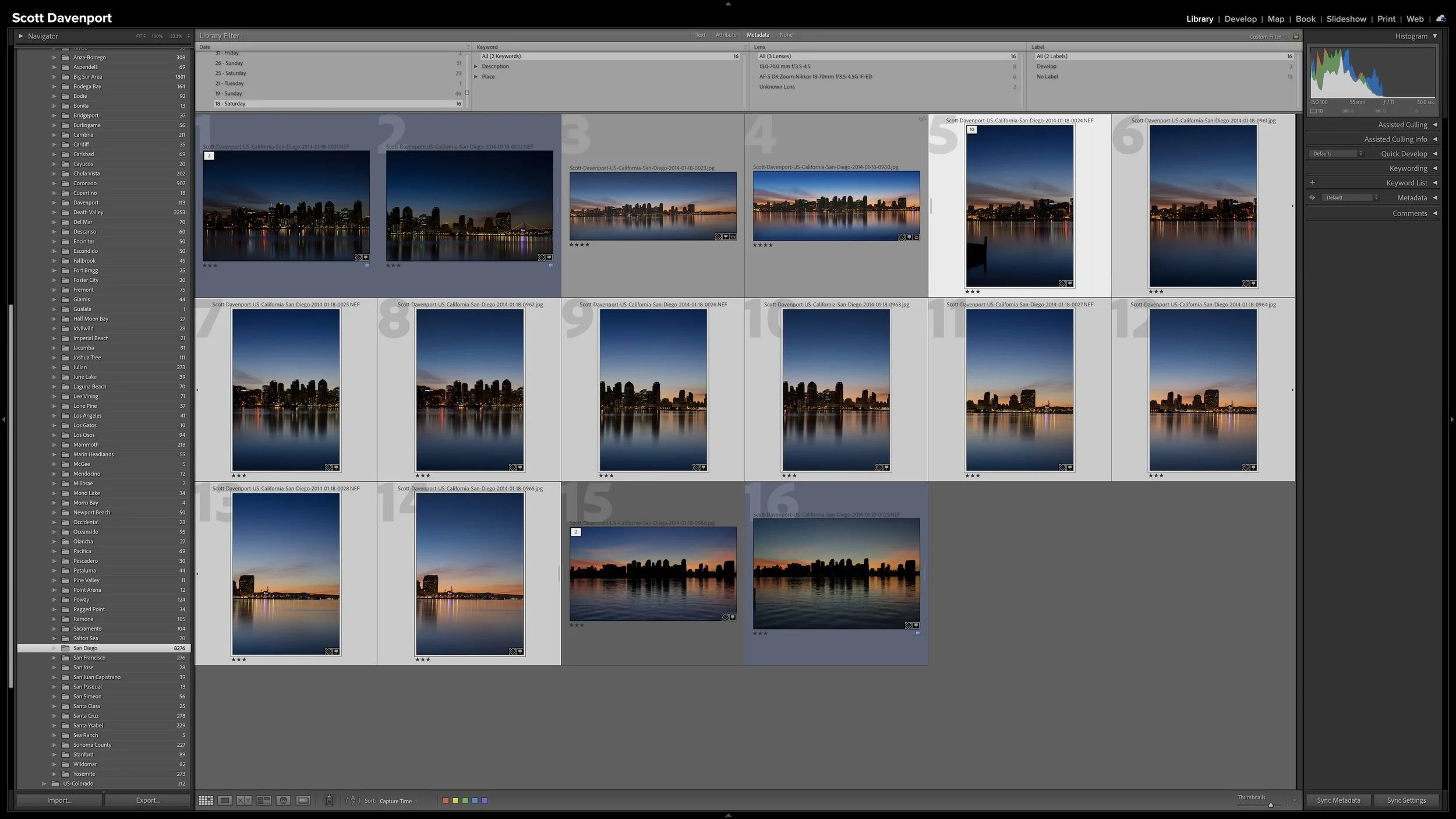

A useful keyword hierarchy connects specific details to broader ideas. When you apply a keyword for a specific location, a particular lighthouse, or a birthday celebration, Lightroom Classic can also associate the photograph with the broader places, subjects, or events that contain it.
Synonyms extend that efficiency by connecting one keyword to alternate names, related terms, or other languages. A hierarchy can give you broader and narrower ways to search your own library. I use synonyms primarily to help other people and search engines find exported photographs without requiring me to enter every variation separately.