
Once I've finished rating and stacking a group of photographs, I change their color label to yellow. Yellow tells me Locate is next.
Article 11 — Use Lightroom Stacks to Organize Similar Photos and Exposure Sets
Location is one of those pieces of information that's incredibly easy to know today and surprisingly difficult to remember years from now. I may recognize the photograph, remember the trip, and even remember roughly when I made it. That doesn't mean I'll remember exactly which beach, trail, overlook, or stretch of coastline I was photographing.
I'd rather record that information while I still know it.
Location Gives Me Another Way to Find a Photograph
Most of the metadata my camera records tells me something about how a photograph was made. I can find the camera, lens, focal length, shutter speed, aperture, ISO, and capture time without entering any of that myself.
Location adds another useful dimension: where I made the photograph.
That's particularly valuable for the type of photography I do. I may want to find all of my photographs from a particular area, look back at work I've made there over the years, or return to a location in the future. Location metadata gives me another way to do that without relying on my memory or trying to encode the place into a filename or folder structure.
Article 07 – My Six-Step Lightroom Workflow From Import to Sharing
The useful level of precision depends on how you expect to search for and use the photograph. I don't try to document the exact position of every tripod leg; I record enough location information to be useful later.
For another photographer, that might mean knowing the city where an event took place. For me, it may mean knowing the beach or general area where I was photographing. The metadata should earn its keep.
GPS Gives Lightroom More Than Coordinates
Latitude and longitude aren't especially friendly when you're browsing a photo library. Fortunately, Lightroom can translate those coordinates into useful place information.
Lightroom Classic can use the GPS coordinates attached to a photograph to look up geographic information and provide address suggestions for fields such as City, State/Province, Country/Region, and ISO Country Code. Once Lightroom has the coordinates, you can get useful human-readable location information without manually typing the same place names into a group of photographs.
There is a catalog setting that needs to be enabled for that lookup. Open Catalog Settings, select the Metadata tab, and enable Look up city, state, and country of GPS coordinates to provide address suggestions. Lightroom can then use the GPS coordinates to provide the corresponding location suggestions.
With address lookup enabled, Lightroom can turn GPS coordinates into useful place information such as city, state, and country.
I like this because a small amount of metadata gives me more than one useful piece of information. I don't have to type "San Diego," "California," and "United States" over and over. My job is primarily to make sure Lightroom knows where the photographs were made.
The easiest way to do that is to avoid entering the location manually in the first place.
Let the Camera Record Location When It Can
If my camera can record GPS information when I make the photograph, that's my first choice.
Smartphones have made this familiar. Most phone cameras can record GPS coordinates directly in the photo's metadata when location access is available. Some dedicated cameras can provide geotagging as well, whether through GPS capabilities in the camera or a supported connection or accessory.
The exact capabilities vary by camera, but the principle is the same: if the camera can reliably record the location for me, I let it.
That is metadata I don't have to add later. The coordinates arrive in Lightroom with the photograph, and Lightroom can use them for the location lookup I described above.
When the camera doesn't provide GPS information, the next choice depends on how you're photographing. If you're going to spend several hours moving through different locations, recording a track may be much easier than trying to remember and place every group of photographs afterward. That is the approach I prefer for a shoot that covers several locations.
Use a GPX Track Log When You're Moving Around
A GPX track log records where I traveled over time. I can record one with a GPS device or an appropriate app on my phone while I'm out photographing, then load that track into Lightroom Classic.
Lightroom matches the time a photograph was made with my position on the track at that time. Instead of manually placing photographs at a series of locations, I can let the timestamps connect the photographs to the track.
Lightroom Classic still supports this in the Map module through its Tracklog controls. After loading a GPX file, I can select the photographs and have Lightroom automatically geotag them from the track.
I've written a separate step-by-step article on using GPX track logs in Lightroom, so I won't repeat that process here. If this method fits the way you photograph, you can find the complete walkthrough here:
3 Steps to Geotag Photos With GPX Track Logs in Lightroom
Time is the connection between the camera and the track log, so ideally their clocks agree. Lightroom Classic also provides a Set Time Zone Offset control for situations where they don't. That's useful when I've traveled and forgotten to change the clock in my camera, for example. I can compensate for the difference after the fact so the photograph capture times line up with the appropriate positions on the track.
There's also a simple alternative when I don't need a complete track log. If I'm moving among several shooting locations, I can take a quick photo with my smartphone at each stop. The phone records the GPS coordinates, giving me a location reference for the photographs I made there. Back in Lightroom, I can copy that GPS information to the photographs from my other camera that were made at the same location.
A GPX track can match photographs to multiple shooting locations using where I was when each photograph was made.
A track log is more preparation than letting the camera handle GPS automatically, but it can save a great deal of work when I'm moving around. For a shoot where I stay in one place, however, I may not bother recording a track at all.
Use the Map When You Need to Add Location Manually
Sometimes I have neither GPS information from the camera nor a GPX track. Lightroom Classic's Map module gives me a straightforward fallback.
This is what I do for a group of photographs made in one general location. I navigate to the place on the map, select the photographs in the Filmstrip, and drag the group onto the appropriate location. Lightroom assigns the GPS coordinates to the selected photographs.
I don't need to place every photograph individually when they were all made in the same area. If I've spent a shoot working one location, I'll select the group and locate them together.
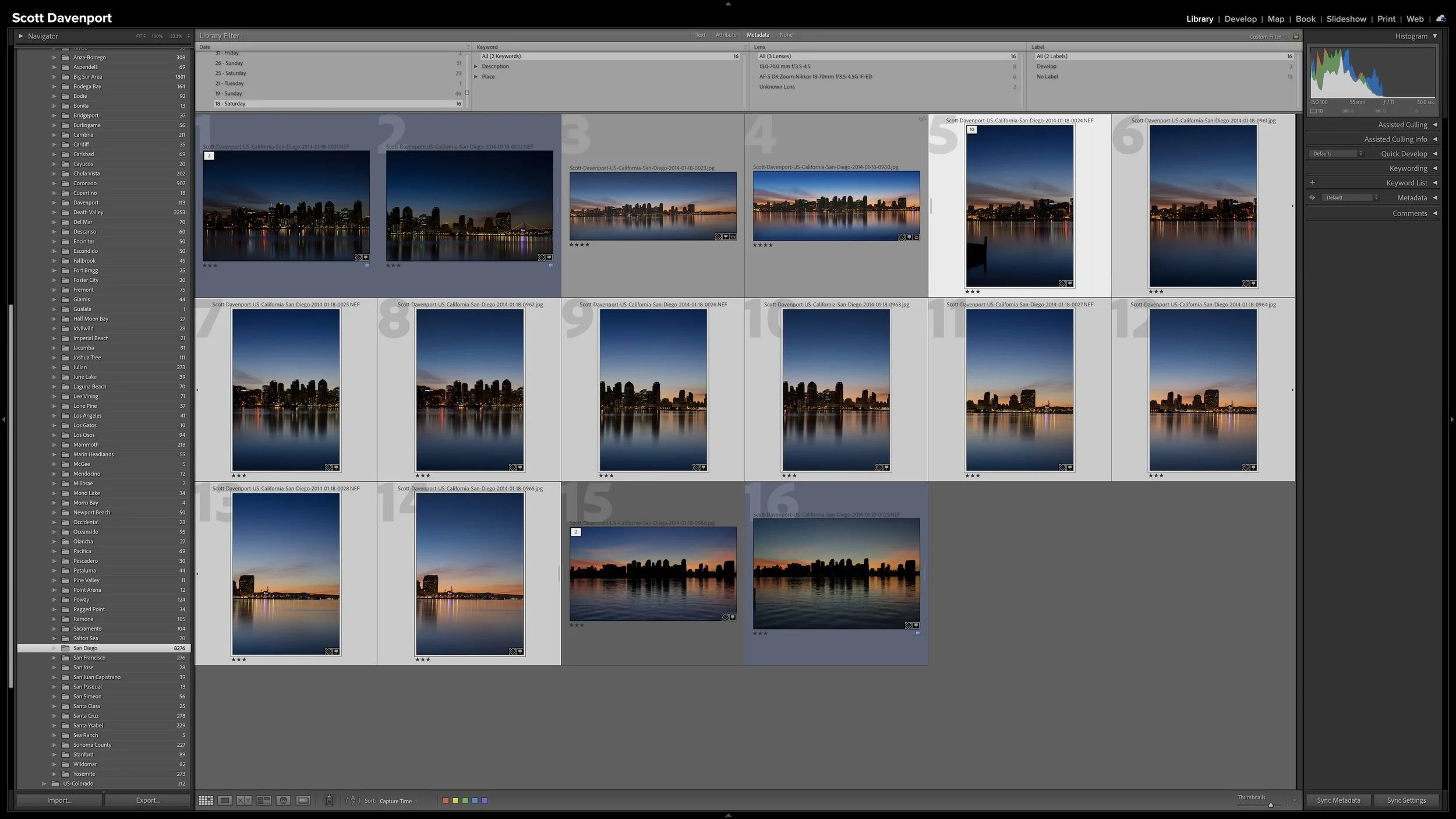
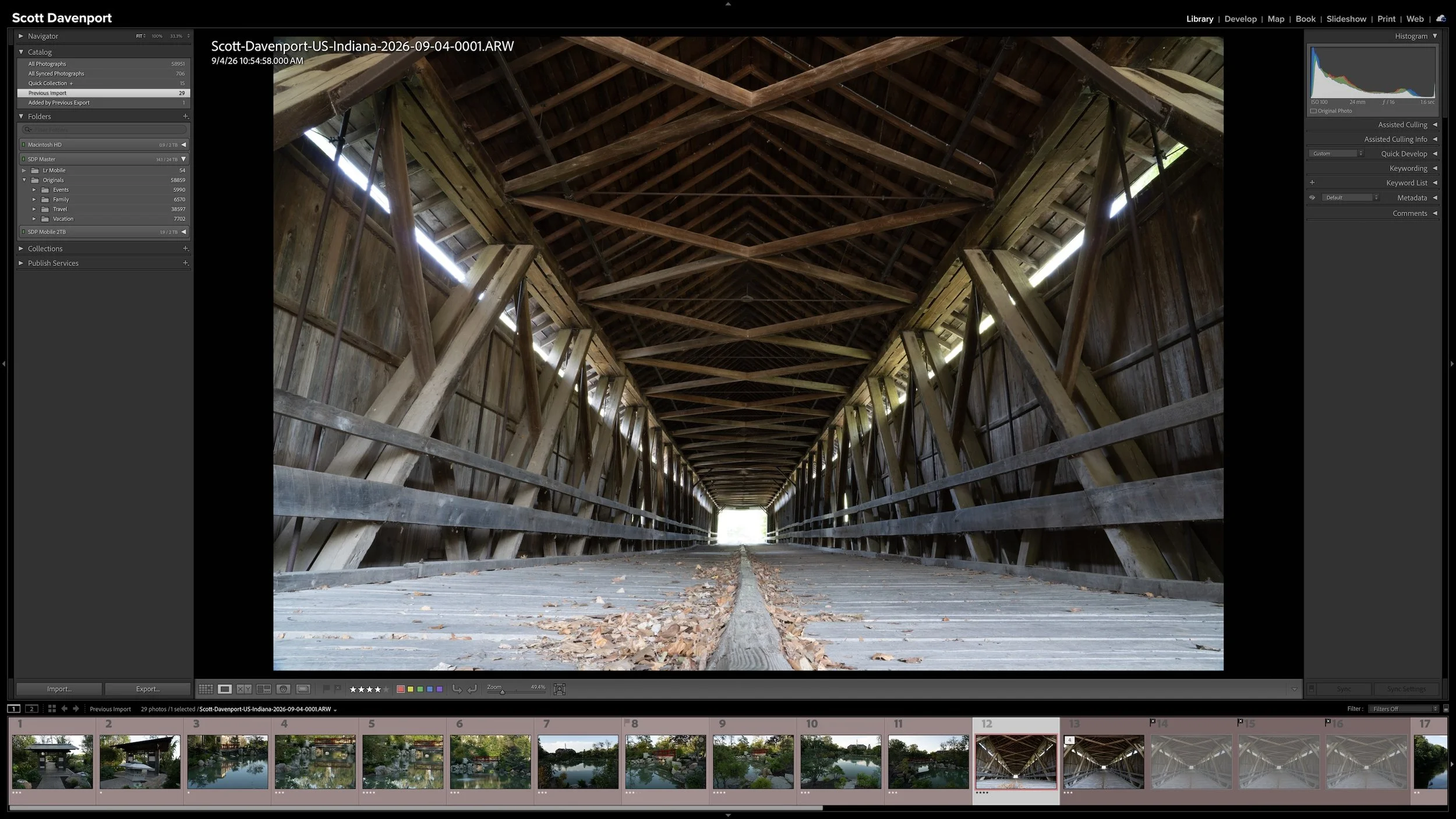
There is one detail to watch if I've created stacks during the previous workflow stage. Before moving into the Map module, I expand the stacks so I'm working with all of the photographs I intend to locate rather than only the photographs representing the collapsed stacks. I normally want the entire group available because those photographs were probably made in and around the same location.
Article 11 – Use Lightroom Stacks to Organize Similar Photos and Exposure Sets
Once I can see all of the photographs in the Filmstrip, I select the group and place it on the map. That's considerably easier than trying to enter coordinates or geographic names photograph by photograph.
When photographs were made in the same general area, I can select the group and place them on the map together.
Of my three approaches, this is the most manual. I'd rather have the camera record GPS for me. If that's not available and I'm moving around, I'd rather record a GPX track. Dragging photographs onto the map is what I use when neither of those has already done the job.
Add Location While You Still Remember It
The Map module can help you record a location later. It can't restore a detail you've forgotten.
That's why Locate happens relatively early in my workflow. When I've just returned from a shoot, I know where I was. I can look at a group of photographs and recognize that they were all made at the same beach, along the same trail, or in the same general area. Assigning the location may take very little time.
Months or years later, that can be a much harder problem. This is especially true when I photograph the same regions repeatedly. I've photographed extensively around San Diego, for example. Remembering that a photograph was made somewhere in San Diego isn't necessarily the same as remembering where in the area I was that day.
I also don't want the desire for perfect metadata to turn this into unnecessary work. If knowing the general location will satisfy the way I expect to search for and use the photograph later, that's enough. If more precision is genuinely useful, GPS from the camera or a track log can give me that precision without requiring me to manually document every photograph.
Once the location work is complete, I change the photographs to the green Keyword label. Location has captured something Lightroom can derive from where I was. Keywording is where I'll add other useful information that isn't already available in the photograph's existing metadata.
Article 13 — A Keyword Strategy That Doesn't Become a Second Job — COMING SOON
Final Thoughts
Location information is valuable because memory isn't a dependable metadata system.
My preference is to collect that information with as little manual work as possible. If the camera can record GPS coordinates, I let it. If I'm moving through several locations, a GPX track log can connect the photographs to where I was based on capture time. When neither of those is available, Lightroom Classic's Map module lets me place a group of photographs manually.
I don't need exhaustive geographic information for every photograph. I want enough information to help me find, understand, and perhaps revisit the place where the photograph was made.
The best time to add that information is while I still know exactly where I was.
This article is part of my Lightroom Photo Organization series.
Next: A Keyword Strategy That Doesn't Become a Second Job →
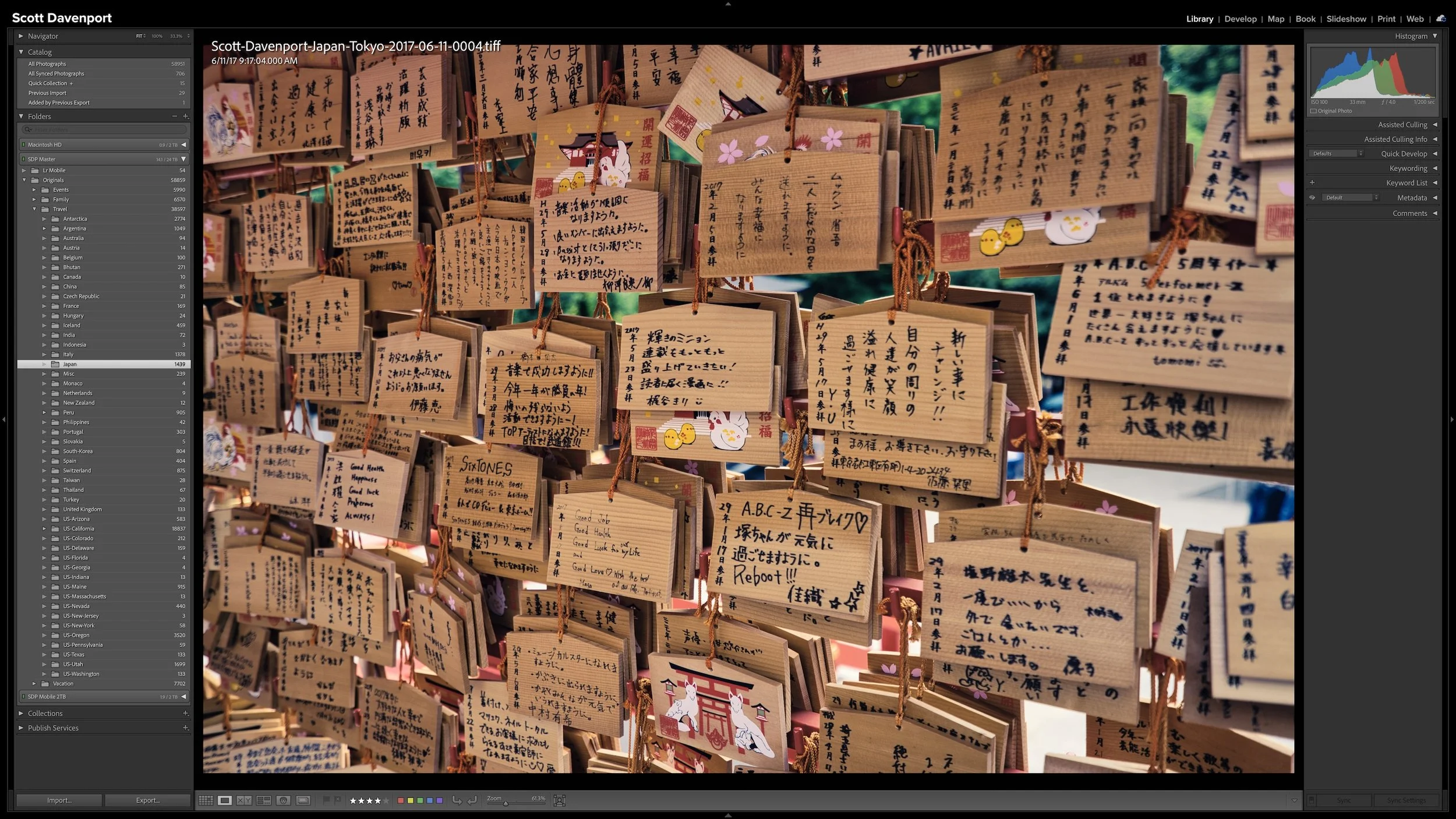

Right after a shoot, you know where you made the photographs. A few years later, that may not be nearly as obvious. Adding location information while the shoot is still fresh gives you another durable way to find photographs and understand where they were made.
You don't need to type city, state, and country into every photograph. If the camera records GPS coordinates, much of the work is already done. A GPX track log or, when necessary, Lightroom Classic's Map module provides other ways to add the location. The goal isn't exhaustive geographic metadata. It's enough useful information that you won't have to reconstruct it later.