
Once I've added location information to a group of photographs, I change their color label to green. Green tells me Keyword is the next thing I need to address.
Article 12 — Add Location Information Before You Forget Where You Were
Keywords aren't useful to every photographer. Some people can find what they need through folders, dates, ratings, collections, and other metadata. If keywords don't solve a problem in your own library, there is no reason to add them simply because Lightroom provides a place to do it.
I use keywords because they give me additional ways to find photographs later. The important word is additional. I don't want to spend time entering information Lightroom already has, and I don't want keywording to become an obligation to describe every object in every photograph.
Keywords Should Solve a Future Search Problem
A useful keyword begins with something you may reasonably want to search for later.
I might want to find photographs containing a particular subject, such as an ocean, beach, cliff, cloud, or crashing wave. I may want photographs with a dominant color. I may also want to find images that convey an idea or feeling such as calm, peaceful, or inspirational.
Those searches don't necessarily correspond to a particular folder, date, or shoot. The photographs may have been made years apart and in different locations. A keyword gives me a way to gather them according to something the photographs have in common.
Keywords can also travel beyond my Lightroom catalog when I include them in exported files. Photo-sharing services, search engines, and other applications can read embedded metadata and use it to help understand or organize an image. I remove GPS information when I export photographs, so a useful place keyword can provide geographic context without publishing the coordinates where the photograph was made.
That doesn't mean you need to add every word you can imagine. Before adding a keyword, ask whether it creates a search or discovery path you are likely to use. I apply that test to every term rather than trying to describe everything visible in the frame.
Don’t Keyword What Lightroom Already Knows
Lightroom can find a surprising amount of information without any manual keywording.
My camera records the capture date, camera model, lens, focal length, shutter speed, aperture, and ISO. Lightroom also knows the filename, star rating, color label, and other information I've added during the workflow. If I've geotagged the photograph, Lightroom can use its GPS and location metadata as well.
Before adding a keyword, consider whether Lightroom already has another way to find the photograph.
You don't need to add Sony, 24mm, f/11, or five stars as keywords. Those facts are already available as searchable metadata. Duplicating them gives you more information to enter and maintain without creating a new way to find the photograph.
Location keywords require a little more judgment. GPS coordinates and Lightroom's address lookup may already give me a city, state or province, and country. However, the place name Lightroom supplies isn't always the name I naturally associate with the photograph.
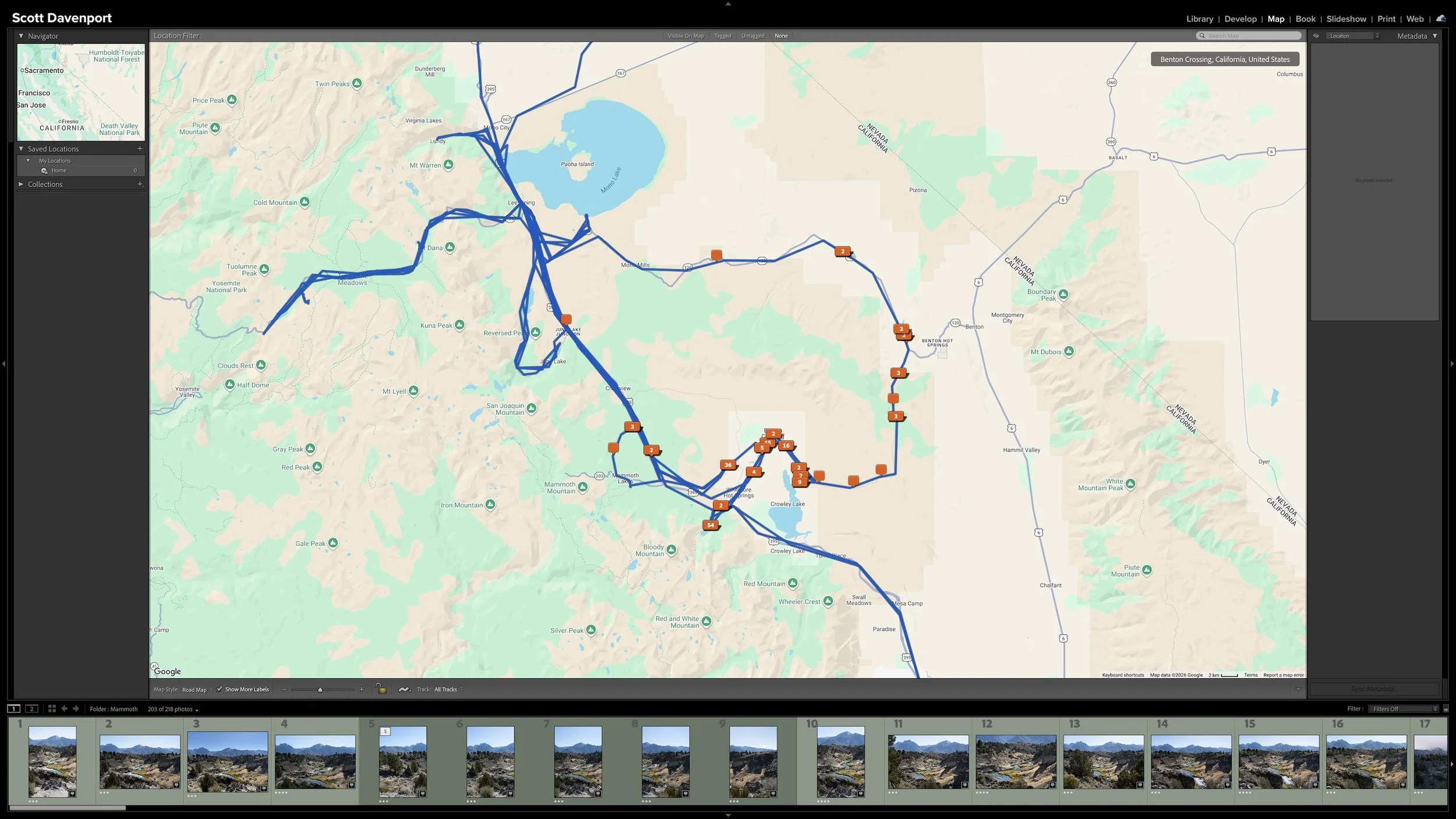
For example, photographs from a trip through Death Valley might receive a city value such as Furnace Creek or Tecopa. That information may be geographically accurate, but I am more likely to search for Death Valley. In that case, a Death Valley keyword earns its place because it matches the way I think about the location. It is also useful context when I export the photograph without its GPS data.
The question isn't whether another metadata field contains something similar. The question is whether the keyword gives me a useful way to find or understand the photograph that I would not otherwise have.
Add Information Only You Can Supply
Some of the most valuable keywords describe what the photograph means to me, not simply what the camera recorded.
Consider a coastal photograph with an ocean, beach, clouds, sky, and a cliff. Those are objective descriptions of what appears in the frame. Depending on how I expect to search my library, some of them may be useful keywords.
The photograph may also feel calm, peaceful, or inspirational. Those qualities are more subjective. The camera cannot record them in EXIF metadata, and GPS coordinates certainly won't tell me how the scene felt. If I expect to search for peaceful photographs when assembling a gallery, presentation, or other project, that keyword gives me something valuable.
Useful keywords can describe subjects, moods, and other qualities that matter to you but aren't already captured in the photograph's metadata.
Different photographers will make different choices. A portrait photographer may care about people's names. An event photographer may need the name of an occasion. A wildlife photographer may search by species or behavior. For my landscape photography, subjects, broader place names, colors, moods, and photographic ideas are often more useful.
The lesson isn't to copy my vocabulary. It is to identify the information that matters for the way you expect to find and use your own photographs.
AI may change this calculation over time. Lightroom, Adobe’s cloud-connected product, already offers AI-assisted search for photographs stored in the cloud. If Adobe brings more AI-powered search capabilities to Lightroom Classic, I may eventually need fewer keywords for recognizable subjects, colors, and other visual qualities.
That is another reason to keep keywording deliberate. I want to spend my time recording information that cannot already be recovered automatically, knowing that the boundary may continue to move.
Let the Vocabulary Grow With Your Photography
A useful keyword vocabulary can develop from real photographs and real searches.
I didn't begin with a finished list containing every keyword I might ever need. My list grew over time as I photographed new subjects and recognized new ways I wanted to search my library. I broadly organize my keywords around Description, Events, People, Place, and Subject, but those categories reflect my work rather than a system every photographer needs to adopt.
Starting small helps prevent the keyword list from becoming another project to manage. When I encounter a photograph, I add the words that are useful for that photograph. I don't try to anticipate every subject, mood, location, and visual quality I might photograph someday.
Lightroom can also reduce repeated entry through nested keywords and synonyms. Those tools let me apply several related terms without typing each one individually. They are useful mechanics, but they don't change the underlying strategy: every term should still have a reason to exist.
Article 14 — Use Nested Keywords and Synonyms to Work Faster in Lightroom — COMING SOON
A larger vocabulary is not automatically a better one. I would rather have a smaller set of keywords I understand and use consistently than an enormous list filled with slightly different terms I can no longer remember.
Spend Keywording Time Where It Matters
Keywording is where my workflow begins to become more selective.
Earlier stages apply broadly. I rate every photograph, and I often add location information to a large group at once. By the time I reach keywording, I concentrate first on the stronger photographs I expect to develop, share, or revisit.
Article 15 — Why My Lightroom Workflow Narrows as It Moves Forward — COMING SOON
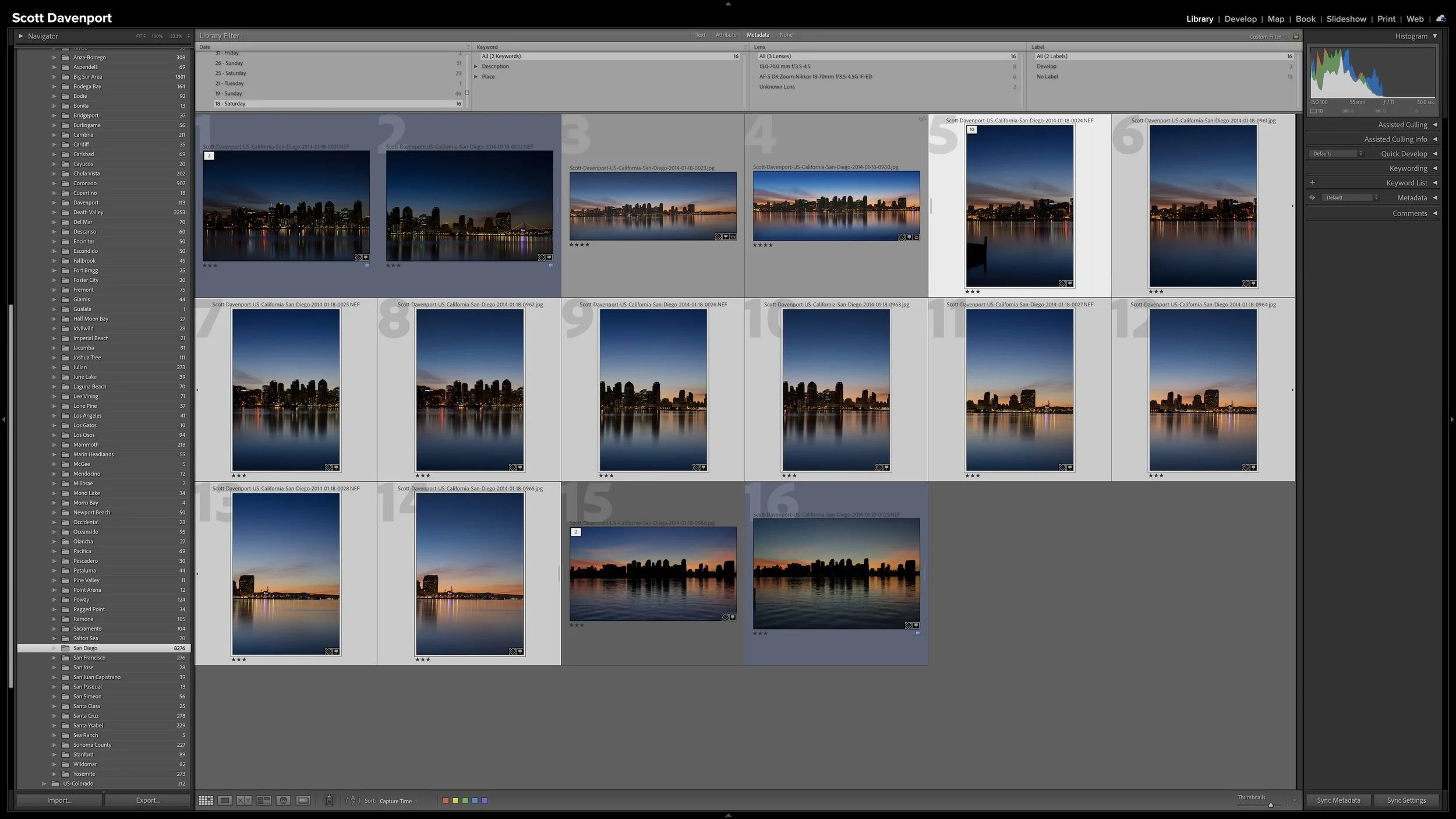
If several selected photographs show the same scene, I can apply their shared keywords together. A pair of similar coastal images may receive the same beach, ocean, sky, and mood keywords. Another group showing rocks and crashing waves may receive a different shared set.
When several photographs share the same qualities, I can keyword them together rather than repeat the same work one photograph at a time.
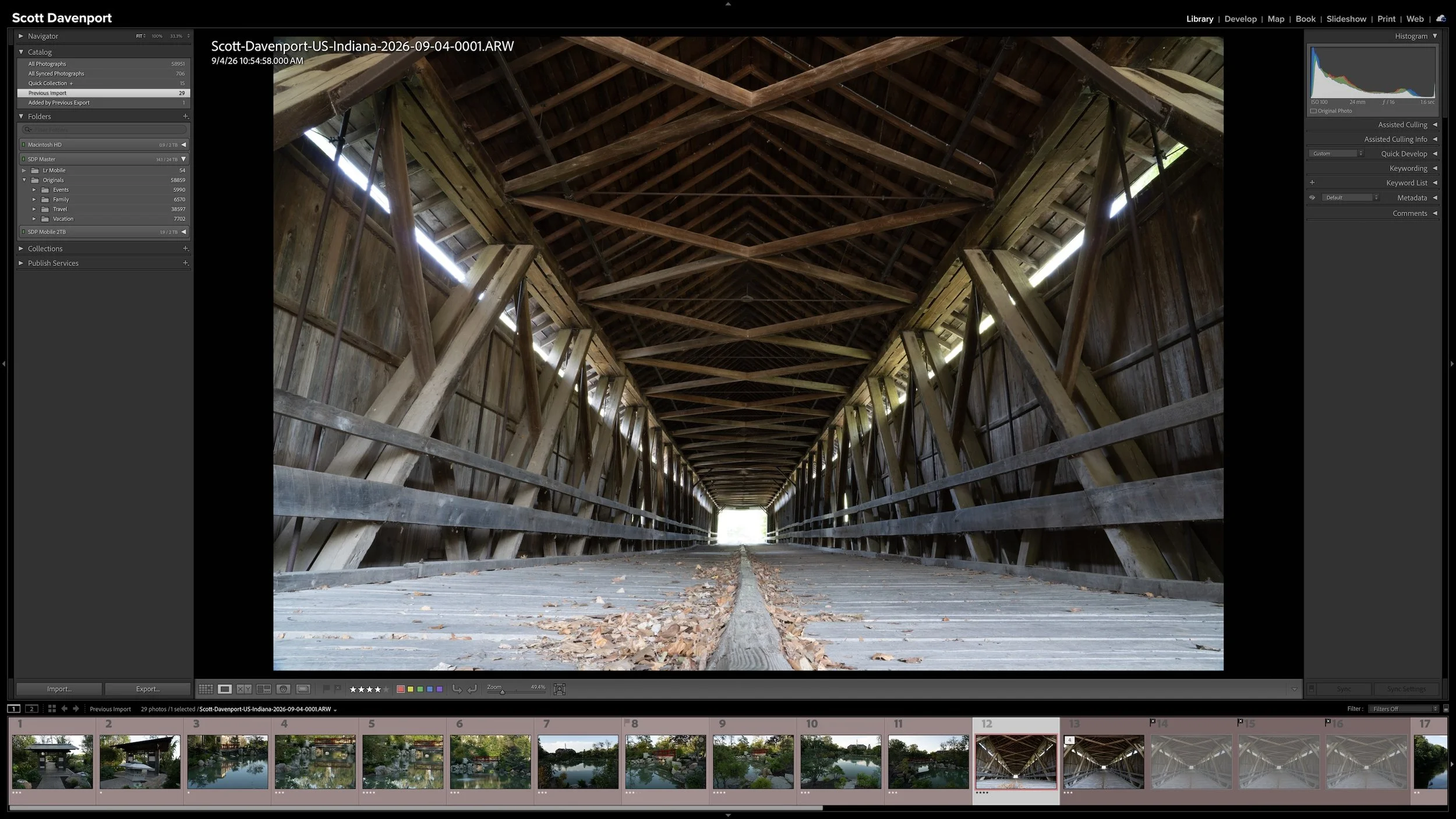
I may return to lower-rated photographs later. When I do, the keywords applied to the stronger variations give me a useful starting point that I can copy and adjust. I don't need to give every photograph the same metadata attention before moving forward.
I do try to finish keywording the photograph or selected group currently in front of me. If I enter subjects, get interrupted, and return later, I may not remember whether I also considered mood, color, or other useful qualities. Partially completed keywording is difficult to distinguish from completed keywording.
Once I am satisfied with the keywords, I change the photograph to the blue Develop label. Blue tells me that developing is the next action.
Article 07 – My Six-Step Lightroom Workflow From Import to Sharing
Final Thoughts
Keywords are useful when they give me a meaningful way to find or understand a photograph that I don't already have.
I don't need to duplicate the capture date, camera, lens, rating, filename, or other information Lightroom already knows. I concentrate on subjects, familiar place names, moods, colors, themes, and photographic ideas when those qualities support a search I may want to make later.
Keywording also doesn't have to end the moment a photograph moves to the Develop stage. Developing can reveal qualities I didn't recognize earlier. A color may become prominent enough that Blue or Golden becomes a useful keyword. The finished photograph may feel peaceful, dramatic, mysterious, or energetic in a way that wasn't apparent before I worked on it. I can add those keywords during or after developing when the visual direction becomes clearer.
My keyword vocabulary can grow with my photographs, and it may become leaner as Lightroom's search and AI capabilities improve. The goal is not to describe everything or finish with the longest possible list.
If Lightroom can already find the photograph without a keyword, I probably don't need to add it. If the keyword gives me a useful search I could not otherwise make, it has earned its keep.
This article is part of my Lightroom Photo Organization series.
Next: Use Nested Keywords and Synonyms to Work Faster in Lightroom →
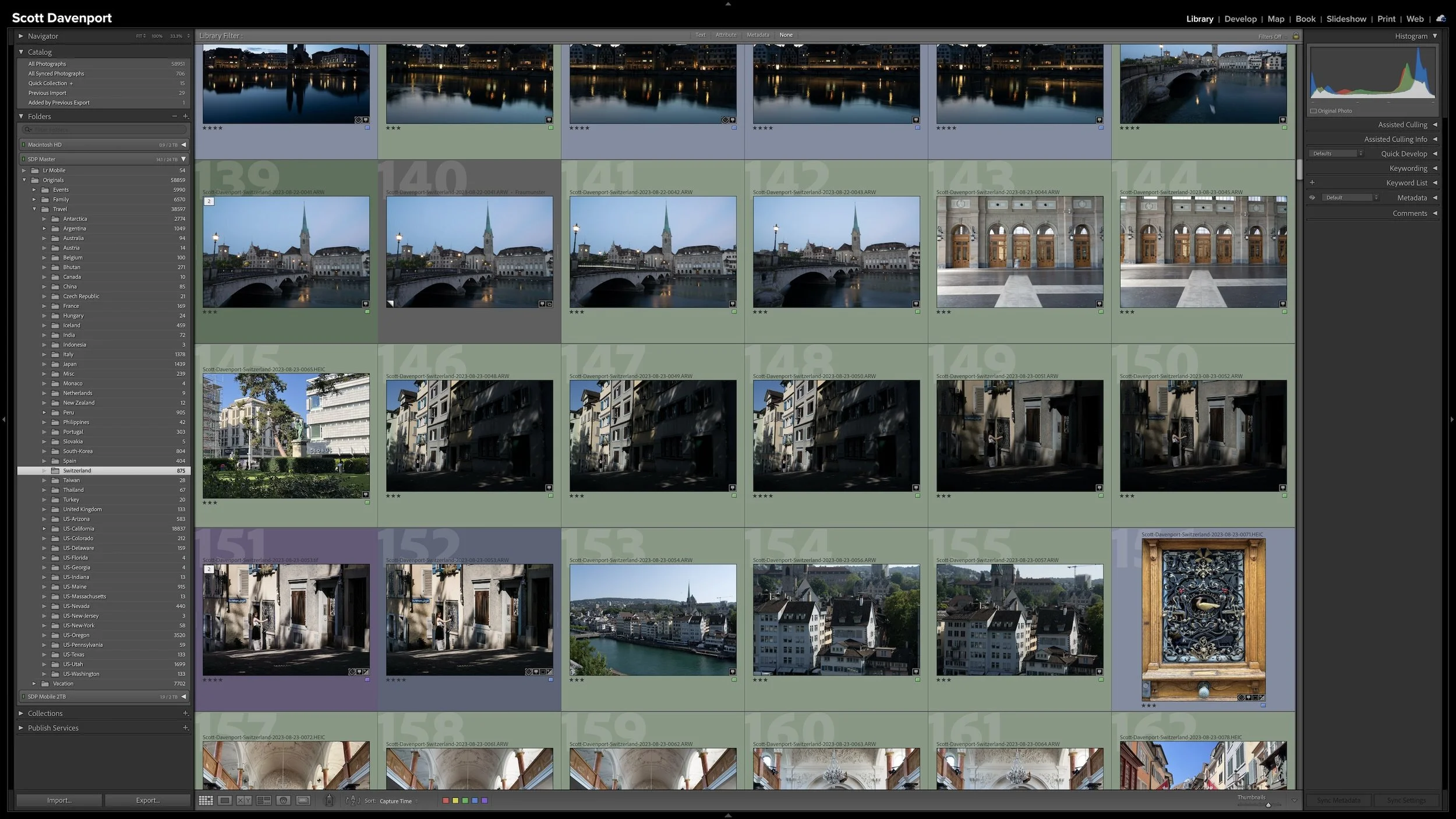

Keywording can make photographs easier to find, but it can also become an endless exercise in describing everything visible in every frame. You can keep the work manageable by asking one question: could Lightroom already find this photograph without the keyword?
The most useful keywords add information you cannot recover from capture data, ratings, location fields, or other existing metadata. That may be a subject, a familiar place name, a mood, a dominant color, or another idea you expect to search for later. The goal isn't to build the largest vocabulary possible. It is to add metadata that earns its keep.