
Choosing useful keywords is only part of the work. You also need a practical way to apply them without repeatedly typing the same related information.
A photograph tagged with a specific lighthouse might also belong under lighthouses, structures, and subjects. A photograph from Florence might need both its English and Italian place names when I export it. Entering every one of those terms by hand would make keywording slower and less consistent.
Lightroom Classic provides two ways to reduce that repeated work. Keyword hierarchies connect specific terms to the broader topics that contain them. Synonyms associate a keyword with alternate names or related vocabulary. Together, they let one deliberate keyword entry do more.
Article 13 – A Keyword Strategy That Doesn’t Become a Second Job
A Hierarchy Connects Details to Broader Topics
I organize my Keyword List under five broad top-level groups:
Description
Events
People
Place
Subject
Those categories make sense for my photography, but they aren't a universal structure every photographer should copy. An event photographer, portrait photographer, and wildlife photographer may organize their vocabularies differently. The useful principle is to place detailed terms beneath the broader topics that contain them.
For example, a subject hierarchy might include:
Subject → Structure → Lighthouse → [specific lighthouse]
An event hierarchy might include:
Events → Birthdays → [specific birthday event]
The more specific keyword describes the photograph precisely. The terms above it provide broader ways to find the same photograph. If I search for one particular lighthouse, I can find photographs of that structure. If I search more broadly for Lighthouse, I get all of my lighthouse photographs from several locations and shoots.
The same idea applies to events. I might search for one person’s birthday celebration, or I might search Birthdays to gather every birthday event organized beneath that keyword. A hierarchy lets detailed topics remain connected to their larger context.
A keyword hierarchy keeps specific terms connected to the broader categories that give them context.
One Specific Keyword Can Support Several Searches
Geography provides the most natural example because places already have an understood relationship from broad to specific.
My Place hierarchy can move through levels such as:
Place → North America → United States → California → Aspendell
When you apply the most specific keyword in a hierarchy, Lightroom Classic can associate the photograph with its containing keywords as well. In my hierarchy, applying Apsendell connects the photograph to California, United States, North America, and Place without requiring me to enter each term separately.
That distinction matters. I deliberately applied Apsendell. The other terms come from the structure I created around it.
The hierarchy then supports searches at different scales. You can search for the specific keyword or use a containing keyword to gather the more detailed topics beneath it. In my library, that means I can search for Aspendell photographs, all photographs from California, or everything organized beneath North America. The same principle lets me search Nature or Birthdays at a broader level.
An Aspendell keyword may sound redundant when a photograph already has GPS-derived city information. As I explained in the previous keyword article, however, the location Lightroom supplies isn't always the place name I naturally use. A useful location keyword can also preserve recognizable geographic context after I remove GPS data from an exported photograph.
The hierarchy makes that location keyword more useful without requiring me to type every geographic level.
Applying a specific keyword such as Aspendell can also connect the photograph to broader geographic levels without entering each one separately.
Not Every Containing Keyword Needs to Be Exported
A term that helps organize a Keyword List may not provide useful information outside Lightroom Classic.
Place is a good example. It gives me a clear top-level home for geographic keywords, but someone finding one of my exported photographs gains little from the word “Place.” North America, United States, California, and Aspendell may be meaningful. Place is primarily structural.
Lightroom Classic provides three relevant options in the Edit Keyword Tag dialog:
Include On Export determines whether that keyword is included when a photograph is exported.
Export Containing Keywords allows higher-level keywords that contain the applied keyword to be included.
Export Synonyms allows the keyword’s synonyms to be included.
I can deselect Include On Export for Place so it remains useful inside my catalog without traveling with exported photographs. That decision does not mean every other parent keyword must be exported. I decide which terms provide useful context and which ones exist only to keep my vocabulary organized.
The goal isn't to export the entire structure. It is to preserve the parts of that structure that will help someone or something understand and find the photograph.
Keywords that help organize the catalog do not all need to travel with an exported photograph.
Synonyms Help Exported Photographs Speak More Than One Language
My primary use for synonyms is helping other people and search engines find exported photographs.
Ocean is one example. I have associated it with synonyms such as sea, water, and mar, the Spanish word for ocean. I apply Ocean to the photograph; I don't type all four terms each time. With Export Synonyms enabled, Lightroom Classic can include those additional terms when I export the photograph.
Synonyms are also useful when a place or landmark has a familiar name and a different formal or local name. I know the museum housing Michelangelo’s statue of David as the Accademia Gallery. Its formal Italian name is Galleria dell’Accademia di Firenze. I can use one as the keyword and the other as a synonym so both names are available in the exported metadata.
The location itself provides another example. I can organize Florence beneath Italy in my Place hierarchy, add Firenze as a synonym for Florence, and add Italia as a synonym for Italy. The hierarchy lets me search my library broadly for Italy or specifically for Florence. The synonyms give English-speaking and Italian-speaking people—and the search engines they use—more ways to find the exported photograph.
Synonyms are available when searching within Lightroom Classic as well, but that isn't their greatest value in my workflow. Hierarchies do most of the organizational work inside my catalog. I use synonyms primarily to expand the vocabulary that travels with finished photographs.
In the Keywording panel, the Will Export view lets me inspect the terms Lightroom Classic intends to include. That view helps me distinguish the keyword I deliberately applied from the containing keywords and synonyms supplied by my structure.
Synonyms let one keyword carry alternate names or languages into exported metadata without entering every variation separately.
Let the Structure Grow With Your Photographs
My hierarchy and synonym list developed as I encountered real photographs and real search needs.
I didn't begin by constructing every possible continent, subject, event, landmark, and alternate name. When I photograph a new subject or recognize a useful relationship, I add it to the appropriate part of the hierarchy. When a local, formal, or alternate name would make an exported photograph easier to find, I add a synonym.
That setup requires some time and maintenance. A hierarchy can also become unwieldy if I create branches for subjects I may never photograph or searches I am unlikely to make. I would rather build the structure in response to my photography than turn vocabulary design into a separate metadata project.
Lightroom Classic can reduce the application work further when several photographs share the same content. In Grid view, I can select a group of similar photographs and apply their shared keywords together. If several frames show the same lighthouse from the same location, I don't need to keyword each photograph individually.
I still make sure every selected photograph genuinely deserves the terms I am applying. Batch keywording saves time only when the photographs have the relevant subjects, places, or ideas in common.
Final Thoughts
A useful hierarchy connects specific details to broader topics. I can apply a keyword for Aspendell, a particular lighthouse, or one birthday event and still search at the broader level of California, lighthouses, structures, birthdays, or another containing category.
Synonyms solve a related but different problem. They let one deliberate keyword carry alternate names, related vocabulary, or multiple languages. Although those synonyms can help with searches inside Lightroom Classic, I use them primarily so other people and search engines have more ways to find my exported photographs.
Both tools require some setup, but neither requires a finished vocabulary before I begin. The structure grows as my photography and search needs grow.
The purpose isn't to produce the greatest possible number of keywords. A hierarchy and its synonyms earn their keep when they make worthwhile keywords faster to apply, more consistent inside Lightroom, and more useful after a photograph leaves the catalog.
This article is part of my Lightroom Photo Organization series.
Next: Why My Lightroom Photo Organization Narrows as It Moves Forward →
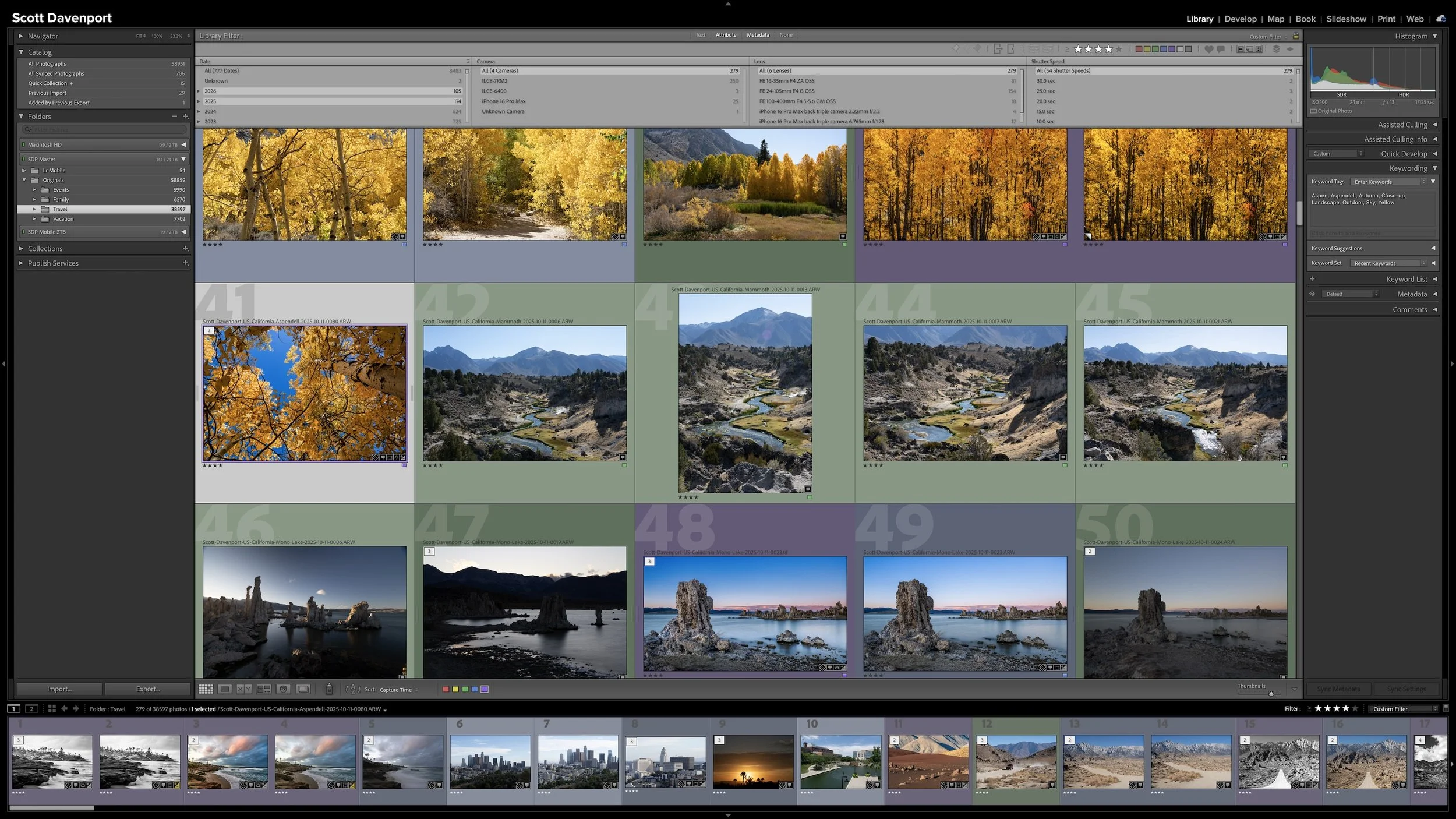
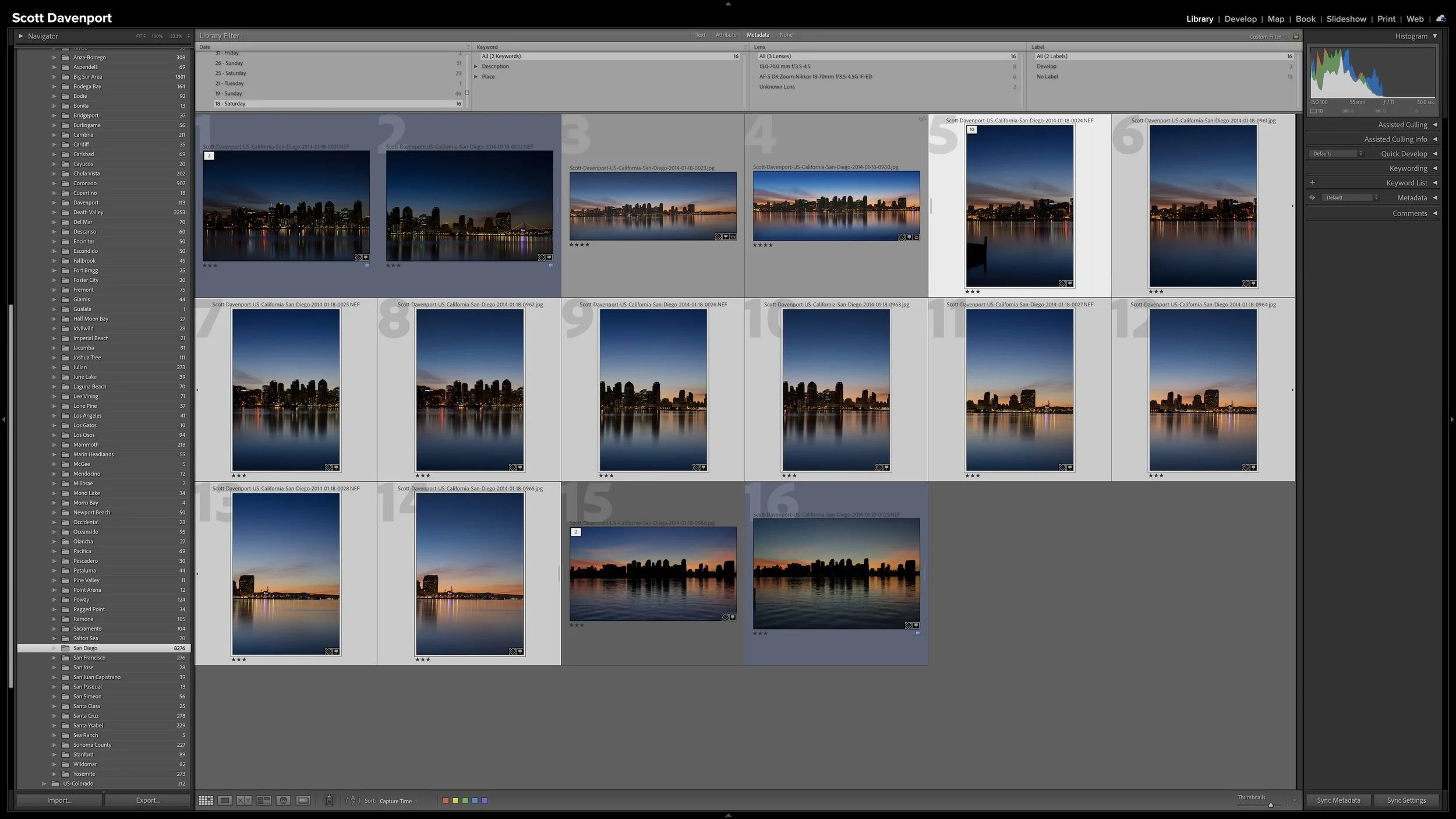



A useful keyword hierarchy connects specific details to broader ideas. When you apply a keyword for a specific location, a particular lighthouse, or a birthday celebration, Lightroom Classic can also associate the photograph with the broader places, subjects, or events that contain it.
Synonyms extend that efficiency by connecting one keyword to alternate names, related terms, or other languages. A hierarchy can give you broader and narrower ways to search your own library. I use synonyms primarily to help other people and search engines find exported photographs without requiring me to enter every variation separately.