
If you are trying ON1 Photo RAW, the ON1 plug-ins like ON1 Effects or ON1 HDR, or upgrading your ON1 software to a newer version, please consider using my affiliate link. There is no extra cost to you and it helps support my work and this website.
When a RAW photo opens looking flat, there’s usually some work to do before you can begin shaping the image the way you want. You adjust the contrast, bring some richness into the color, and get the photograph to a reasonable starting point.
That’s why I appreciate the new RAW processing engine in ON1 Photo RAW 2027. In the photos I’ve compared, I’m getting a stronger initial rendering without changing any sliders. I’d describe it as a refined but welcome improvement. It also makes a difference to how useful I find Brilliance AI.
A Better Foundation for Your Editing
The initial RAW rendering is the foundation for everything you do afterward. If that starting image has more natural contrast and richer color, there’s less work for me to do before moving on with the edit.
For my comparisons, I opened untouched photos in Photo RAW 2026 and 2027. I used a folder neither application had previously viewed, then opened each photo in Develop. The standard ON1 camera profile was selected, and I left the adjustment sliders alone.
Across those examples, I preferred the 2027 rendering. The contrast had more presence, and the color looked a little richer. These weren’t dramatic transformations, and I don’t need them to be. I want the RAW engine to give me a useful starting point for the decisions that follow.
Look at Shadows and Highlights, Too
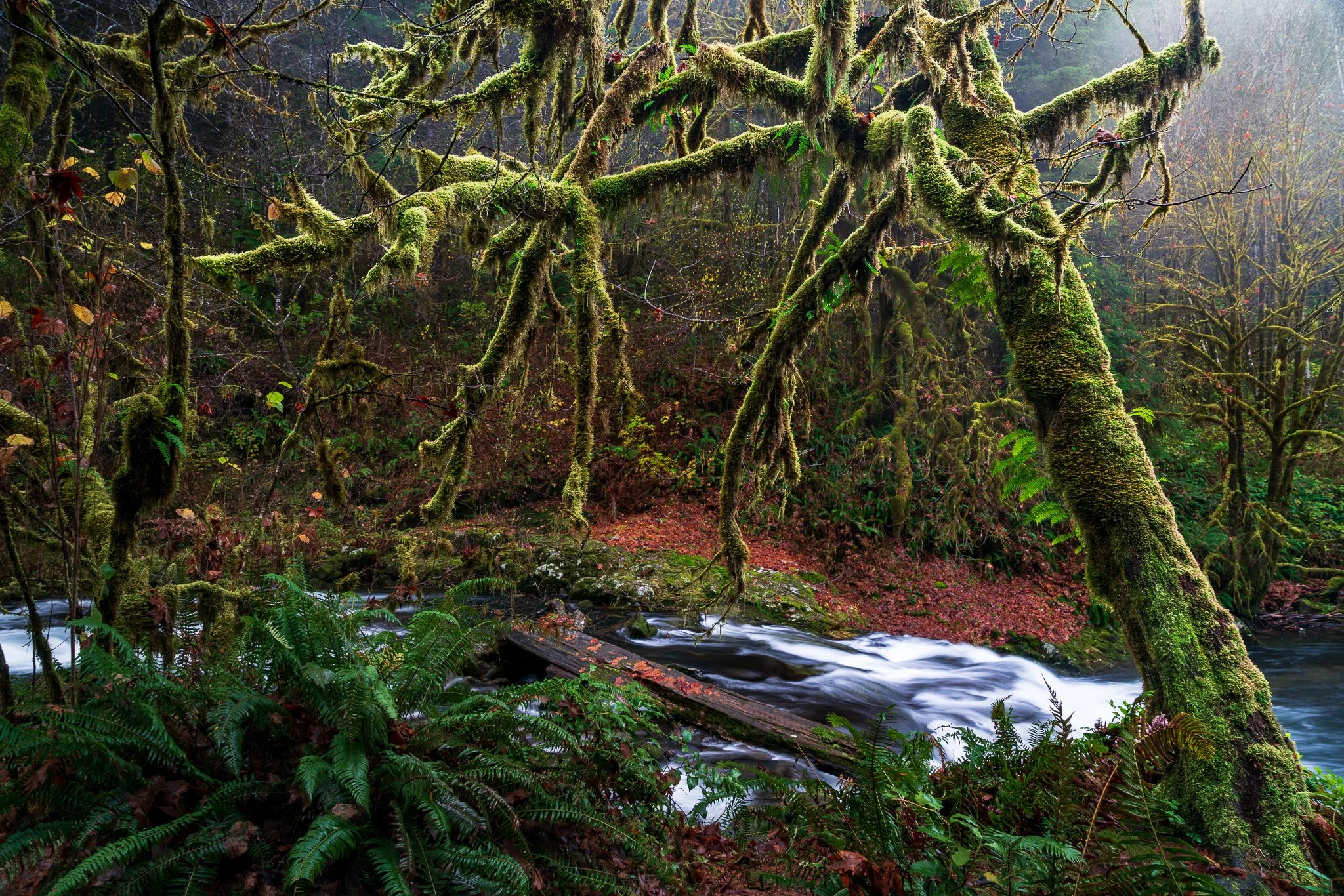
In a shadowy forest scene, the older rendering had a slightly milky appearance. The 2027 version gave the shadows more depth, while the brightly lit trees near the center looked better as well. The photograph felt more natural to me before I began editing.
A high-contrast architectural interior provided another useful comparison. With strong sunlight coming through a window, the new rendering showed more detail around that bright area. There was still blown-out brightness in the window itself, but the surrounding highlight detail gave me a better place to begin.
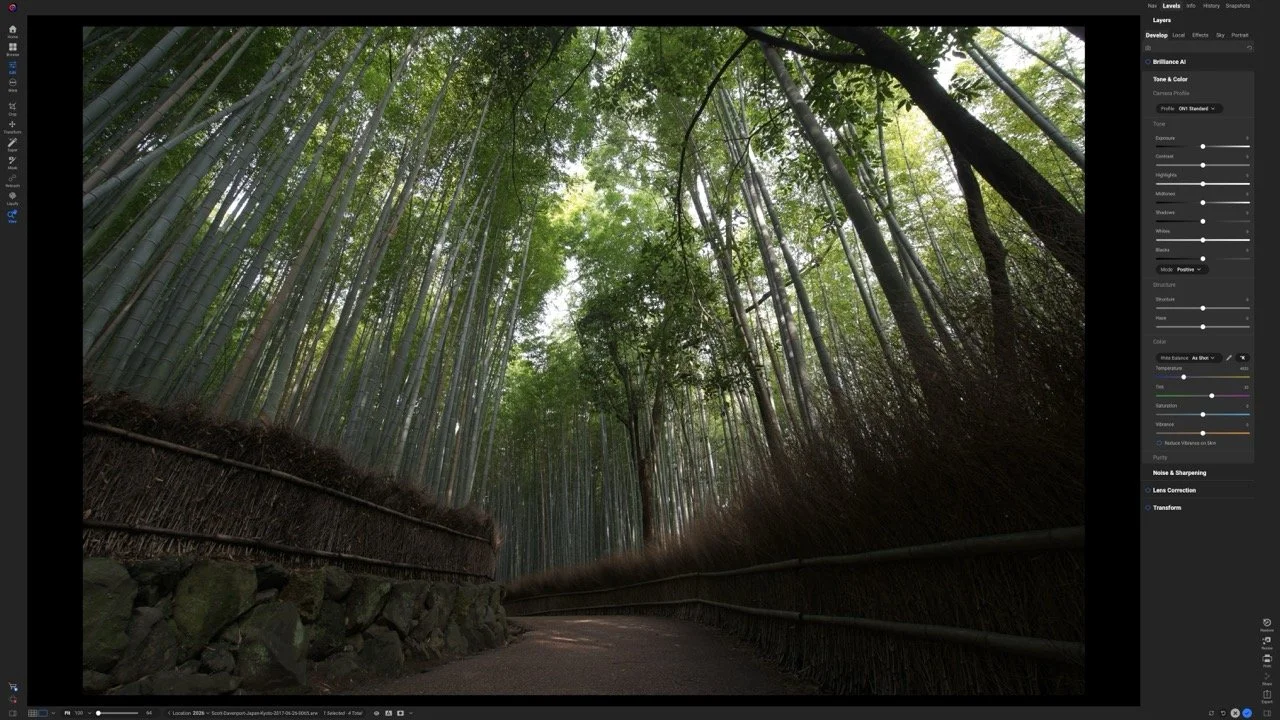
Raw rendering in ON1 Photo RAW 2026
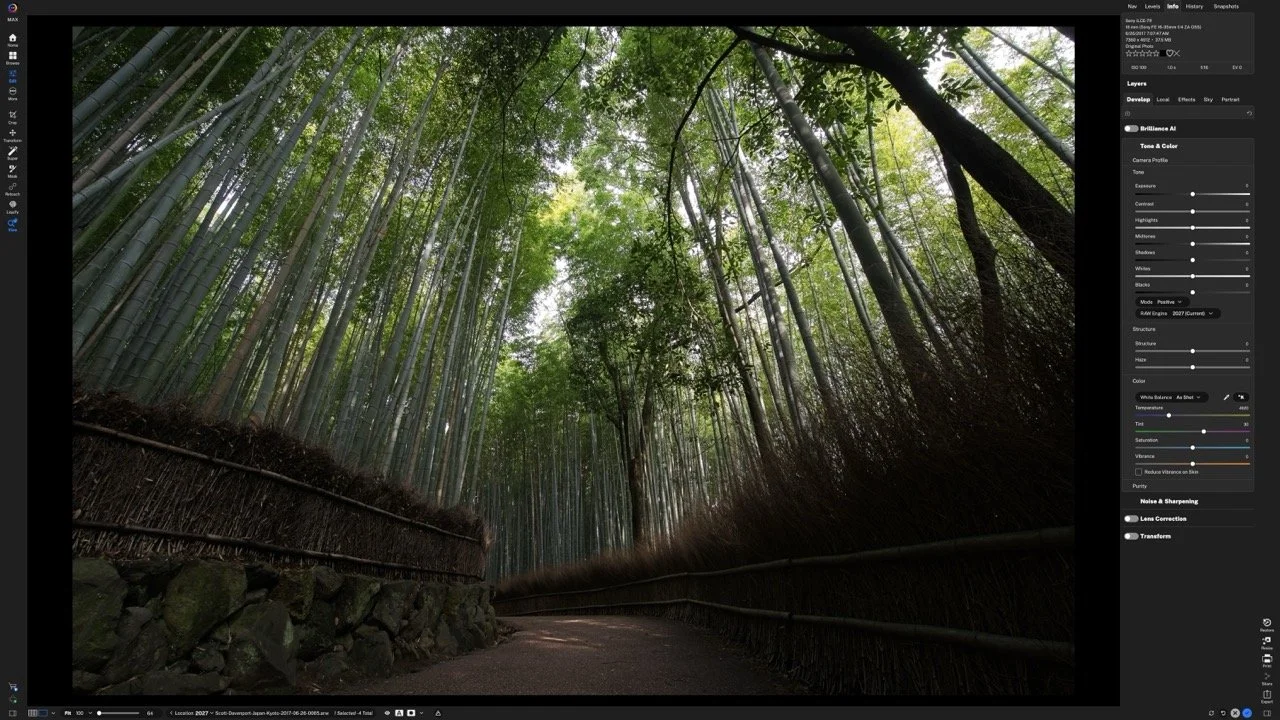
Raw rendering in ON1 Photo RAW 2027
With no slider changes, the 2027 rendering gives this forest scene richer shadows and a stronger starting point.
These observations come primarily from my perspective as a landscape photographer. If you photograph weddings, sports, street scenes, or other subjects, compare results on your own work. The useful question is whether the new rendering gives you a starting point you prefer.
Compare the Engines on Your Own Photos
You can make that comparison directly inside Photo RAW 2027. In Develop, open Tone & Color and look for the RAW Engine setting. Legacy uses the older processing engine; 2027 uses the new one.
Start with a photo you haven’t edited. Switch between the two engines and pay attention to the relationships between the shadows, midtones, and highlights. Look at the color, too. In my examples, the improvement came from several modest changes working together.
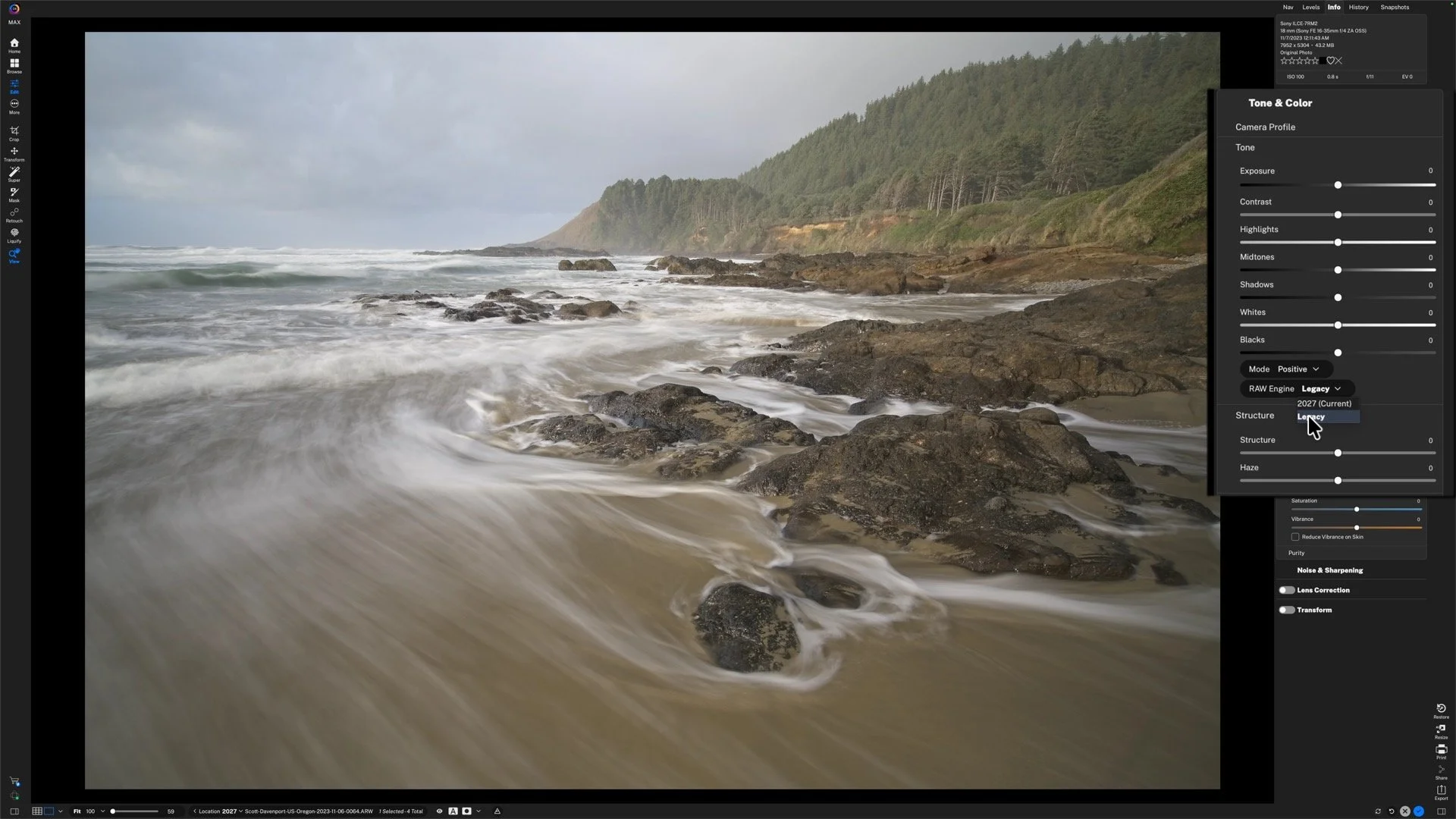
The RAW Engine setting lets you compare Legacy and 2027 processing within the same application.
Some of the files I tested were captured eight or nine years ago. You can explore the benefit with photos already in your library, including captures from older cameras.
Why I’m Giving Brilliance AI Another Look
The stronger starting point also affects the results I’m getting from Brilliance AI. Previously, I sometimes preferred AI Auto because it gave me contrast that I felt was missing from the Brilliance AI result.
With the 2027 RAW engine, that contrast is already present in the underlying rendering. In my examples, Brilliance AI builds on it more successfully, including when using its local adjustments. I’m getting a result that feels closer to where I want to begin my own work.
The architectural interior was a good example. With the new engine and Brilliance AI, I got stronger contrast in the lower part of the scene while retaining useful detail near the bright window. There was still editing to do, but I liked the balance more.
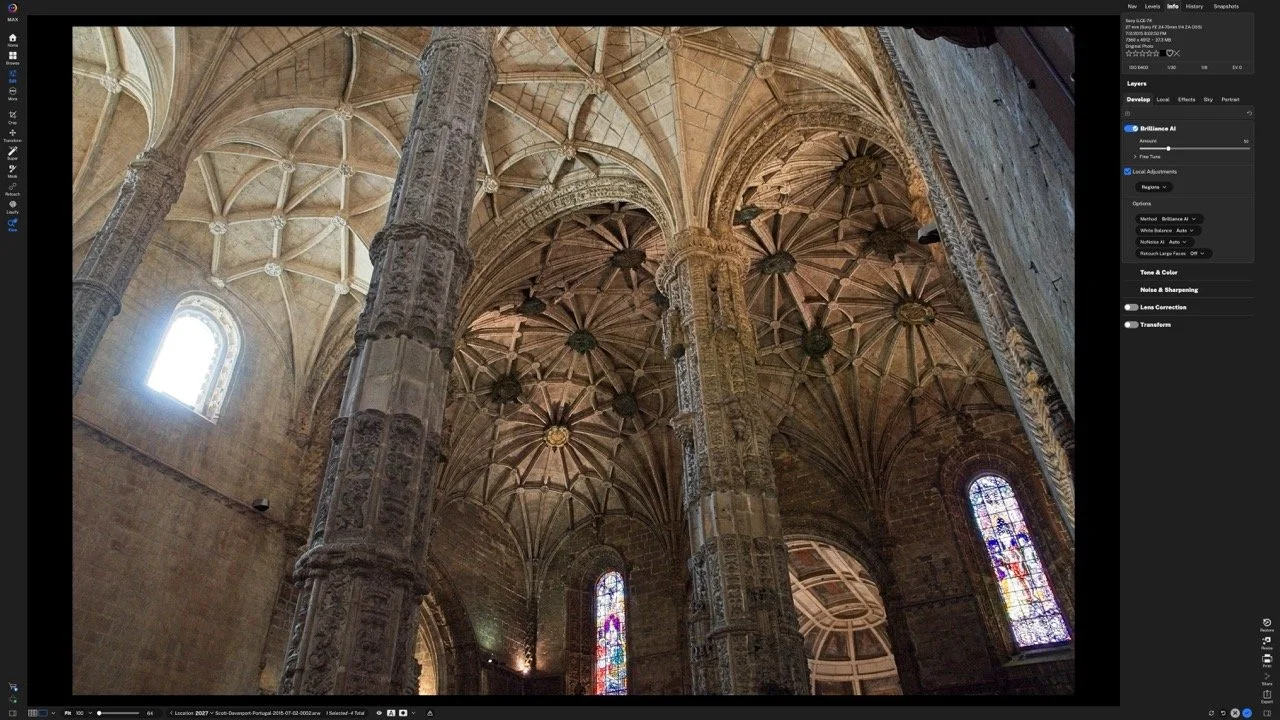
In this interior, the new RAW engine and Brilliance AI produce a stronger balance of contrast and detail near the bright window.
If you’ve shied away from Brilliance AI, try it again with the new engine. For me, the combination is worth considering more often as a starting point.
Protect the Work You’ve Already Done
For a photo I haven’t edited before, I’m happy to use the new engine. Photo RAW 2027 uses it by default for previously unedited photos, and I prefer the results I’m seeing.
An existing edit needs more consideration. All the adjustments you’ve already made were based on the earlier RAW rendering. Changing that foundation changes what those adjustments are working with, so the finished photograph can shift as well.
If you want to experiment with the new engine on an edited photo, make a version first. That gives you room to explore while preserving the work you’ve already done. I wouldn’t go through a library of finished photographs switching engines simply because a newer option is available.
Final Thoughts
The new RAW engine in Photo RAW 2027 gives me a starting image I prefer, with modest improvements that carry through into the editing process. It has also made Brilliance AI more useful to me.
Try the comparison on a few unedited photos of your own. Look for a foundation that supports the photograph you want to make, then continue with the creative decisions that give it your direction.

Does a new RAW processing engine make a practical difference to your editing? My comparisons in ON1 Photo RAW 2027 show a welcome improvement in the starting image, with richer color and contrast before I move a slider.
That stronger foundation also has me taking another look at Brilliance AI. Here’s how to compare the RAW engines on your own photos, what I’m seeing in my results, and why existing edits deserve a little care.