
You remember making the photograph. You may even remember the subject, the general location, or the lens you used. What you don't remember is the filename, the folder where the photograph resides, or the exact day you captured it.
That is where the organizational work performed earlier in my Lightroom Classic workflow begins to earn its value. Ratings, location information, keywords, folder organization, and metadata recorded by the camera give me several ways to approach a search. I don't need to remember one perfect detail as long as I have enough useful clues to narrow the possibilities.
Article 7 — My Six-Step Lightroom Workflow From Import to Sharing
Begin With the Broadest Useful Source
The Library Filter searches within the source or sources currently selected in the Library module. Before choosing any filter criteria, decide how much of the catalog Lightroom should consider.
If you have no idea where a photograph resides, All Photographs in the Catalog panel gives the Library Filter the broadest source. If you remember that it belongs to one area of your library, you might begin with a broad folder. A Collection or Collection Set can also provide a useful starting point when you already know the photograph belongs to a particular body of work.
That initial selection establishes the search boundary. Lightroom then applies the Library Filter to the photographs inside it.
Starting with a useful source is the first stage of narrowing. You don't need to search the entire catalog when you already remember that a photograph came from one general area of your library. At the same time, beginning too narrowly can hide the photograph you are trying to find. When I'm uncertain, I would rather start broadly and let the filter do more of the work.
The search result is only a view of the selected source. Filtering doesn't move, delete, or otherwise change the photographs. One photograph can appear in many different searches because its metadata provides several paths back to it.
Text, Attribute, and Metadata Use Different Clues
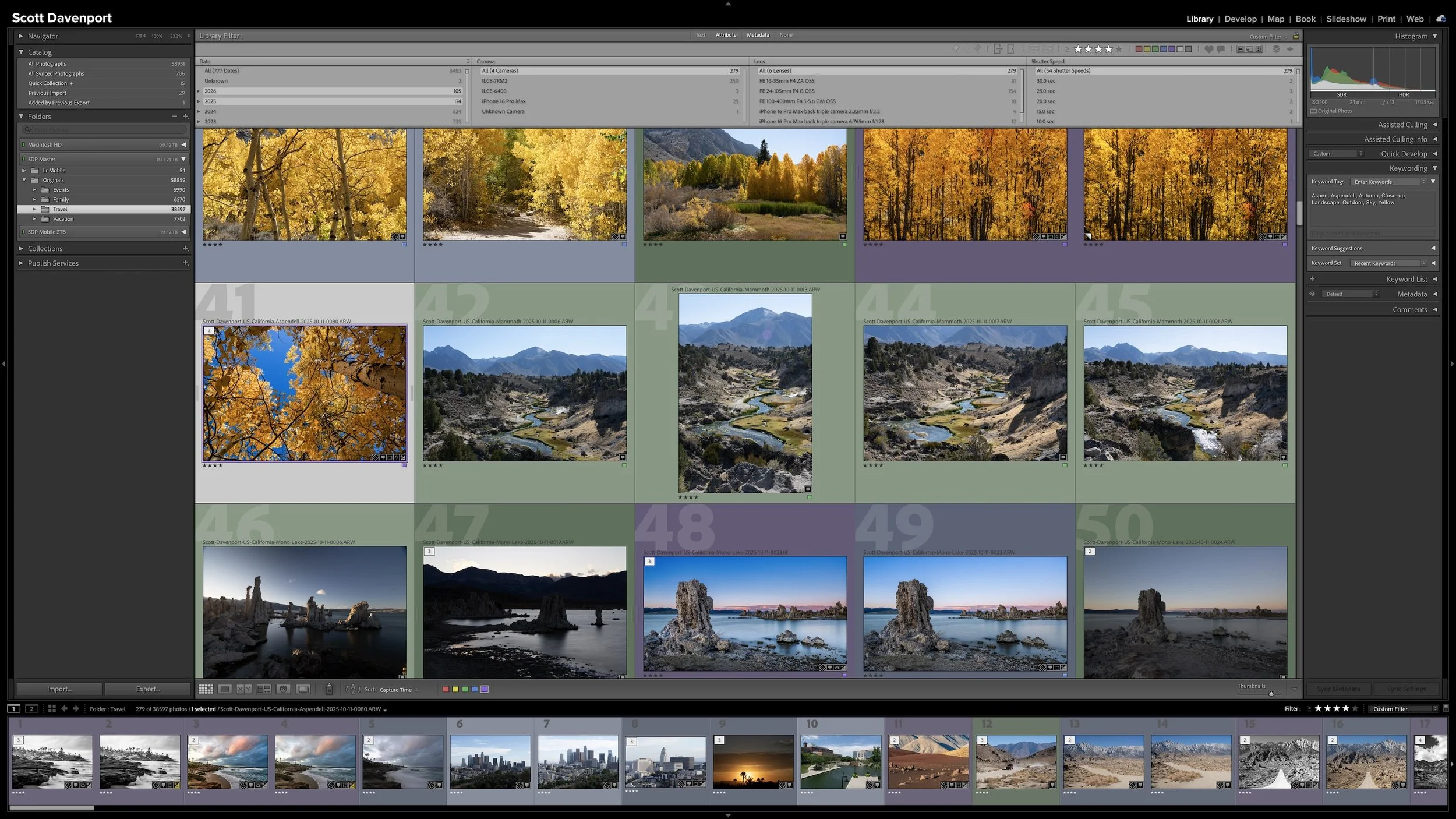
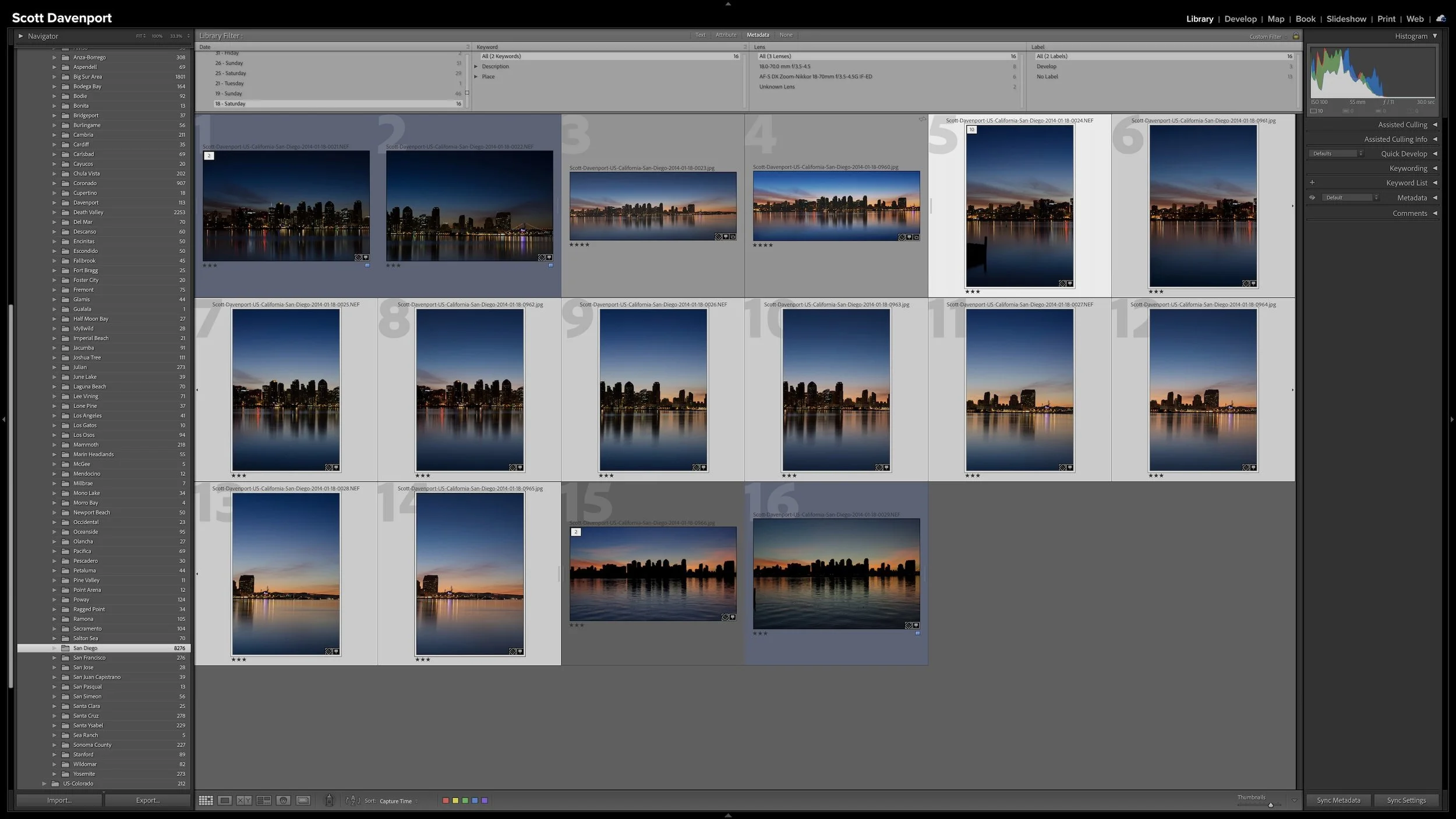
The Library Filter bar appears at the top of Grid view in the Library module. The backslash key (\) shows or hides it. Its three filtering modes—Text, Attribute, and Metadata—use different kinds of information already present in the catalog.
Text is useful when you know a word or part of a word associated with the photograph. You can choose a field such as Filename or Keywords, or search across Any Searchable Field. This is often the fastest place to begin when you remember a subject or place name but little else.
Attribute filters photographs by characteristics such as flags, ratings, color labels, edit status, and copies. In my workflow, ratings are especially useful because they let me concentrate a search on stronger photographs without needing to remember anything about a filename or camera setting.
Metadata organizes searchable information into columns. Those columns can represent capture date, camera, lens, focal length, file type, location information, keywords, and many other fields. I configure my Metadata Filter with four columns. Most searches don't require all four; I rarely need to use more than three columns to reach a useful result.
One, two, or all three filtering modes can work together. You might begin with a keyword in Text, add a rating in Attribute, and then use a Metadata column to narrow the result by lens. Each criterion reduces the remaining set of photographs.
Text, Attribute, and Metadata give you different ways to search the same library using whatever clues you remember.
Narrow the Search One Clue at a Time
A useful search does not need to begin as a perfectly formulated query. Treat the Library Filter as a funnel: start with something you know, look at what Lightroom returns, and add another criterion only when the result is still too broad. That is how I approach my own searches.
Suppose I want to find a strong photograph I made in Italy with a particular lens. I might begin with All Photographs and choose Italy in a Metadata location or keyword column. From there, I can use Attribute to show photographs rated four stars or higher. If the result still contains too many photographs, I can add the lens in another Metadata column.
I could approach a lighthouse search in a similar way. A keyword search for Lighthouse may gather photographs from several locations, folders, and shoots. I can then limit those photographs to four or five stars, select a particular lens, or narrow the results by capture date.
Multiple choices within one Metadata column broaden that particular part of the search. For example, I can select several focal lengths or several years. The criteria in the next column then narrow that combined group. This lets me ask questions such as, “Show me photographs made between these focal lengths, with either of these lenses, from this location.”
The exact combination changes with your question. The working principle remains the same: begin with the broadest clue that is likely to help, then add one useful distinction at a time.
Article 10 – A Lightroom Star-Rating System You Can Use Consistently
Start with a useful clue, then add criteria one at a time until the remaining photographs become manageable.
Metadata Creates Several Paths Back to a Photograph
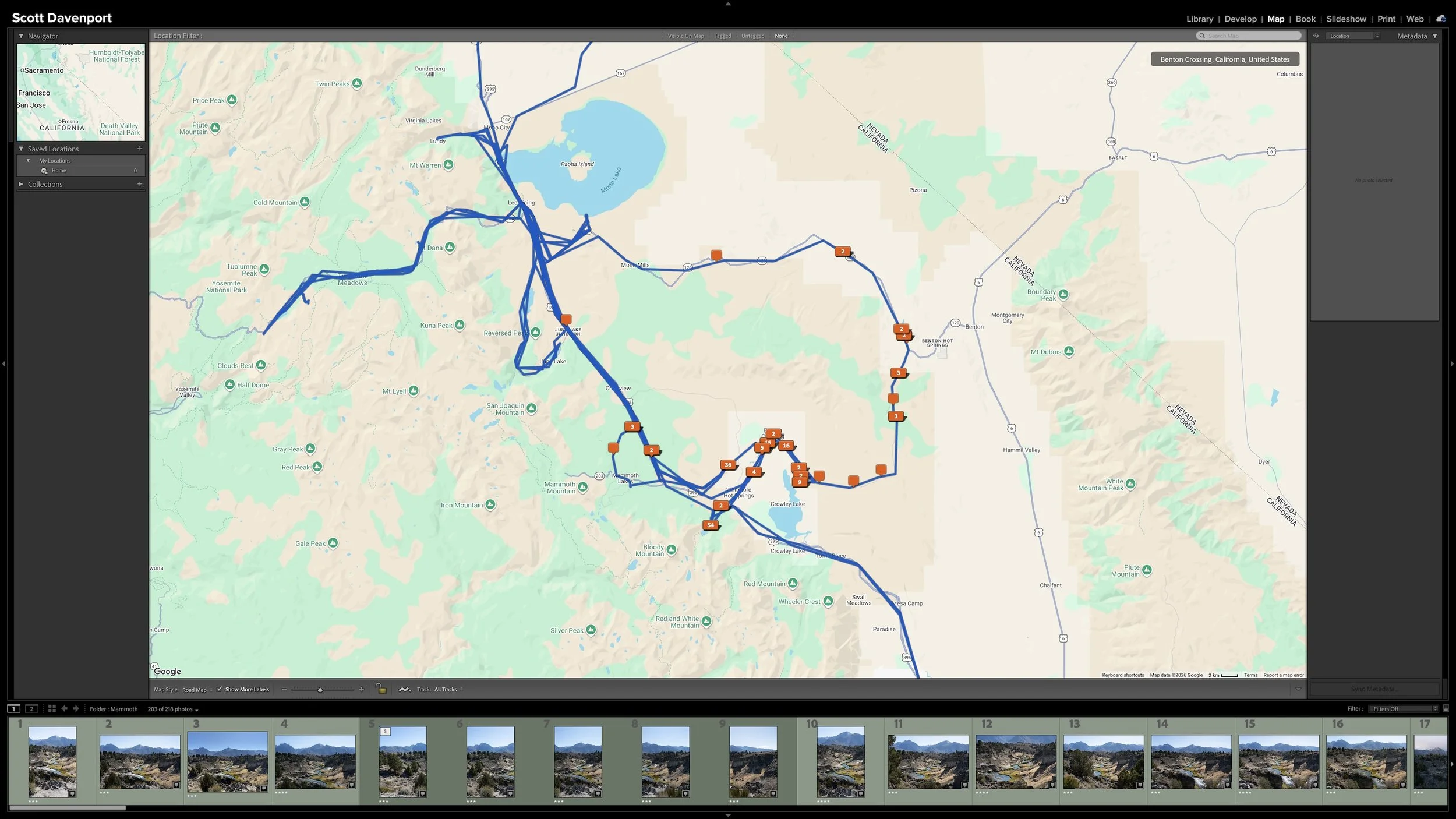
Some searchable information arrives automatically. The camera records details such as capture date, camera model, lens, focal length, shutter speed, aperture, and ISO. Lightroom also knows the file type and whether a photograph has been edited. When GPS coordinates are available, Lightroom Classic can use them to suggest City, State or Province, and Country information.
Other information reflects decisions I made while managing the photographs. I assign ratings, add useful keywords, place photographs in Collections, and sometimes add recognizable location terms that better match the way I think about a place.
Article 12 — Add Location Information Before You Forget Where You Were
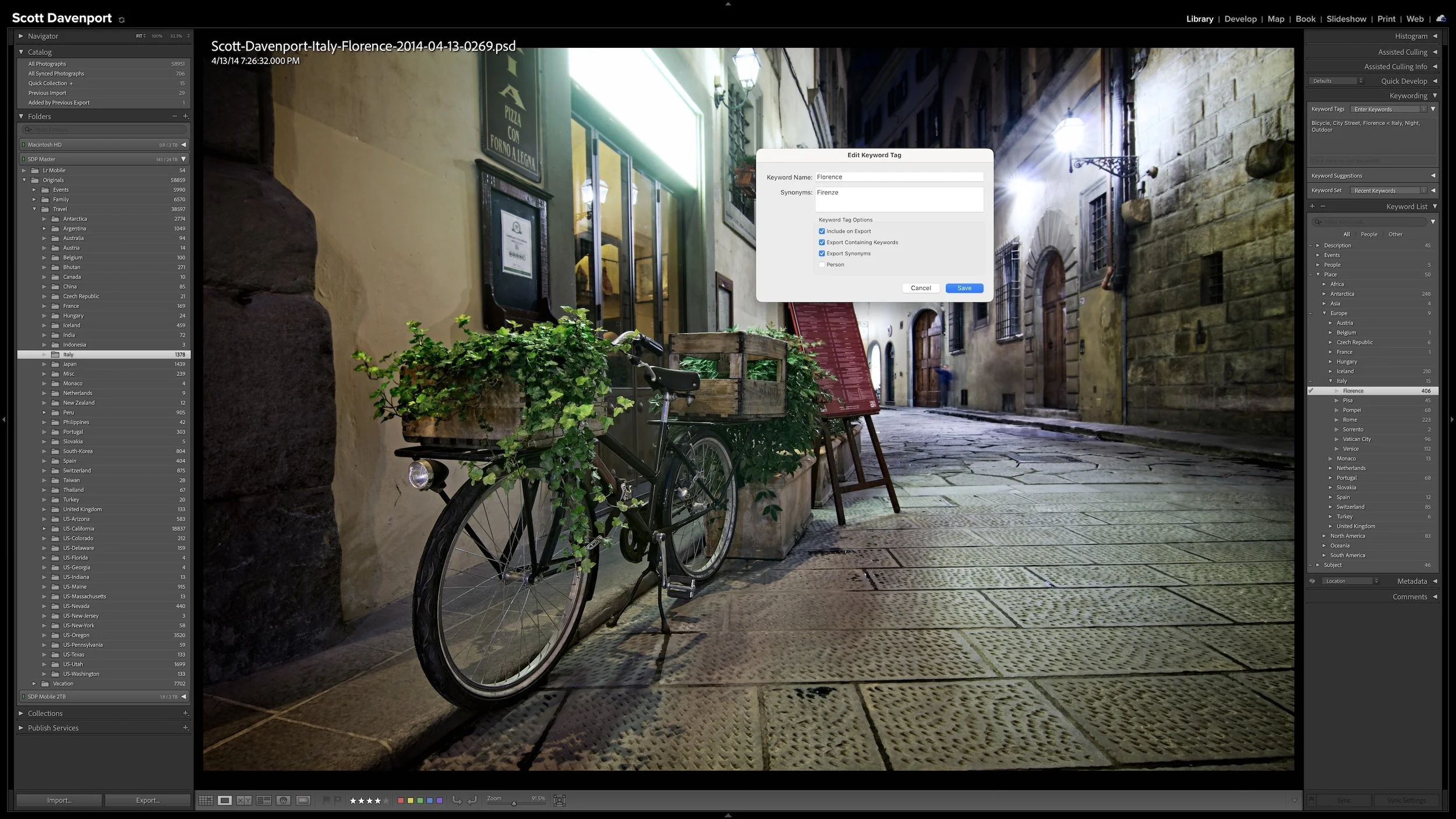
Keyword hierarchies create both broad and specific search paths. In a Metadata keyword column, I can expand or collapse the hierarchy. Selecting a parent keyword includes photographs tagged with any of its child keywords. If individual lighthouses sit beneath Lighthouse in my keyword structure, selecting Lighthouse gathers photographs carrying those more specific tags.
Article 14 — Use Nested Keywords and Synonyms to Work Faster in Lightroom
Text searches provide another path. With Keywords or Any Searchable Field selected, Lightroom can find photographs through keyword synonyms. A photograph organized beneath Italy, for example, can also be found by searching for its synonym Italia. This lets me find photographs using alternate names or languages without applying every variation as a separate keyword.
A birthday photograph might be found by its event keyword, the year it was captured, the people it includes, or the folder in which it resides. A lighthouse photograph might be found by the specific lighthouse, the broader Lighthouse keyword, its location, its rating, or the lens used to capture it.
The point isn't to add every possible piece of metadata to every photograph. It is to record information that creates useful search capabilities I am likely to use.
Article 13 — A Keyword Strategy That Doesn’t Become a Second Job
Selecting a parent keyword can find photographs tagged with the more specific keywords organized beneath it.
Keep Filters Active Until the Search Is Finished
I often move from one folder to another while keeping the same search criteria in place. The Filter lock lets me preserve the active filter as I change sources.
For example, I may want to examine only four-star-or-higher photographs while moving through several folders. Locking the filter keeps that rating criterion active rather than making me rebuild the filtered view for every folder. The selected source changes, but Lightroom applies the same criteria to each new source.
That persistence is useful while I am actively searching. It can also create confusion after I have mentally moved on. If photographs appear to be missing from a folder or Collection, an old filter may still be limiting what Lightroom displays.
When I finish a particular search, I click None in the Library Filter bar. That turns off the filter and restores the unfiltered view of the selected source.
Pressing the backslash key (\) only shows or hides the Library Filter bar. It does not clear the search criteria. If a filter is active when I hide the bar, Lightroom continues showing the filtered results.
The photographs never disappeared from the catalog. Lightroom was simply showing the subset that matched the active criteria.
Exploratory Searches Belong in the Library Filter
The Library Filter is particularly useful when I don't yet know exactly what I am looking for. I can change columns, try different criteria, and explore patterns in the catalog without creating a permanent organizational structure.
I once used this approach when I was experiencing some photographer's block. I began with my four-star-and-higher photographs from 2016 and explored the lens and focal-length information in the Metadata Filter. The pattern became clear: I had been photographing predominantly at the wide-angle end.
That was not surprising for a landscape photographer, but seeing the pattern suggested a practical creative exercise. I could take out a longer lens, look at scenes differently, and break away from a habit that had become too comfortable. The catalog helped me discover something about how I had been photographing.
A Smart Collection serves a different purpose. It continuously gathers photographs that meet a saved set of rules and updates as the catalog changes. That makes Smart Collections useful for groups I want Lightroom to maintain over time. The Library Filter is better suited to the active, exploratory searches I am performing right now.
A filtered result doesn't need to become a Smart Collection simply because it was useful once. I save that persistent structure for searches that deserve to remain active and continue changing with the catalog.
Article 6 — Smart Collections: Let Lightroom Organize Photos for You
Final Thoughts
Finding a photograph in Lightroom Classic doesn't require remembering its exact filename, folder, or capture date. I can begin with whatever I do remember—a subject, a place, a rating, a camera, a lens, or another useful clue—and progressively narrow the catalog.
The information comes from several places. The camera records some of it automatically. Lightroom supplies or derives other details. Ratings, keywords, Collections, and recognizable location terms reflect decisions I made while moving photographs through my workflow. Together, those details form a cross-matrix of ways to find the same image.
Completed photographs remain part of that searchable library. When I remove the purple workflow label after sharing, Lightroom does not discard the photograph's rating, keywords, location information, Develop adjustments, or camera metadata. The workflow action is complete, but the paths back to the photograph remain.
Article 16 — Where Editing and Export Fit Into an Asset-Management Workflow
The Library Filter cannot reliably recover information that was never recorded and exists only in my memory. However, I don't need perfect metadata for every photograph. I need enough useful information to answer the searches I am likely to make.
That is the practical payoff from the organizational work performed earlier in the workflow: when I want to return to a photograph, Lightroom gives me more than one way to find it.
This article is part of my Lightroom Photo Organization series.
Next: Build a Self-Documenting Lightroom System With Smart Collections →

You remember the photograph, but not its filename, folder, or exact capture date. A large Lightroom Classic catalog can feel difficult to search when the only clues you have are fragments: a location, a subject, a rating, or perhaps the lens you used.
The Library Filter lets you combine those fragments and progressively narrow the catalog. The metadata added throughout a practical workflow creates several paths back to the same photograph—without requiring perfect metadata or a perfect memory.