
A color label can show what you intended to do next, but it cannot prove that the previous step is complete.
You may add location information and forget to change a photograph from yellow to green. You might apply one keyword, get interrupted, and return several days later. Once you make the first Develop adjustment, Lightroom knows the photograph has been adjusted, but it cannot know whether the creative work is finished.
These are small inconsistencies. Across a large catalog, they can make it difficult to tell what needs attention and where you stopped working.
Smart Collections provide a way to examine the information recorded in the Lightroom Classic catalog. Rather than relying entirely on color labels or memory, you can ask Lightroom to show photographs that still need a rating, GPS coordinates, keywords, Develop adjustments, or another workflow action. In my workflow, I use those results to compare what the metadata says with the next action shown by the color label.
Labels and Metadata Answer Different Questions
My six-stage workflow moves photographs through Import, Rate and Stack, Locate, Keyword, Develop, and Share. Color labels identify each photograph’s next action:
| Color Label | Next Action |
|---|---|
| 🔴 Red | Rate and stack |
| 🟡 Yellow | Add location information |
| 🟢 Green | Add keywords |
| 🔵 Blue | Develop |
| 🟣 Purple | Share |
| No label | Workflow complete |
Article 07 explains the complete workflow and why photographs from one shoot can move through it at different speeds.
Article 07 — My Six-Step Lightroom Workflow From Import to Sharing
The labels provide useful guidance, but they still have to be changed manually. That introduces an opportunity for mistakes. You can complete a task and forget to advance the label, or change the label before the expected work is complete.
The catalog metadata supplies another kind of information. A rating provides evidence that the photograph was evaluated. GPS coordinates provide evidence that the Locate step is complete. Keywords indicate that keywording has begun. Develop adjustments indicate that editing has begun.
This leads to an important distinction:
The color label identifies the intended next action. The catalog metadata provides evidence of what has happened.
My Smart Collections compare those two parts of the workflow. Their rules determine which photographs Lightroom gathers. The expected color label then helps me verify that each photograph is marked correctly.
Turn the Collections Panel Into a Workflow Dashboard
I keep the workflow Smart Collections together in a Collection Set and arrange them in the same order as the workflow. Including the expected color in each collection name gives me a simple visual cross-check.
Photographs in Locate (Yellow) should carry a yellow label. Photographs in Develop (Blue) should be blue. If I see another color, I know the metadata and label disagree.
The table below shows the essential rules in my workflow collections. The Lightroom rules describe the catalog evidence I want to find. The expected label tells me what color those photographs should carry.
| Smart Collection | Lightroom Classic Rules Using Match All |
What Membership Means | Expected Color Label |
|---|---|---|---|
| Rate and Stack (Red) |
|
The photograph has not been rated or expressly rejected. | Red |
| Locate (Yellow) |
|
The photograph has been rated but still needs GPS coordinates. | Yellow |
| Keyword (Green) |
|
The photograph has been rated and located, but keywording has not started. | Green |
| Unfinished Keywords |
|
Keywording has started, but the green label says it is not yet finished. | Green |
| Develop (Blue) |
|
The photograph has reached Develop but has no Lightroom adjustments. Files processed externally are excluded. | Blue |
| Unfinished Processing |
|
Developing has started, but the blue label says the creative work is not yet finished. | Blue |
| Share (Purple) |
|
A stronger photograph developed in Lightroom remains in the workflow and is no longer marked as being developed. | Purple |
| Share — PSD (Purple) |
|
A PSD returned from an external editor or plugin remains in the workflow as a Share candidate. | Purple |
| Share — TIFF (Purple) |
|
A TIFF returned from an external editor or plugin remains in the workflow as a Share candidate. | Purple |
| Share — PSB (Purple) |
|
A PSB returned from an external editor or plugin remains in the workflow as a Share candidate. | Purple |
These rules evaluate the entire catalog. If you want to limit the results to one part of your library, you can add a rule such as Folder contains Travel. Another folder name or suitable source criterion may fit your catalog better. That additional rule changes the scope of the search, not the workflow logic the collection is testing.
I use Match All because every rule within a collection represents another condition the photograph must satisfy. Article 6 explains the general behavior of Smart Collections and how Lightroom updates their membership as catalog information changes.
Article 6 — Smart Collections: Let Lightroom Organize Photos for You
The Collection Set does not perform any of the checking. It keeps the related Smart Collections together so you can use them as a dashboard. The number beside each collection gives you a quick indication of how much work remains at that stage.
Together, the Smart Collections create a dashboard showing how much work remains at each stage of my workflow.
The early collections build on information recorded during the previous stages. Rate and Stack (Red) finds photographs without a rating while excluding photographs I expressly rejected. Locate (Yellow) finds rated photographs without GPS coordinates. Keyword (Green) finds rated and located photographs with no keywords.
I do not limit Keyword to my four-star photographs. I often filter on four stars or higher when deciding where to concentrate my time, but that working filter is not an absolute workflow rule. A two-star family memory may still deserve keywords and developing.
Article 10 — A Lightroom Star-Rating System You Can Use Consistently
Article 12 — Add Location Information Before You Forget Where You Were
Develop (Blue) finds rated photographs that have GPS coordinates and keywords but no Develop adjustments. It excludes PSD, TIFF, and PSB files because those formats may represent photographs processed through an external editor or plugin.
Each rule tests a piece of catalog evidence that helps Lightroom identify photographs ready for the next stage of the workflow.
Keywords and Develop Adjustments Are Not Binary
A rating works well as a binary workflow test. Either the photograph has a rating or it does not. GPS coordinates behave similarly. Either the photograph has coordinates or it does not.
Keywording is different.
The moment you apply one keyword, the Keywords field is no longer empty. That photograph immediately stops matching Keyword (Green). However, one keyword does not necessarily mean you finished describing the photograph. You may have identified the broad subject but still need to add a person, event, mood, or another useful term.
Lightroom can tell that keywording started. It cannot tell when I consider it complete.
The green label supplies that missing information. As long as the photograph remains green, Keyword is still its next action. Unfinished Keywords finds photographs that have keywords but still carry a green label.
That collection holds the photograph in a transitional state. It has left the collection for photographs with no keywords, but it has not yet reached Develop. When I finish keywording, I change the label to blue. The photograph leaves Unfinished Keywords and is ready for the next stage.
Article 13 — A Keyword Strategy That Doesn’t Become a Second Job
Develop adjustments create the same kind of gap.
The first adjustment changes Has Adjustments from false to true. The photograph immediately leaves Develop (Blue), even if the only change was white balance. That metadata proves developing has started. It does not prove the edit is finished.
Unfinished Processing finds photographs with Develop adjustments that still carry a blue label. Those photographs have entered the creative process but have not yet been marked ready to share.
When I consider the developing complete, I decide what should happen next. If I intend to share the photograph, I change its label to purple. If I do not plan to carry it forward, I can remove the workflow label.
Article 16 – Where Editing and Export Fit Into an Asset-Management Workflow
The Unfinished collections bridge the parts of the workflow that metadata alone cannot describe. Keywords and adjustments can tell Lightroom that work has started. The label tells Lightroom whether I still consider that work unfinished.
The Share Collections Account for Different Editing Paths
The Share stage needs to account for photographs developed entirely in Lightroom and files returned from external editors or plugins.
For a standard photograph, Has Adjustments is true provides evidence that I performed Develop work. The Share collection also requires a rating of four stars or higher, GPS coordinates, keywords, and an active workflow label.
I use separate Share Smart Collections for PSD, TIFF, and PSB files returned from plugins or external editors. Those files may contain finished creative work even when Lightroom reports that they have no Develop adjustments. Each collection can test the file type directly rather than expecting Has Adjustments to describe work performed outside Lightroom.
The Share collections use two color-label rules:
Color Label is not None
Color Label is not Blue
The first rule removes photographs that have exited the workflow. Once I finish sharing a photograph, I remove its purple label. Without that rule, completed photographs would continue accumulating in the Share collections.
The second rule protects the transitional Develop state. A blue photograph may have adjustments, but blue says I still consider developing its next action. It should remain in Unfinished Processing, not appear ready to share.
A photograph in a Share collection should normally carry a purple label. If it appears with red, yellow, or green, the metadata suggests it has advanced farther than its color indicates. That mismatch gives me something to review rather than silently treating the label as correct.
The Share collection does not share anything or change the photograph. It presents a diagnostic view of files that meet its rules. I still decide whether a photograph is genuinely ready, incorrectly labeled, or a legitimate exception.
A Mismatch Tells Me Where to Look
A Smart Collection result is not automatically a catalog error. It is a condition to interpret.
Suppose a photograph appears in Keyword (Green) but carries a yellow label. The photograph has a rating and GPS coordinates, while its Keywords field is empty. The metadata says the Locate work is complete and Keyword should be next. The yellow label probably needs to become green.
The opposite situation may appear in Unfinished Keywords. The photograph has keywords but remains green. Perhaps I applied one keyword and still have work to do. Perhaps keywording is complete and I forgot to change the label to blue. Lightroom cannot decide between those possibilities, but it can bring the photograph to my attention.
The same reasoning applies to Unfinished Processing. A blue photograph with adjustments may be an edit in progress, a photograph I developed for practice but do not intend to share, or a finished edit whose label I forgot to change.
When you encounter a mismatch, review the photograph and decide what it means. You may add missing metadata, correct the label, continue the work, or recognize a legitimate exception. The Smart Collection diagnoses the condition; it does not correct, move, rate, label, or otherwise modify the photograph.
A mismatch between the catalog evidence and the color label gives me a photograph to review, not an error Lightroom should automatically correct.
That is why I do not try to create rules requiring every photograph to contain every possible type of metadata. The rules represent the information that matters to my workflow. Another photographer may use different stages, label meanings, metadata requirements, or client-work steps.
Move Photographs to a Stable Place Before Working
Smart Collections update as soon as a photograph stops satisfying their rules. That behavior keeps the dashboard current, but it can be inconvenient while you are actively working.
Suppose you select a photograph in Develop (Blue) and move into the Develop module. The first adjustment changes Has Adjustments to true. The photograph no longer meets the Smart Collection rules and can disappear from that working view.
Before I begin, I add the photographs I want to work on to Lightroom’s Quick Collection. Pressing the B key adds or removes the selected photograph. Because the Quick Collection is not rule-based, the photographs remain there while their metadata and workflow state change. You can use the same technique whenever changing metadata would cause photographs to leave the Smart Collection you are working from.
Once I finish working on a photograph, I assign its next label and remove it from the Quick Collection. The Smart Collections continue updating in the background, while the Quick Collection gives me a stable temporary workspace.
This illustrates the different jobs of the two tools. The workflow Smart Collections find photographs needing attention. The Quick Collection holds the photographs I have chosen to work on right now.
Final Thoughts
A dependable workflow should not require you to remember which photographs you rated, where you stopped keywording, or whether the first Develop adjustment represented the beginning or the end of an edit.
Color labels make the next action visible. Ratings, GPS coordinates, keywords, file types, and Develop adjustments record what has happened. Smart Collections can compare that information and show you where work remains, where a photograph is in transition, and where the label and catalog evidence disagree.
The exact rules are adaptable. Another photographer may use different ratings, stages, labels, or metadata. A client workflow may need additional checks for approvals, revisions, delivery, or deadlines. The useful principle is to identify which catalog information provides trustworthy evidence for each stage and let Lightroom continue evaluating it.
This brings the series back to its broader promise. A good asset-management workflow helps me know what needs attention, find photographs later, and concentrate my time on the images that matter. When Lightroom can show me where I stopped, I spend less time reconstructing the past and more time moving photographs forward.
This article is part of my Lightroom Photo Organization series.


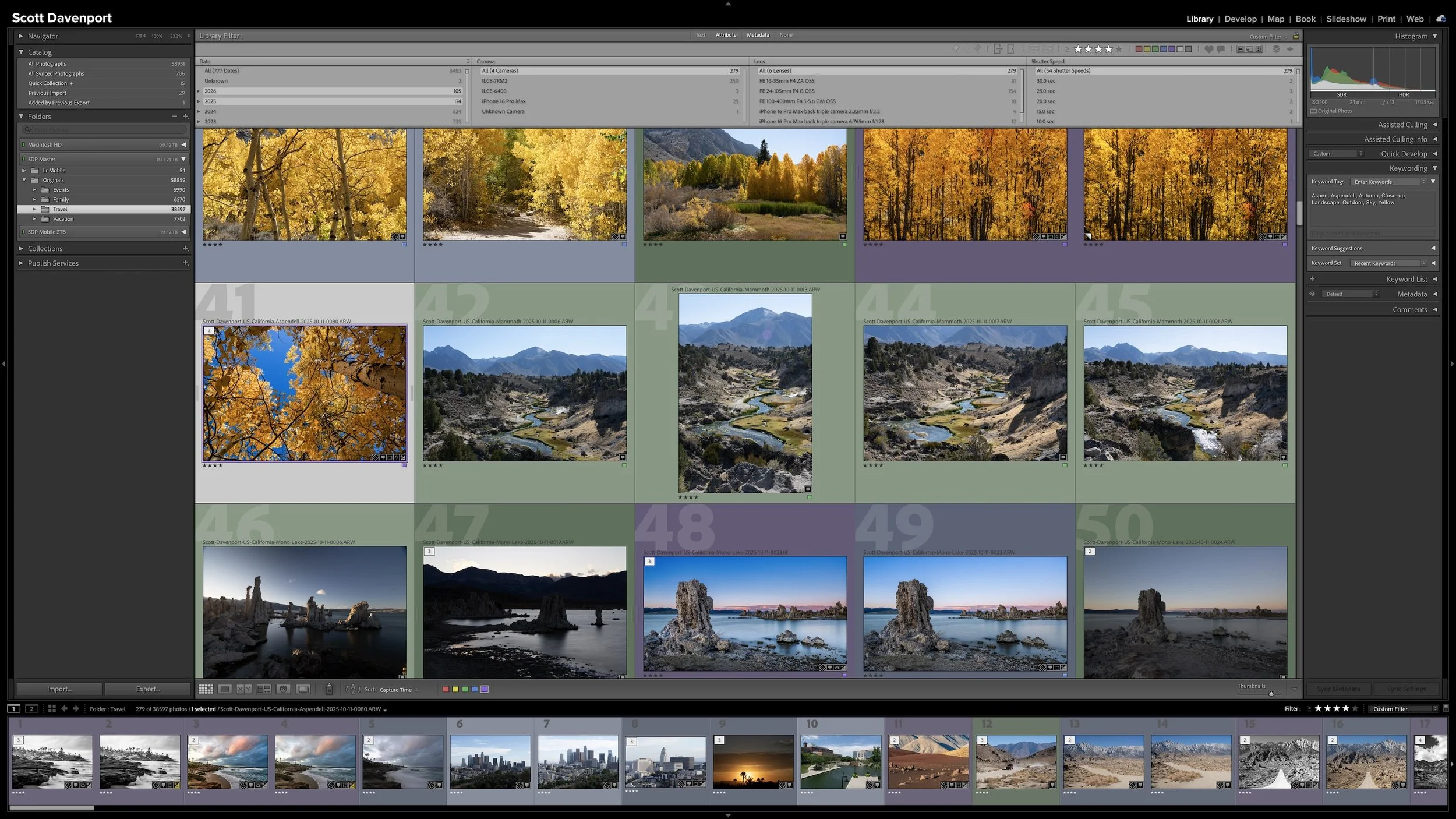
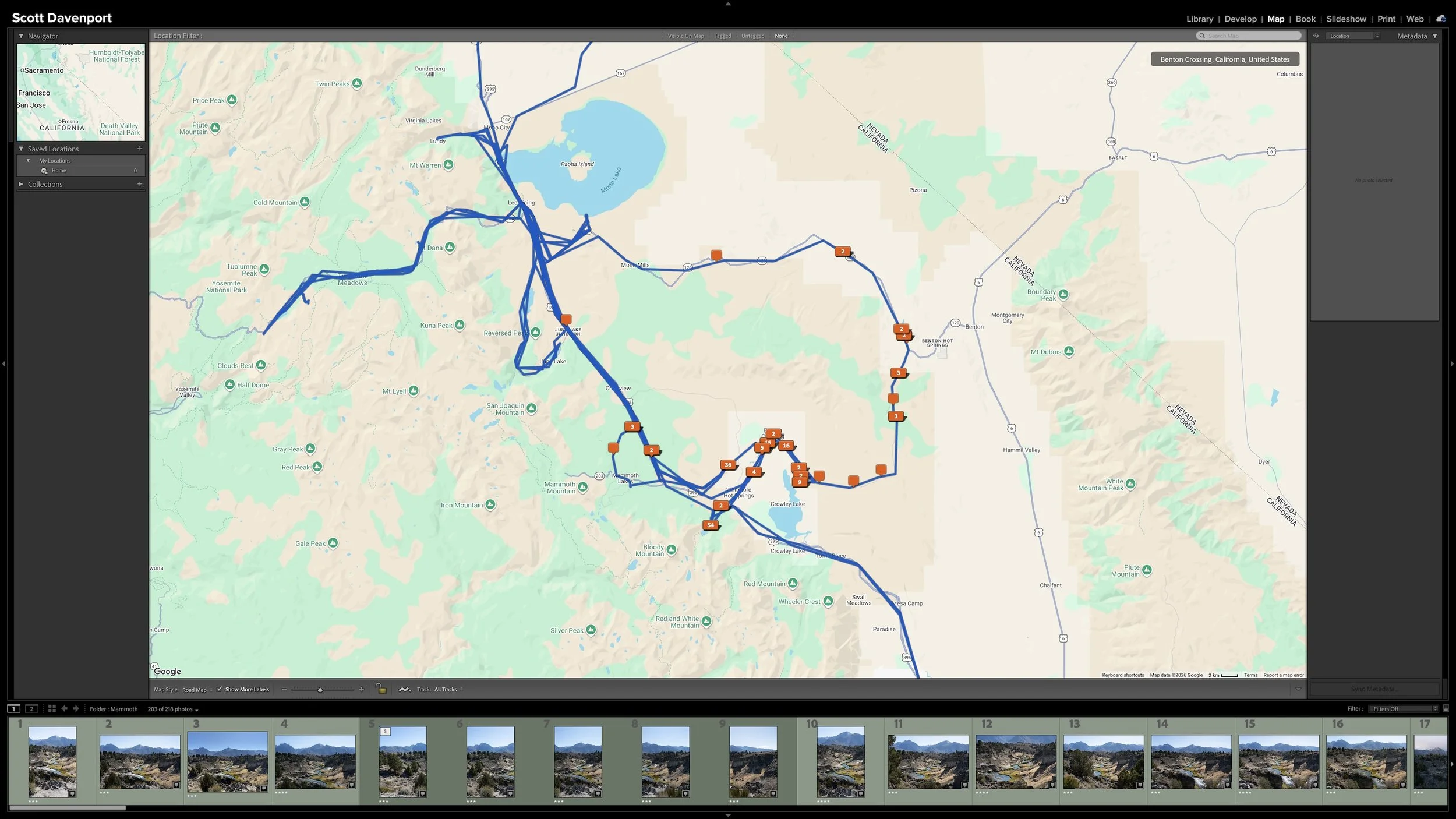
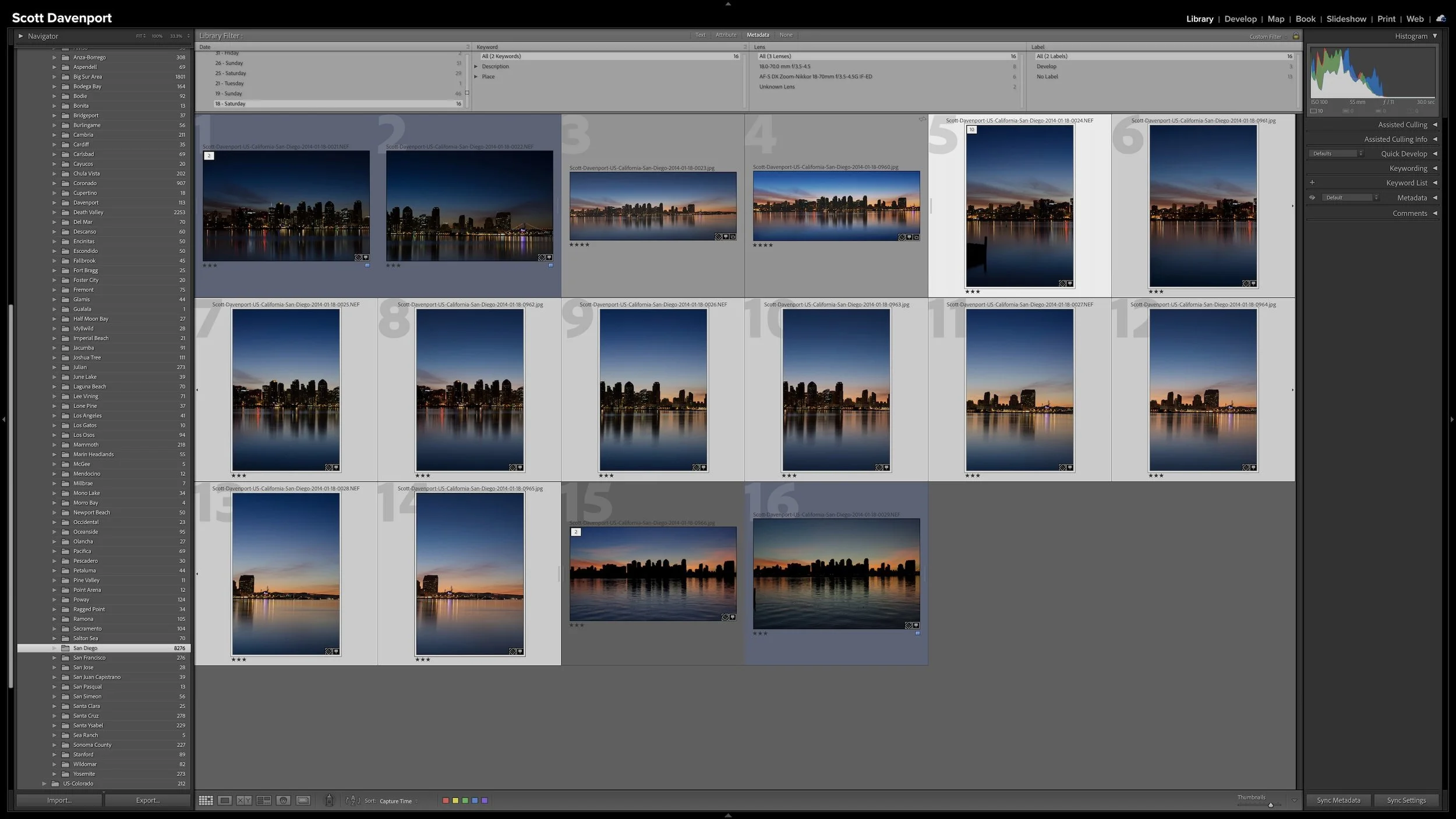

A workflow is dependable when Lightroom can show what still needs attention without requiring you to remember where you stopped. Color labels provide visible guidance, but ratings, GPS coordinates, keywords, and Develop adjustments record what has actually happened to each photograph.
I use Smart Collections to compare those two kinds of information. They gather unfinished work, preserve photographs in transitional stages, and reveal places where the catalog metadata and the expected color label disagree. You can adapt the same principle to the evidence and stages that matter in your own workflow.