
There is a lot going on in the Lightroom Classic Import dialog. Once you've decided what should happen to the files themselves, you may still need to think about file naming, metadata, previews, destination folders, and several other settings.
I don't want to rebuild all of those choices every time I import photos.
Instead, I collect the settings I use repeatedly into an import preset. Lightroom Classic can fill in much of the Import dialog for me, giving every import a consistent starting point while leaving me free to change the things that are specific to the shoot.
The important word there is starting. An import preset isn't an instruction to stop looking at the Import dialog.
Put the Settings That Stay Consistent Into the Preset
Once I've decided whether I'm using Copy, Move, or Add, I can turn my attention to the other settings that accompany the import.
Some of those choices may stay relatively consistent from one shoot to another. In my workflow, they include preview generation, filename templates, standard creator and copyright metadata, and much of the destination structure for Copy and Move imports.
An import preset lets you configure recurring choices once and recall them together for another import. In my case, I don't have to remember which filename template or metadata preset I normally use or how I typically configure the rest of the Import dialog.
An import preset gives me a consistent starting point by remembering the settings I use repeatedly.
Not every setting belongs in every photographer's preset. The useful question is simply: Which choices do I find myself making the same way over and over again?
Those are the settings worth considering for an import preset.
Reuse Filename and Metadata Presets
A filename template lets me define the structure of a filename once and use it again. My templates can include things such as custom text, a date, and a sequence number. When I import another group of photos, I choose the appropriate template instead of reconstructing that naming pattern from scratch.
The details of my naming system aren't important here. I covered the reasons I rename my photos and the structure I use in. The important part for the import preset is that Lightroom Classic can remember which filename template I normally want to use.
Some information inside that template may still change. My filenames use custom text that describes the particular group of photographs, so I need to enter that text for each import. The preset remembers the structure. I supply the information that is unique to the shoot.
I use the same idea for metadata. My metadata preset contains information that doesn't normally change from one photograph to another, such as my creator, contact, and copyright information. Lightroom can apply that automatically as the photos enter the catalog. I don't fill the preset with information that varies by shoot simply because Lightroom gives me a field where I could put it.
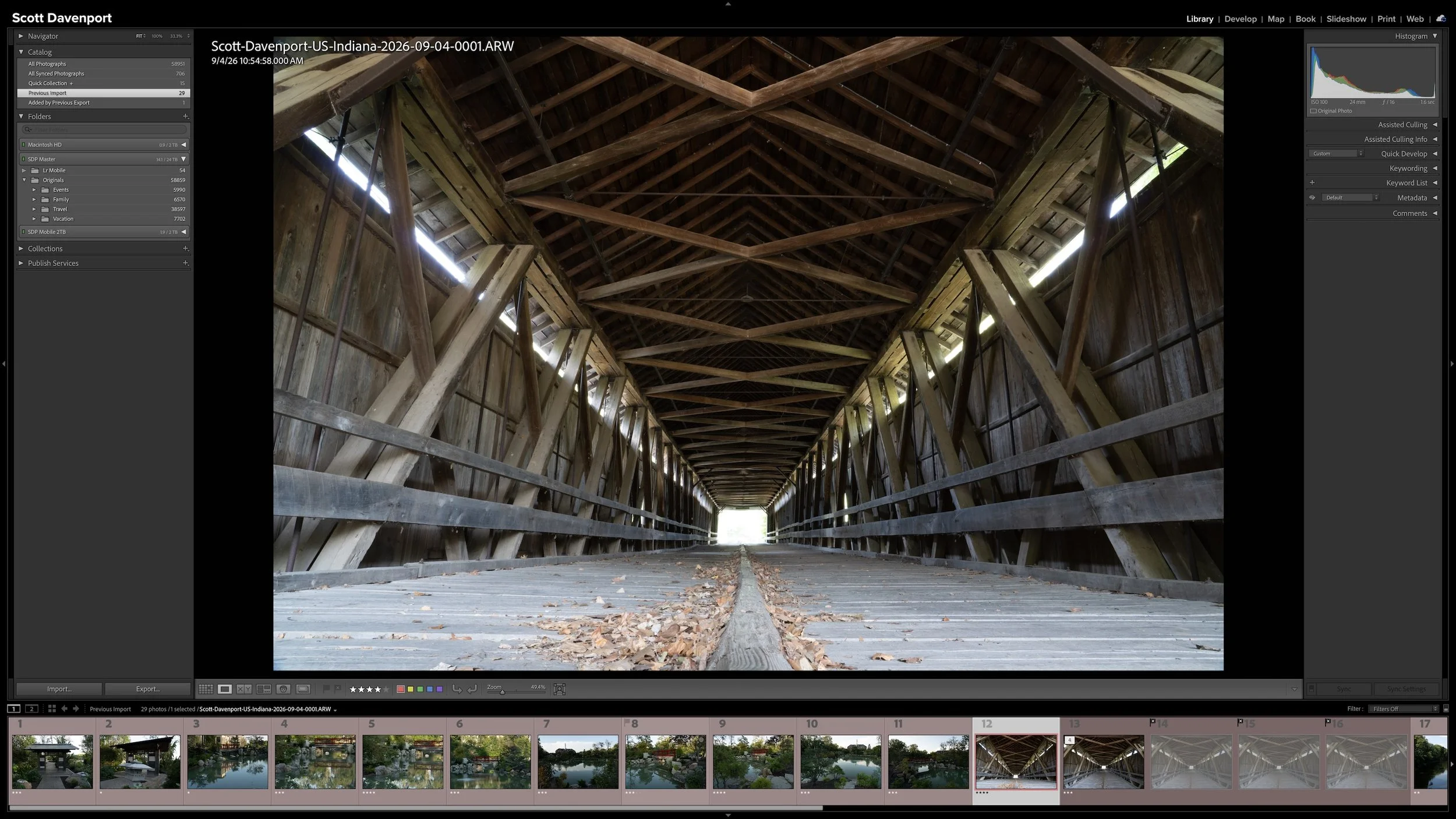
My metadata preset also applies the red Rate and Stack label. That puts every newly imported photograph at the next stage of my workflow automatically. I don't need to select all the new photos after import and label them myself.
Article 07 – My Six-Step Lightroom Workflow From Import to Sharing
The filename template, metadata preset, and workflow label are all small pieces on their own. Collecting them into the larger import preset is what makes them especially useful.
Decide What Else Makes Sense to Automate
Preview generation is another setting I can build into an import preset. I still use 1:1 previews because my typical import is relatively small—often around 100 photographs. Most of the time, I'm willing to spend the extra time during import to have Lightroom build the 1:1 previews up front. When I'm ready to examine the photographs closely, Lightroom has already done that work.
That doesn't mean I use 1:1 previews for every import, and it doesn't mean you need to use them at all. If I'm bringing in an unusually large number of photographs, I can change the preset's choice for that import and use Standard or another preview setting instead. Lightroom Classic offers several preview options, and the right choice depends on how you work and what you're importing.
The value of the import preset isn't that everyone chooses the same preview setting. It's that Lightroom remembers the setting I prefer most of the time, while still letting me change it when the situation calls for something different.
The same principle applies to Develop presets. Lightroom Classic can apply a Develop preset during import. I don't do that because Develop is a later, deliberate stage in my workflow. I don't want to make developing decisions before I've reached that stage.
Your workflow may be different. If you're an event or portrait photographer with a standard starting look you routinely apply across a large group of photographs, applying a Develop preset during import could save you time. In that case, including it in your import preset may make perfect sense.
That's a good example of why I don't recommend copying my import preset field for field. I'm showing you a system that works for me. The useful part is deciding which repetitive work Lightroom can handle for you.
Make the Variable Settings Hard to Miss
Some information shouldn't be permanently filled in because it changes from one import to the next.
The source is an obvious example. One group of photos may be on a memory card while another may already be in a temporary folder on a hard drive. I always need to make sure Lightroom is looking at the correct source before I import.
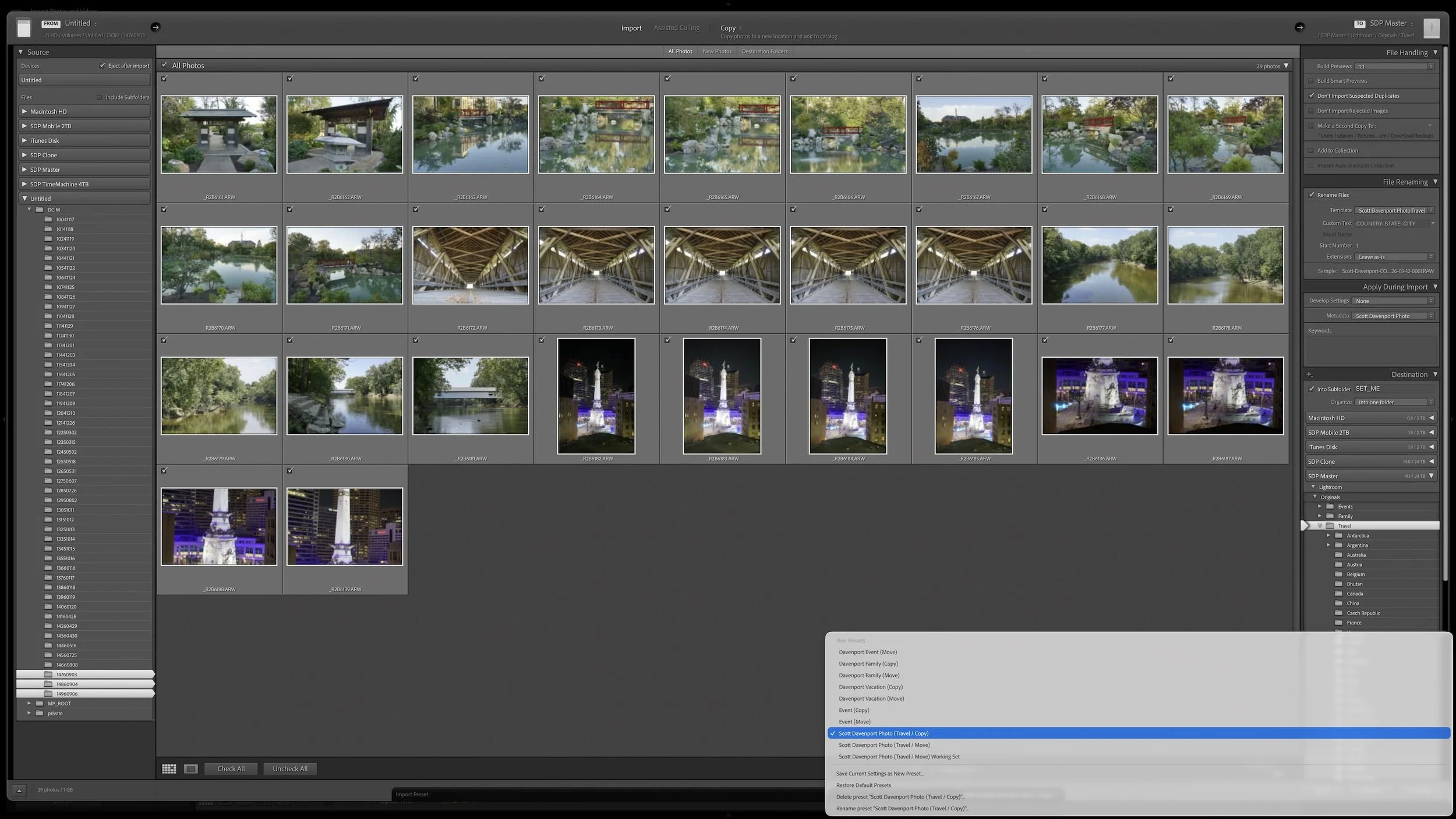
My custom filename text changes as well. I might use a location such as a country, state, or city to help identify a group of photographs. The filename template can remember where that custom text belongs, but I still need to provide the appropriate text for that particular shoot.
The destination can also vary. With Copy or Move, Lightroom needs to know where the files should end up. My preset can establish much of my usual destination structure, but it can't know everything about the photographs I'm importing today.
Article 03 – A Simple Lightroom Folder Structure That Can Grow With You
I deliberately use obvious placeholder values for some of these settings when I create a preset. Instead of making a placeholder look like legitimate finished information, I make it something I'll notice. It's a reminder that says, you still need to set this.
Obvious placeholders like “SET_ME” or “COUNTRY-STATE-CITY” make the shoot-specific decisions that still need my attention difficult to overlook.
That may seem like a small thing, but I find it useful. Good automation doesn't have to hide everything from me. Sometimes its job is to make the decisions that still require my attention more obvious.
Build Presets Around the Imports You Actually Do
My own workflow has several import presets because I don't always bring photographs into Lightroom Classic the same way.
For example, I often copy the contents of a memory card into a temporary folder before I open Lightroom. When I eventually import those photographs, I use Move because the files are already on a drive and need to be relocated into their permanent home.
I can create a preset for that situation containing the filename template, metadata, preview preference, destination setup, and other recurring choices. Then I can create a Copy variant with many of those same settings for times when I'm importing directly from a memory card. I don't have to rebuild everything simply because the file-handling method changed.
Your collection of presets doesn't need to look like mine. You may import directly from memory cards almost all the time and have little reason for a Move preset. You may have different presets for recurring types of photography because they use different filename templates, metadata, destinations, or Develop presets.
The goal isn't to accumulate a giant list of presets. Create them for situations you actually repeat.
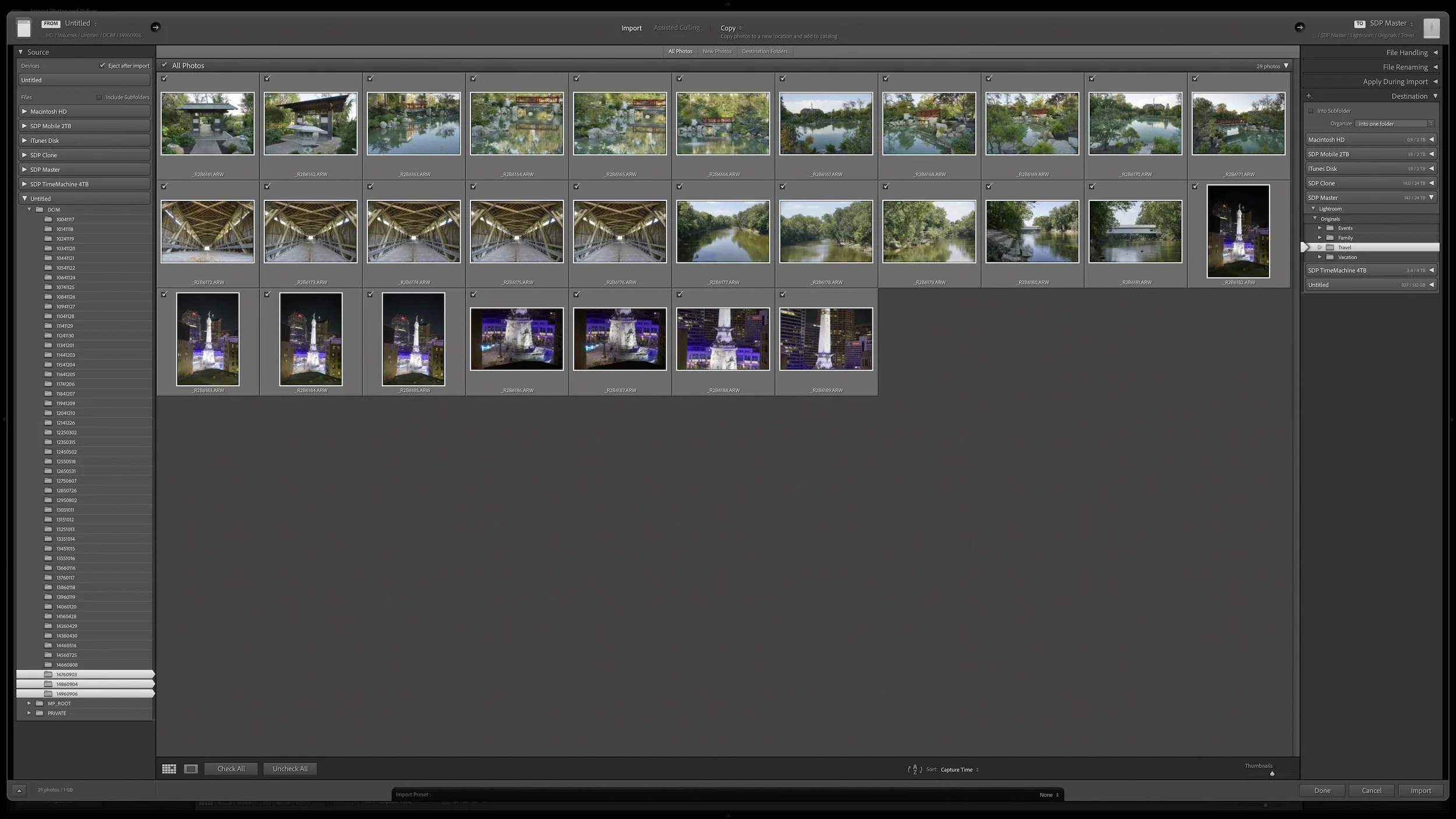
Once the Import dialog is configured the way I want, I use the Import Preset control at the bottom of the window and choose Save Current Settings As New Preset. From then on, that configuration becomes a starting point I can recall for another import.
Load the Preset, Then Review the Import
Selecting an import preset fills in the settings I've saved, but I still look through the Import dialog before I click Import.
I make sure Lightroom has the correct source. I verify that Copy, Move, or Add is appropriate for the files in front of me. If my filename template needs custom text, I enter it. For Copy or Move, I confirm the destination and any shoot-specific folder information. I also make sure the metadata and other settings I expect are actually selected.
After loading a preset, I still review the settings that can change before starting the import.
The preset handles what I shouldn't have to remember. I still review the things that can change.
That distinction keeps automation from becoming carelessness. I spend less time rebuilding routine settings, while the choices that matter for this particular group of photographs remain visible.
Final Thoughts
An import preset isn't about making Lightroom Classic import photos without my involvement. It's about removing repetitive setup so I can put my attention on the decisions that actually vary from one shoot to another.
For me, that means Lightroom can stage my file-handling choice, filename template, standard metadata, red Rate and Stack label, preview preference, and much of the destination setup. I still confirm the source, make sure the file-handling method is appropriate, supply shoot-specific information, and verify the destination before I start the import.
Your preset may contain different choices. An event photographer may apply a Develop preset that I don't use. You may prefer a different type of preview. Your filenames and folder structure may have nothing in common with mine.
That's perfectly fine. Automate the choices that stay the same, keep the choices that change visible, and let the preset give every import a consistent starting point.
This article is part of my Lightroom Photo Organization series.
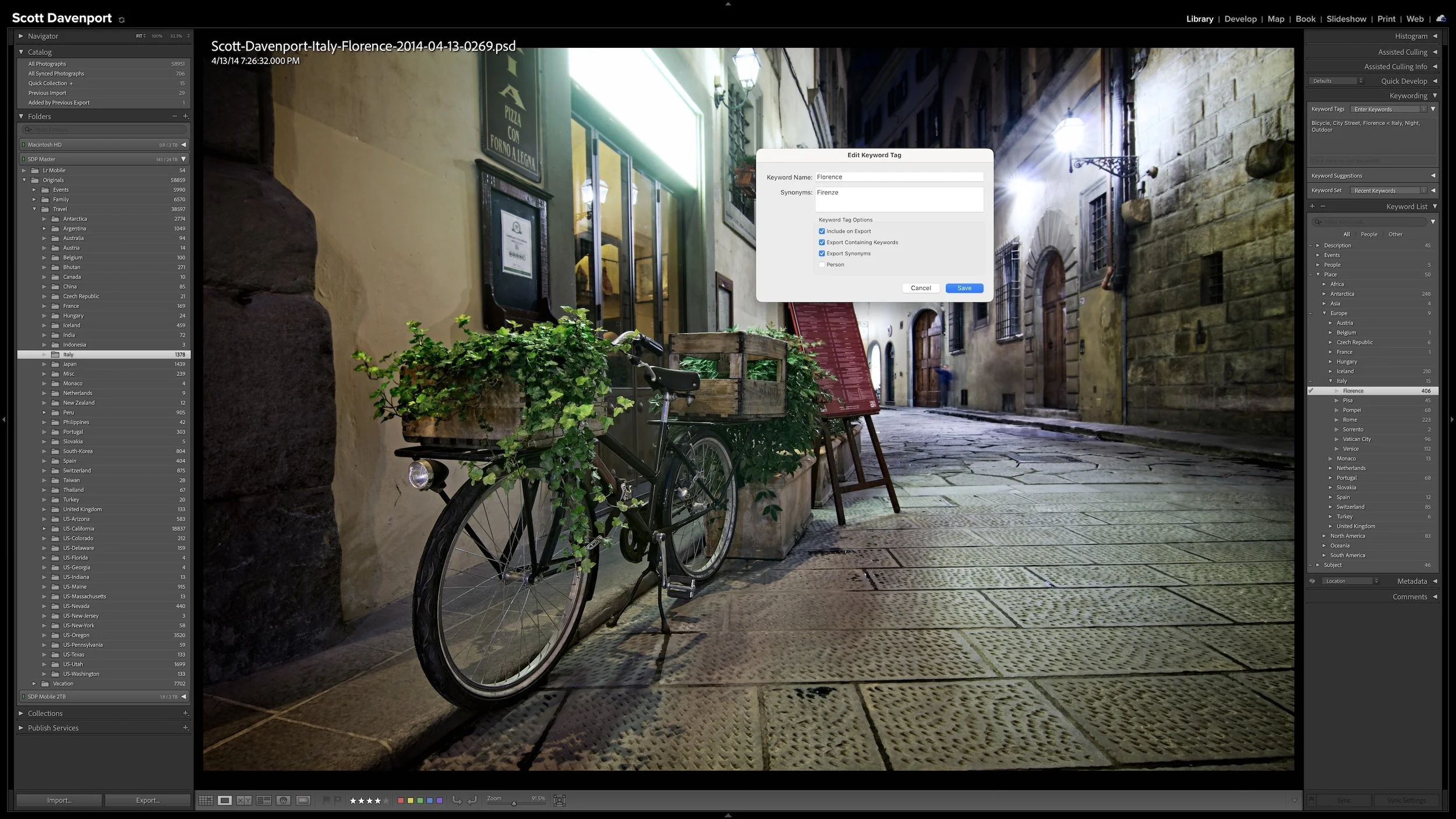
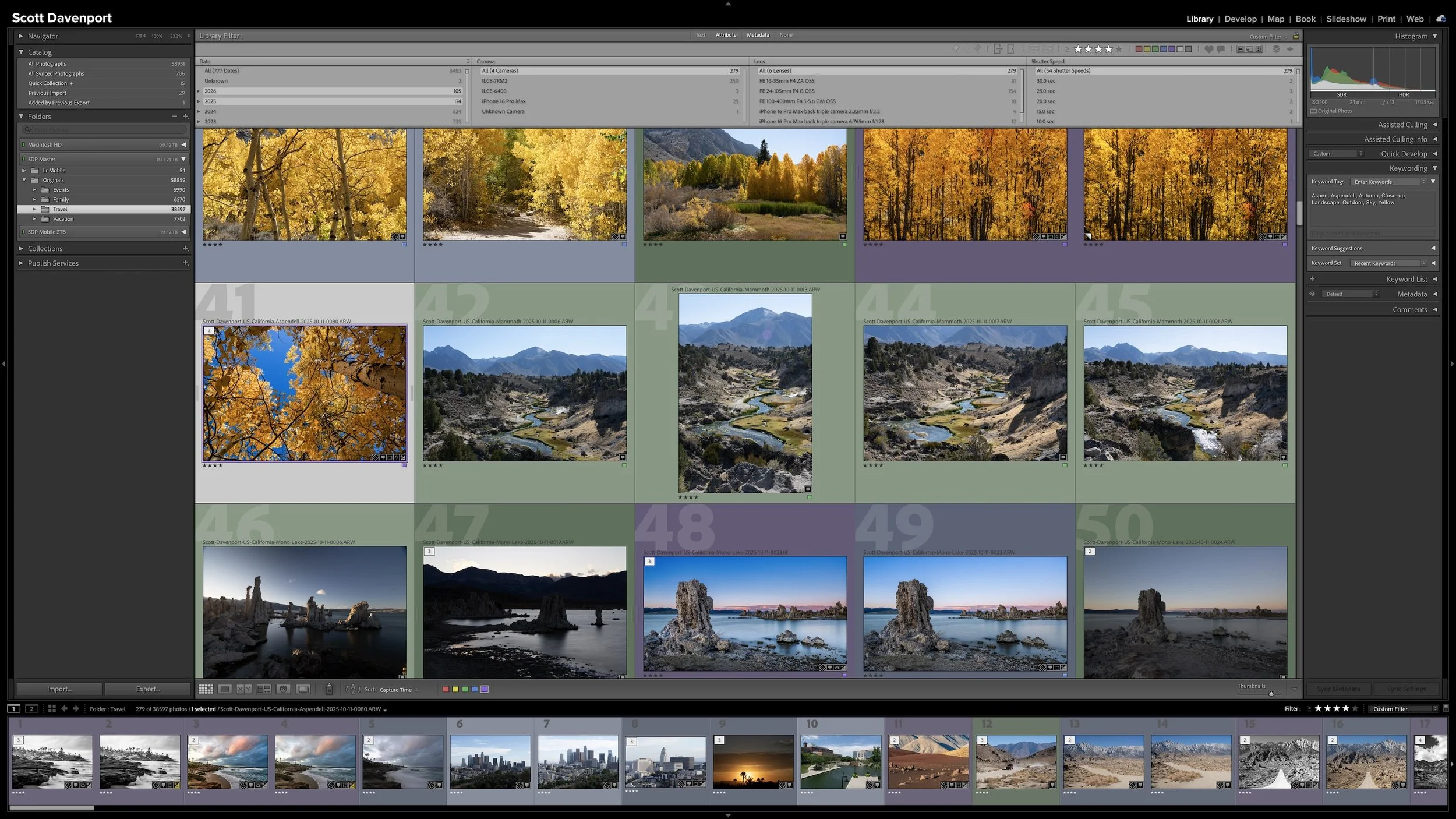
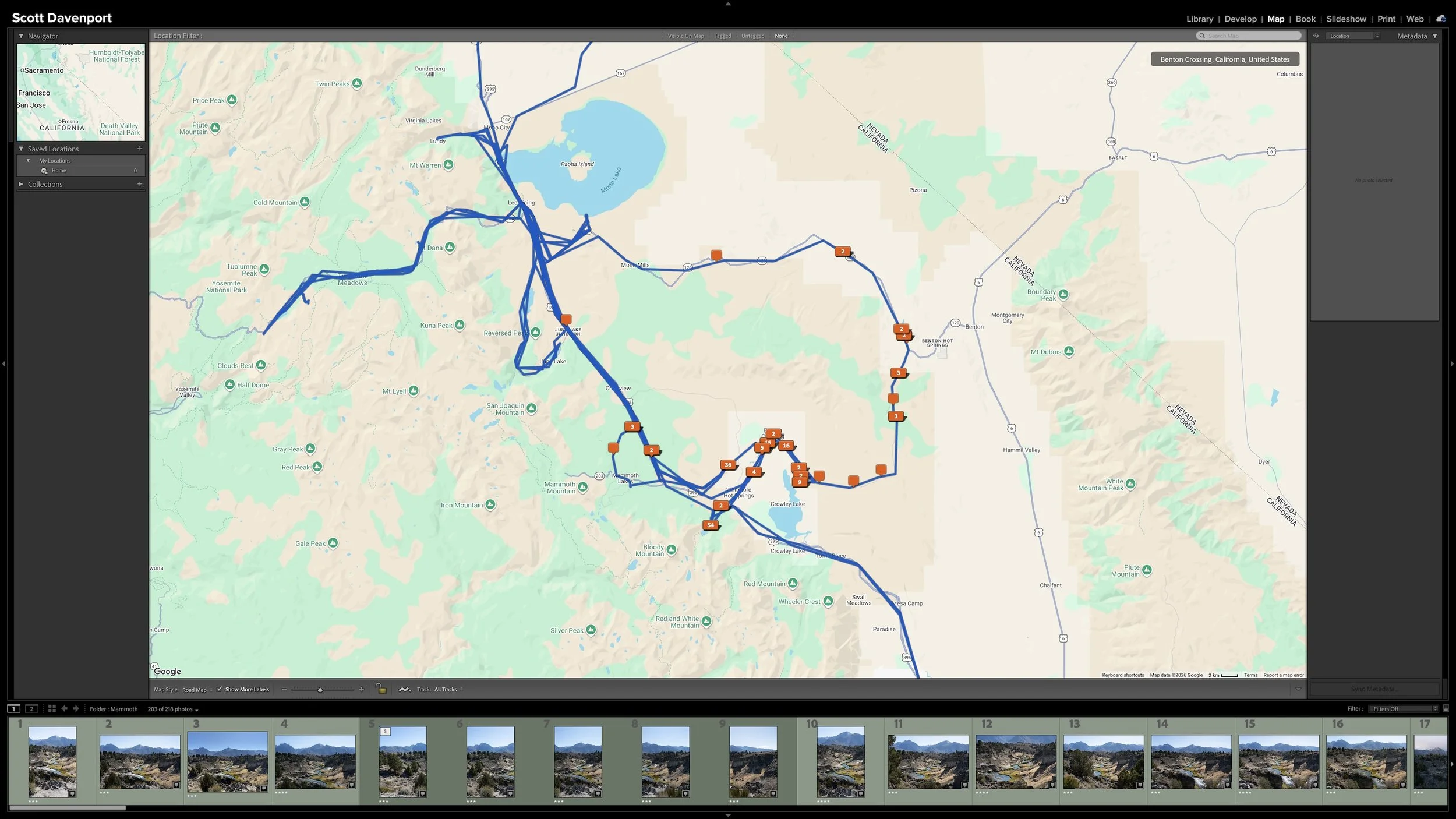
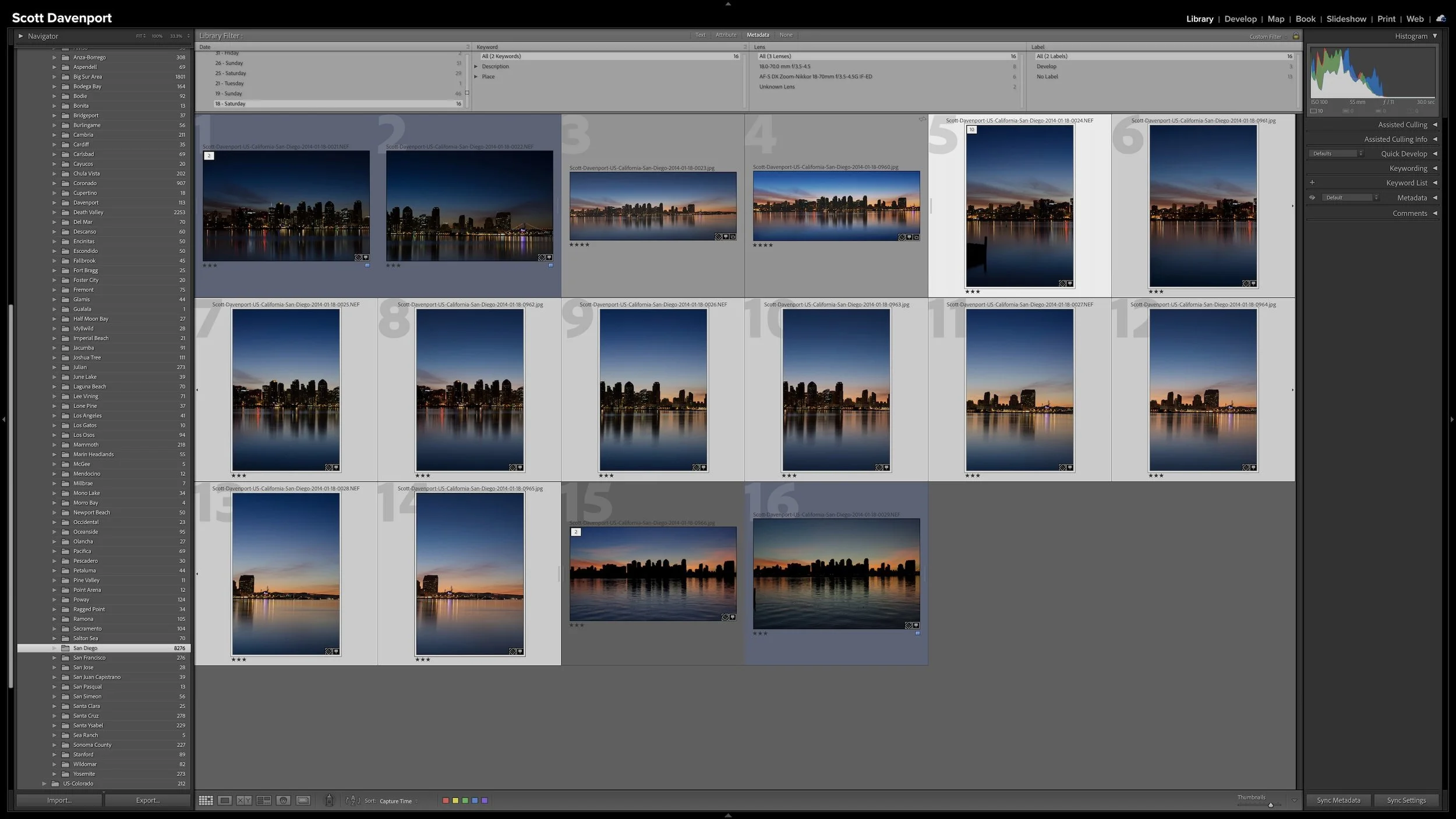

Every photograph I import receives some initial attention, but that doesn't mean every photograph needs the same amount of work. Rating, stacking, and adding shared location information can happen broadly and efficiently across a shoot.
As my workflow moves into keywording, developing, and sharing, I concentrate more effort on the best photographs from the shoot. This narrowing protects my time without deleting photographs, closing doors, or preventing me from reconsidering an image later.