
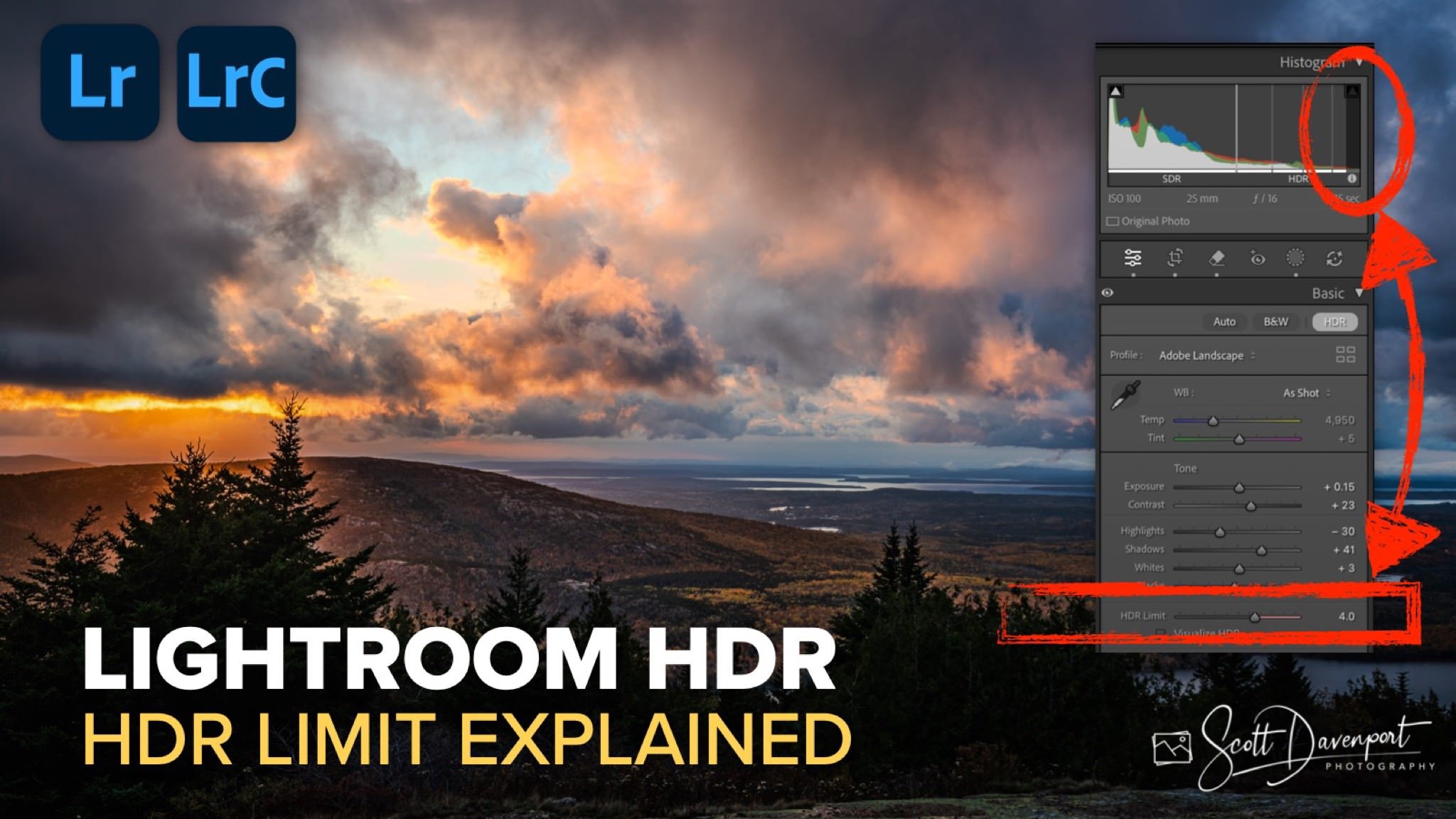
The HDR Limit slider in Lightroom can seem pretty straightforward at first glance. Move the slider to the right and Lightroom allows brighter highlights in the HDR version of the image. That simple explanation is true, but it leaves out an important part of the story — the role your display plays in what you actually see.
This tutorial revisits the HDR Limit slider because understanding how it interacts with your monitor makes Lightroom’s HDR behavior much easier to predict. Once you see how the slider, the histogram, and your display all work together, the control becomes far more useful.
The HDR Limit Slider Sets the Ceiling
The HDR Limit slider defines the upper boundary for how much highlight brightness Lightroom can use in HDR mode, measured in stops above SDR white. In practical terms, it sets the brightest highlight level Lightroom is allowed to display.
But that setting is only one part of the equation. No matter how high the HDR Limit is set, Lightroom can only display as much HDR brightness as your screen is capable of rendering. If your display can reproduce three stops above SDR white, then setting the HDR Limit to four stops won’t reveal another stop of visible brightness. Lightroom may be allowed to use it, but your display cannot show it.
That’s why the HDR histogram is such an important guide. The extended HDR scale above the SDR range shows how much highlight headroom is actually available on your display. As you adjust the HDR Limit slider, the histogram helps reveal whether Lightroom has room to display additional highlight range or whether you’ve already reached the ceiling imposed by your monitor.
This explains why moving the slider sometimes seems to have little visible effect. The control may be increasing the available HDR range, but if the display has already reached its limit, the image will appear largely unchanged.
Display Brightness Changes the Available HDR Range
Another important factor is the brightness setting of your monitor. As display brightness increases, the HDR headroom available above SDR white becomes smaller. That means increasing the brightness of the screen can actually reduce the visible HDR range Lightroom has available for editing.
This may seem counterintuitive at first, but the reason is straightforward. Your monitor has a finite brightness range. When more of that range is used for the general brightness of the display, less remains available for the brightest HDR highlights. Lightroom reflects this in the histogram, where the visible HDR range can shrink as monitor brightness rises.
This is one of the reasons HDR editing can feel inconsistent if display brightness changes during editing. The image data itself has not changed, but the amount of HDR range the display can show has changed, and Lightroom adapts accordingly.
Understanding this relationship helps make sense of why the HDR histogram changes and why the same slider setting may appear differently depending on monitor brightness.
Using HDR Limit with Intention
Once you understand how the HDR Limit slider interacts with your display, it becomes much easier to use intentionally. Rather than thinking of it as a way to “make highlights brighter,” it helps to think of it as a way to define how far Lightroom can extend the highlight range within the limits of your display.
That distinction matters because it leads to better editing decisions. If you expect the HDR Limit slider to always create a visible jump in brightness, it is easy to push the control farther than necessary. But when you understand that the display sets the practical boundary, the slider becomes a way to shape highlight intensity and separation with more precision.
That’s the real takeaway from revisiting this control. The HDR Limit slider does not work in isolation — it works together with your display brightness and your monitor’s HDR capability. Once that relationship is clear, Lightroom’s HDR tools become far more predictable, and your editing decisions become far more deliberate.
And that’s where HDR editing starts to feel less like experimentation and more like control.
Blue Hill Overlook, Acadia National Park
Contact Scott to commission a print or license this image.
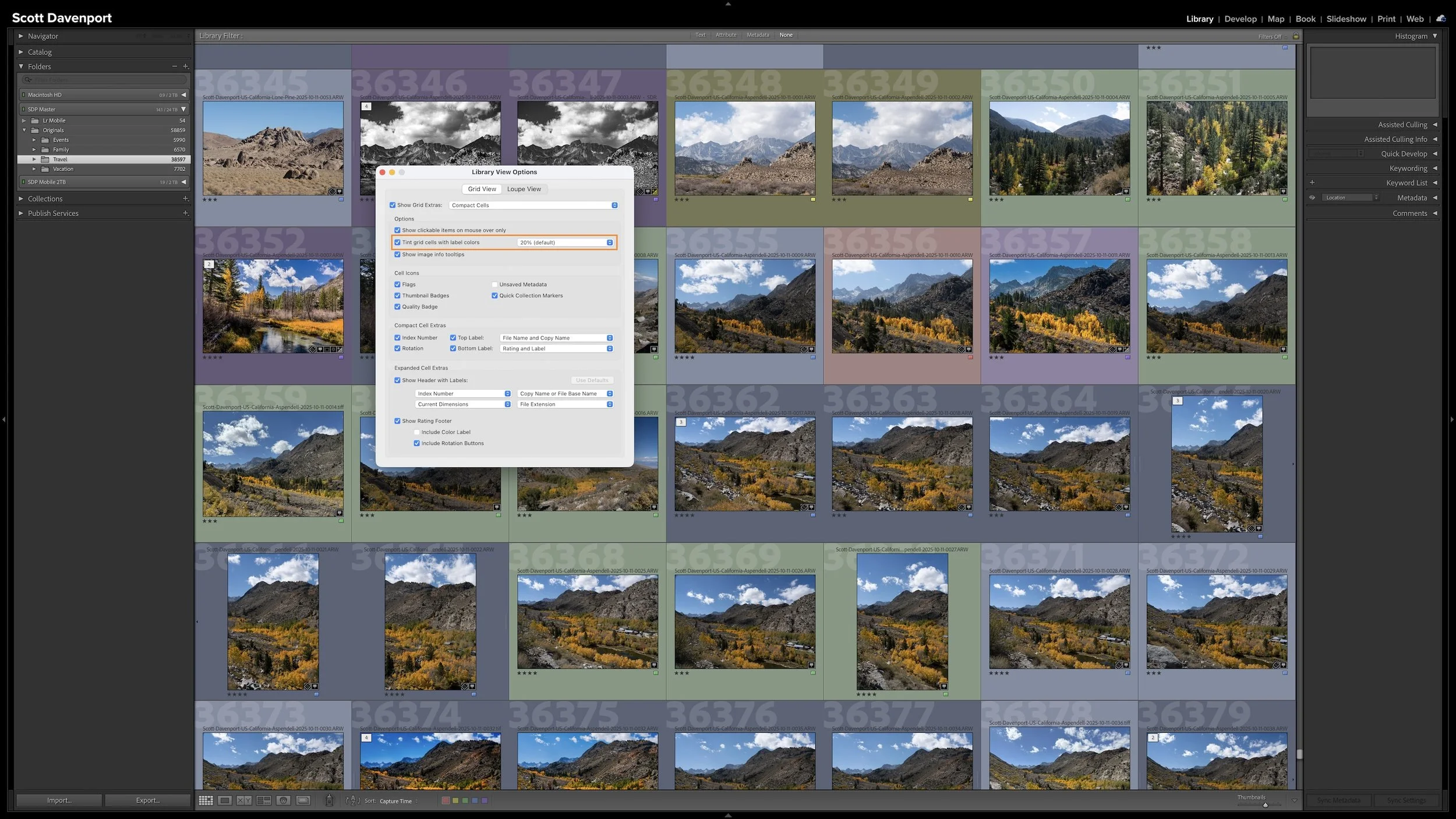
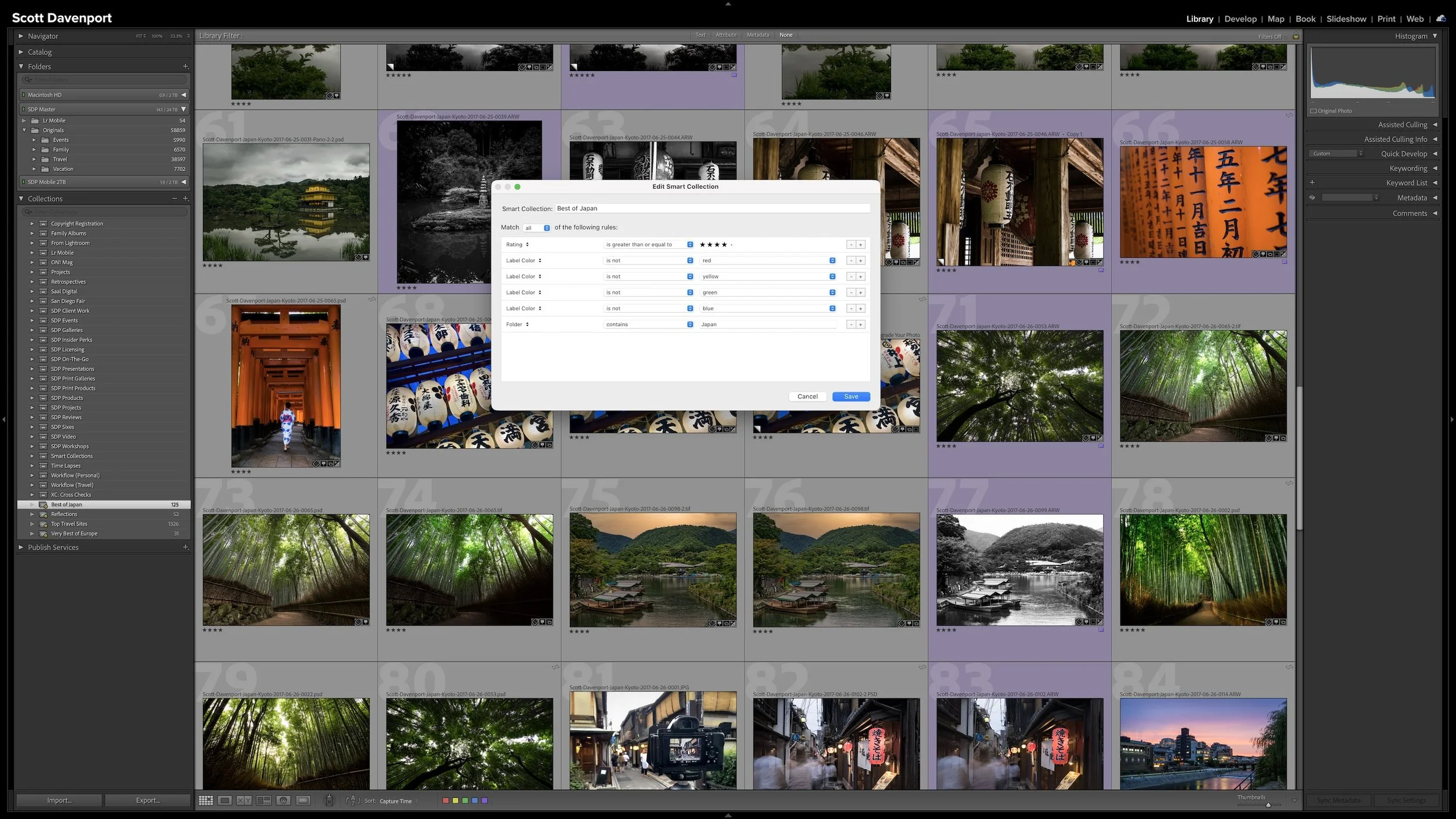
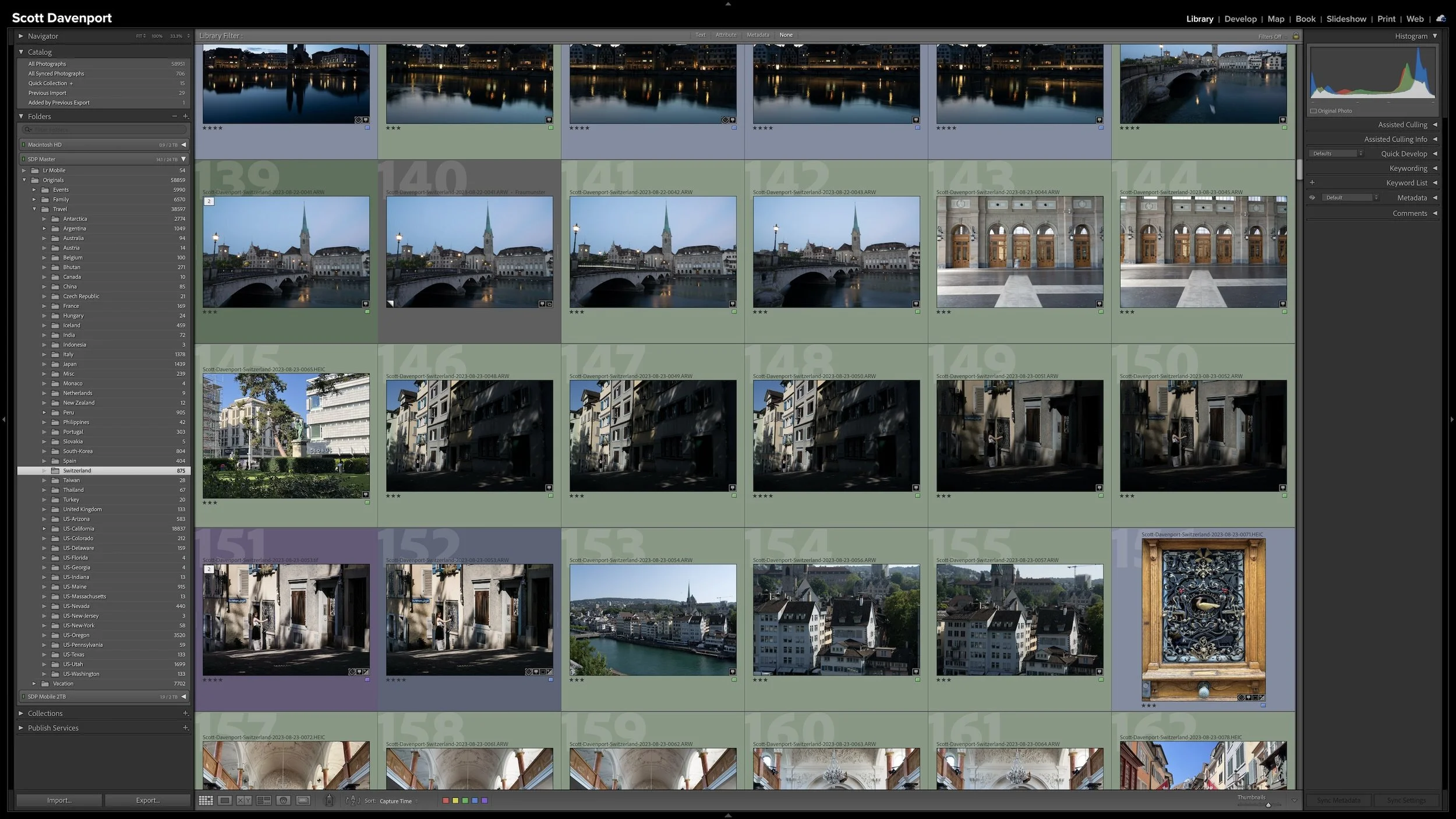
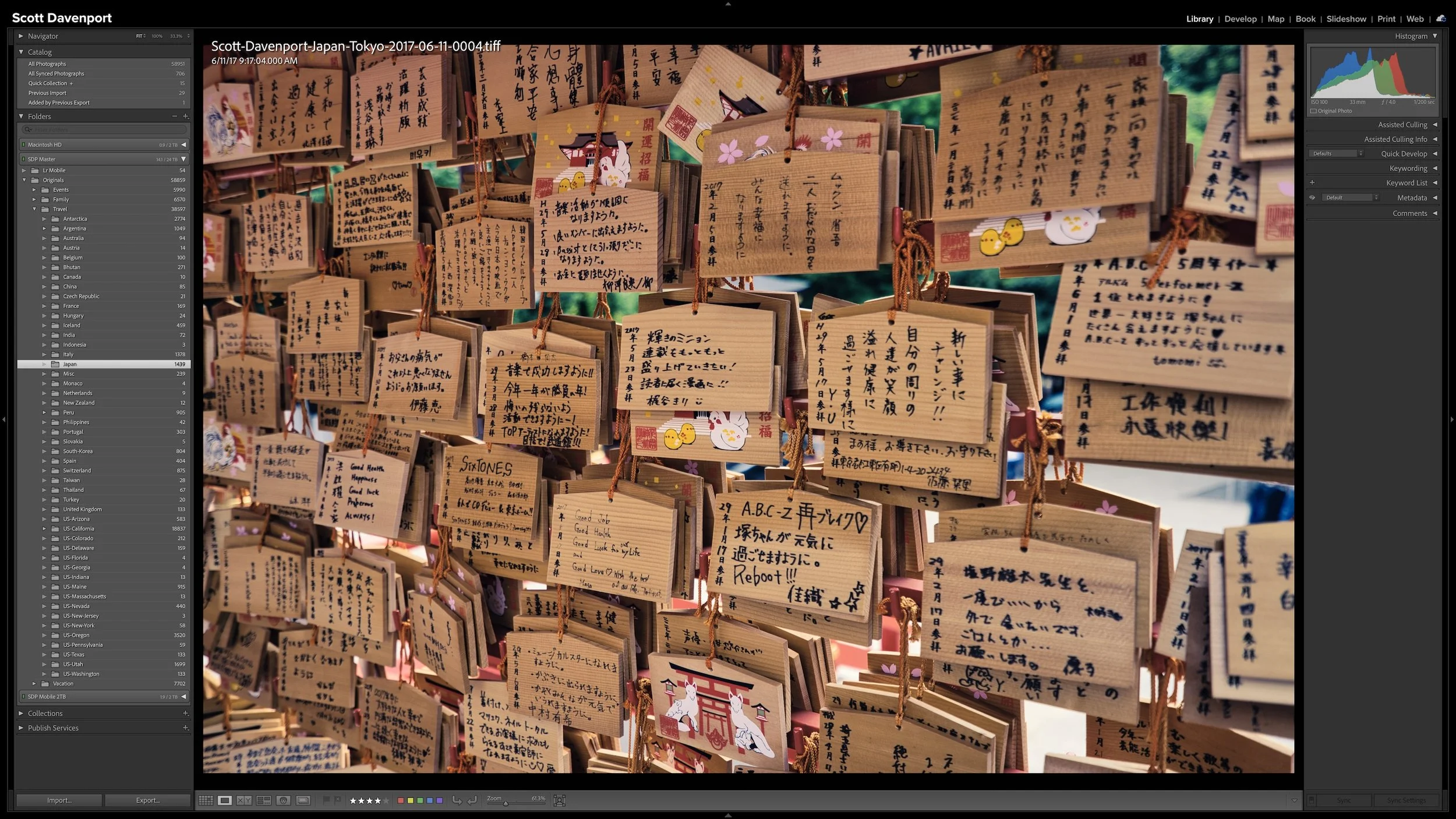
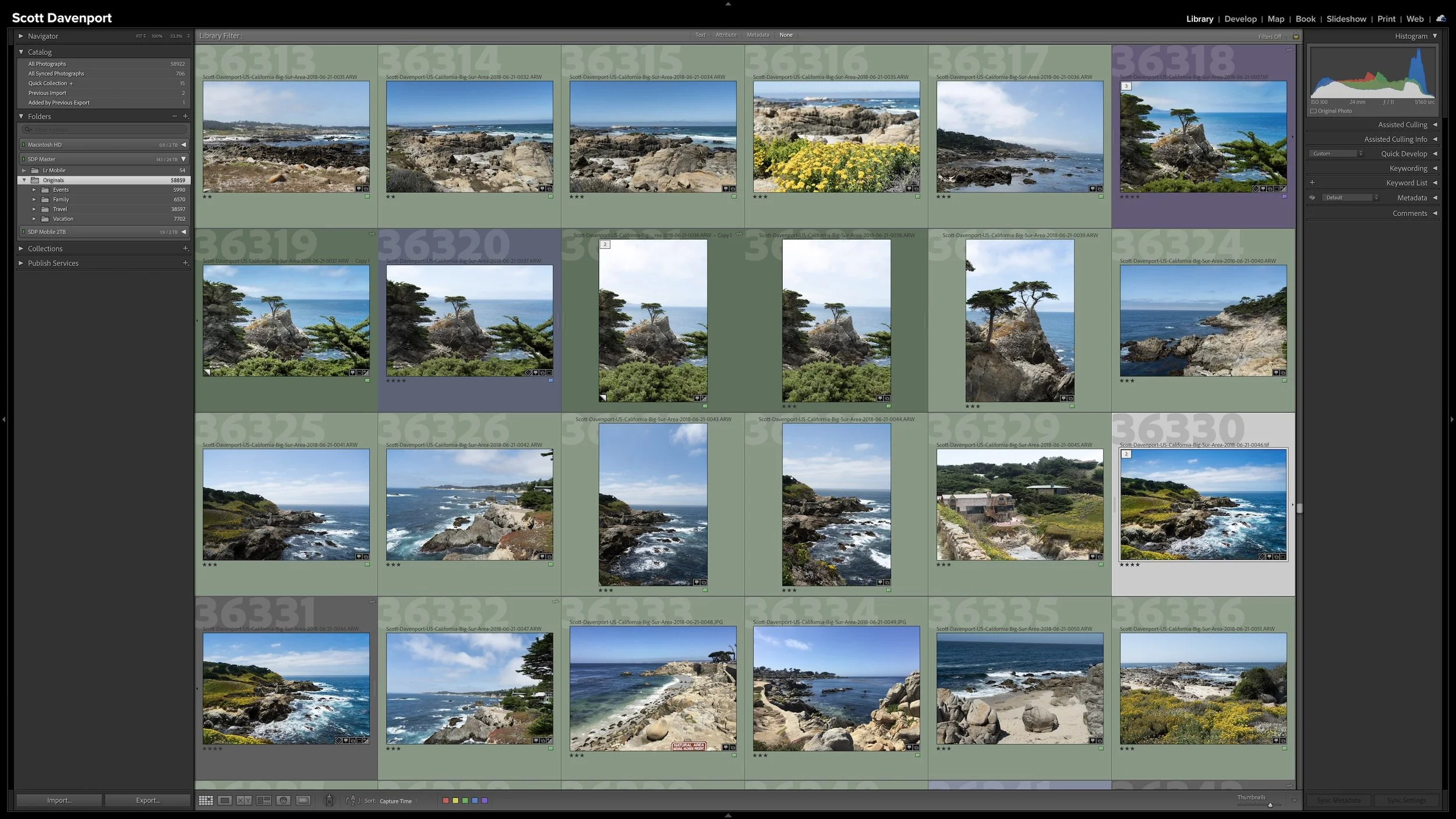
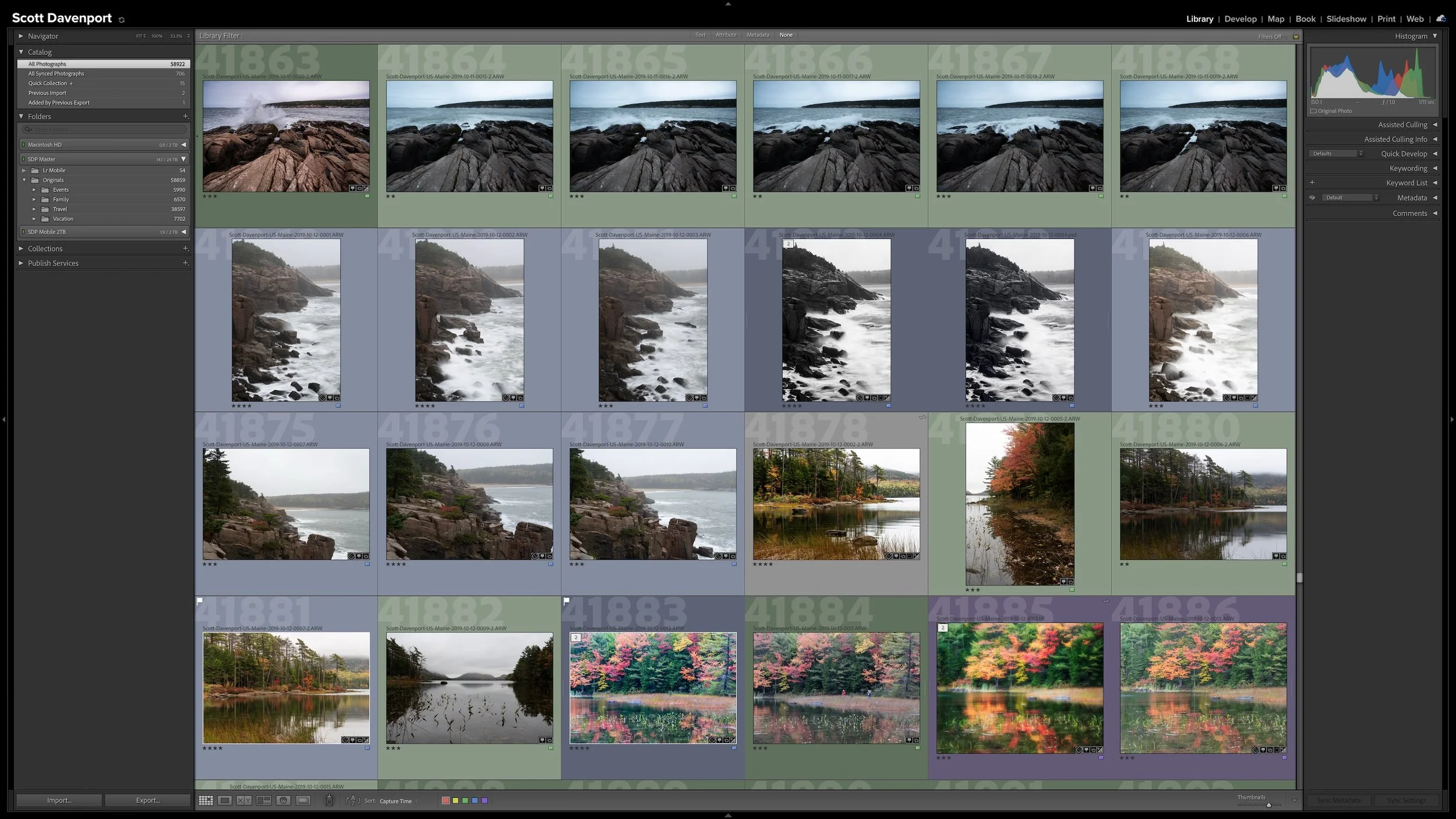

Lightroom Classic gives you five stars for rating photographs, but those stars aren't very useful if their meanings change from one shoot to another. A consistent system lets you know what a three-star or four-star photograph means without rethinking the definitions every time you rate a new group of photos.
My rating system ranges from photographs I keep primarily for sentimental reasons to photographs I consider strong enough to print. You don't need to use the same definitions I do. The important part is giving your ratings stable meanings you can apply consistently over time.