

Lens corrections compensate for barrel distortion, pincushion distortion, and vignetting created by our lenses. Most of the time, photographers click the checkbox and have Lightroom automatically remove the distortions. Yet there are times when you want to accentuate distortion to emphasize a subject or feeling in an image. Adding distortion is a useful artistic effect for certain images.
Note: I use Lightroom in this video as an example. The principles are the same and apply to any photo editing application that has lens correction controls.
The automatic lens corrections compensate for lens distortion and vignetting.
Barrel distortion is amplified to draw more attention to the musician’s ring.
Musician With Skull Ring And Five String Instrument In Florence Oregon
Contact Scott to commission a print or license this image.

Want a little more luminosity in your photos without softening everything? Lightroom’s Glow styles offer several ways to shape light, from a gentle radiance around highlights to a broader atmospheric treatment.
Learn how I choose a glow style for landscapes and cityscapes, use the controls to refine its character, and apply masking to keep attention where it belongs. There’s also an important limitation to understand before you start creating separate glow masks.

Sometimes the elements you want to adjust have little in common beyond their distance from the camera. Selecting them by subject, color, or brightness can mean building a mask from several pieces when your real goal is simply to work on a particular layer of the scene.
Lightroom’s Depth Range mask gives you another way to approach that decision. Learn how to select by relative depth, soften the transition into more distant areas, and combine masking tools to keep an adjustment where it belongs.
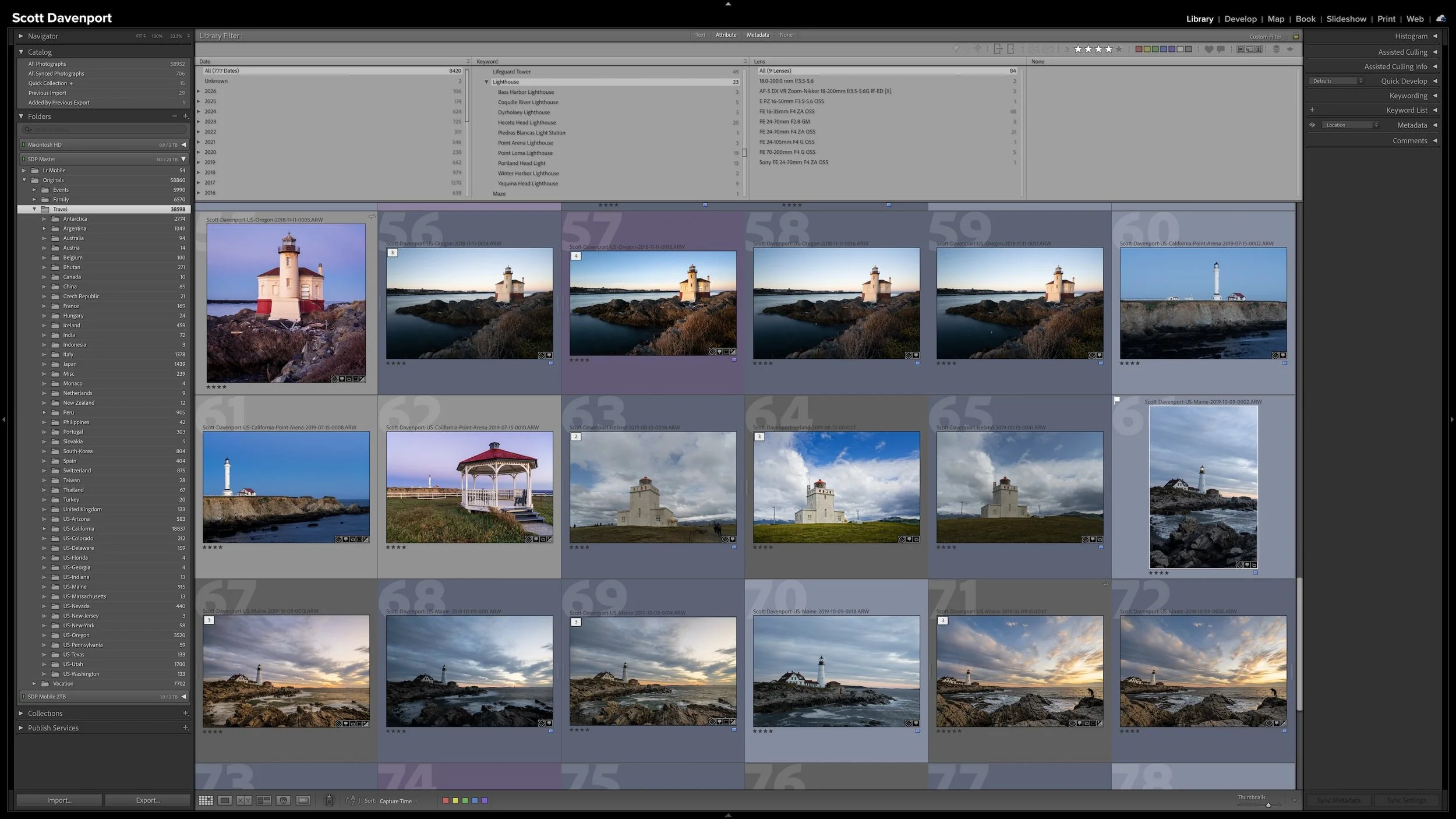
You remember the photograph, but not its filename, folder, or exact capture date. A large Lightroom Classic catalog can feel difficult to search when the only clues you have are fragments: a location, a subject, a rating, or perhaps the lens you used.
The Library Filter lets you combine those fragments and progressively narrow the catalog. The metadata added throughout a practical workflow creates several paths back to the same photograph—without requiring perfect metadata or a perfect memory.
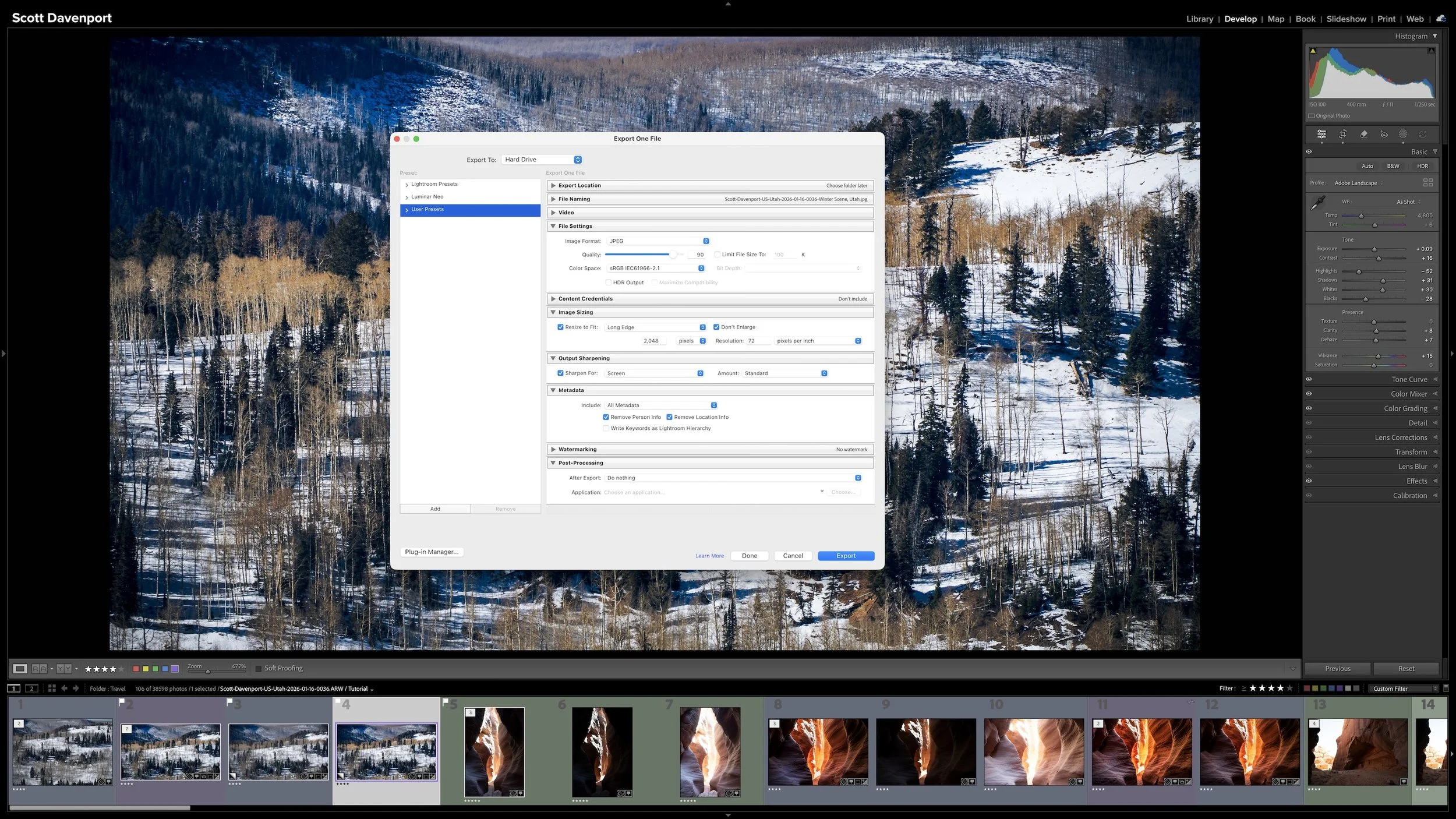
Organizing a photograph and making it searchable are important parts of asset management, but they aren't the end of the photograph's journey. The strongest images still need the creative attention that turns a RAW file into a finished photograph and prepares it for an audience.
Developing, preparing an output, sharing, and marking the work complete are four distinct decisions. Keeping those decisions inside the workflow helps you know what each photograph needs next without treating an exported file as a replacement for the original.
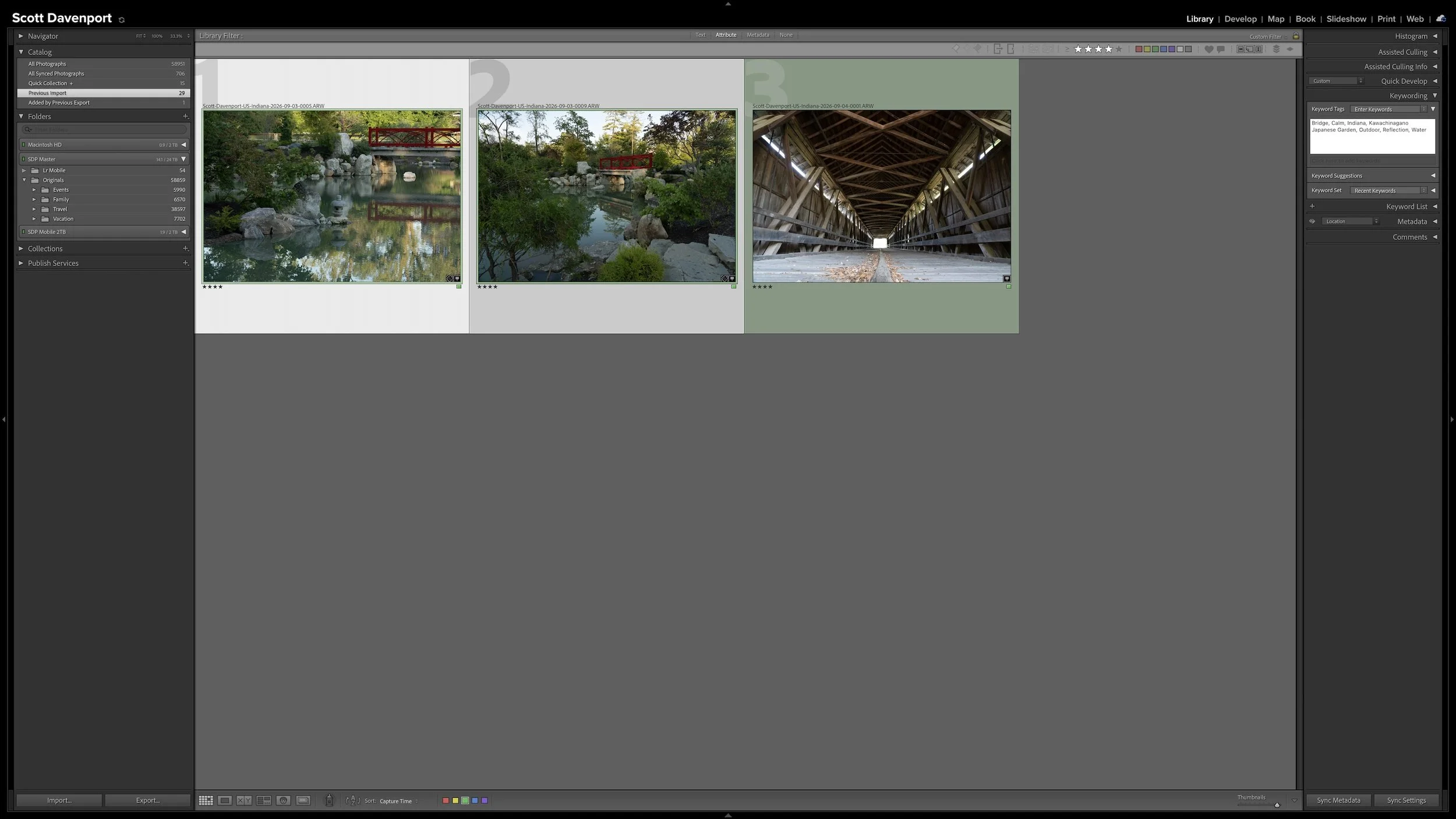
Every photograph I import receives some initial attention, but that doesn't mean every photograph needs the same amount of work. Rating, stacking, and adding shared location information can happen broadly and efficiently across a shoot.
As my workflow moves into keywording, developing, and sharing, I concentrate more effort on the best photographs from the shoot. This narrowing protects my time without deleting photographs, closing doors, or preventing me from reconsidering an image later.
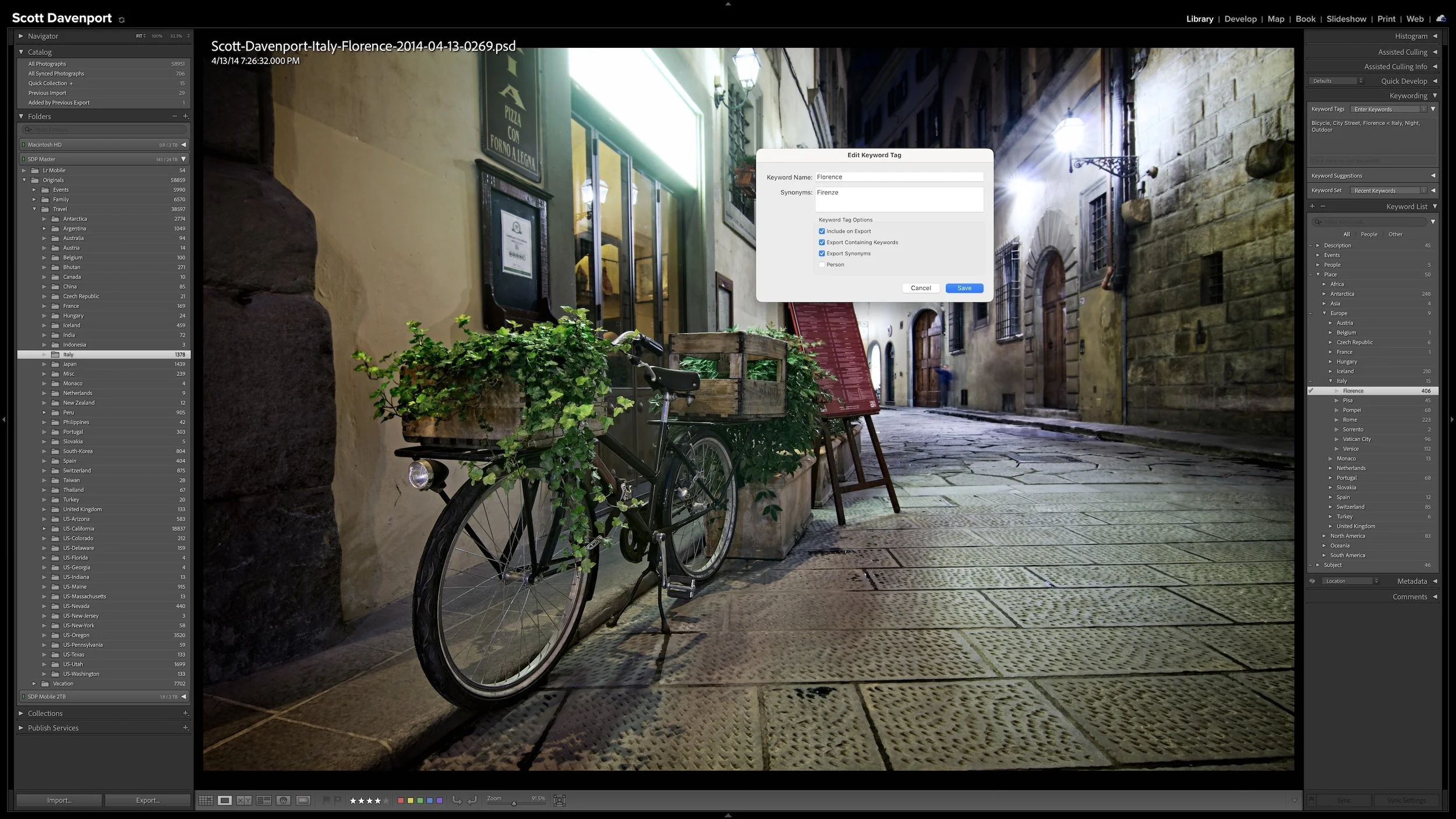
A useful keyword hierarchy connects specific details to broader ideas. When you apply a keyword for a specific location, a particular lighthouse, or a birthday celebration, Lightroom Classic can also associate the photograph with the broader places, subjects, or events that contain it.
Synonyms extend that efficiency by connecting one keyword to alternate names, related terms, or other languages. A hierarchy can give you broader and narrower ways to search your own library. I use synonyms primarily to help other people and search engines find exported photographs without requiring me to enter every variation separately.
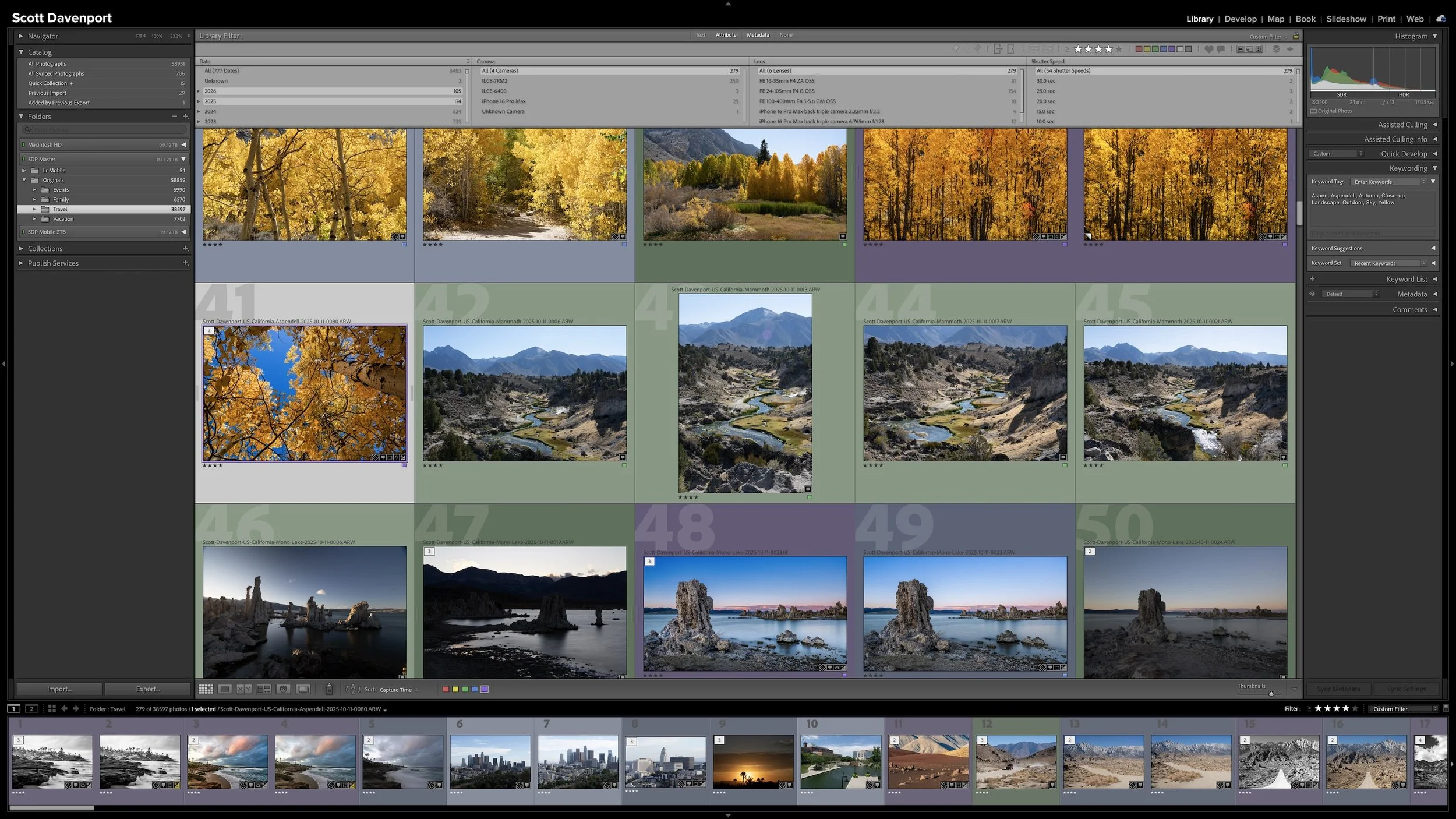
Keywording can make photographs easier to find, but it can also become an endless exercise in describing everything visible in every frame. You can keep the work manageable by asking one question: could Lightroom already find this photograph without the keyword?
The most useful keywords add information you cannot recover from capture data, ratings, location fields, or other existing metadata. That may be a subject, a familiar place name, a mood, a dominant color, or another idea you expect to search for later. The goal isn't to build the largest vocabulary possible. It is to add metadata that earns its keep.
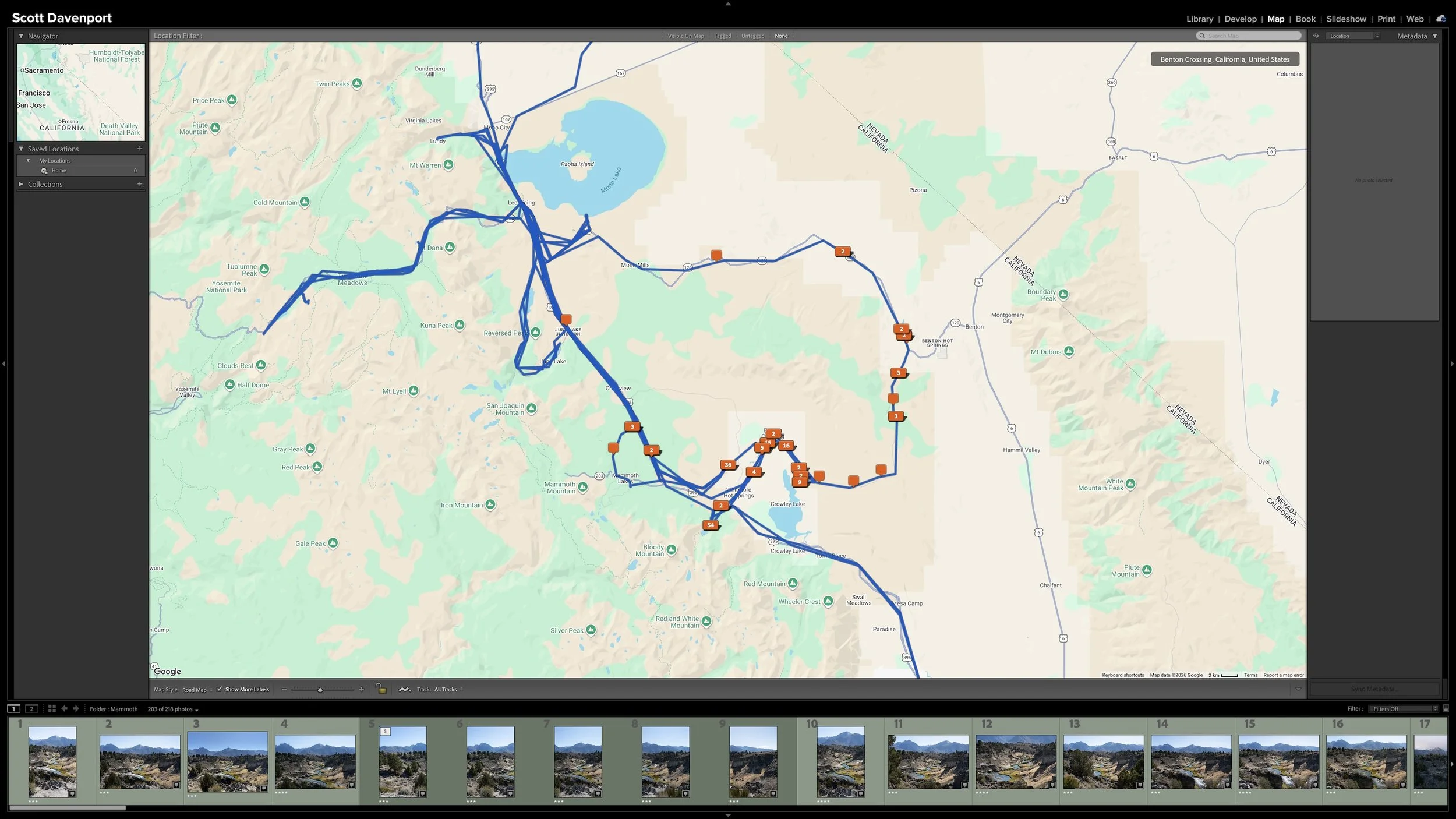
Right after a shoot, you know where you made the photographs. A few years later, that may not be nearly as obvious. Adding location information while the shoot is still fresh gives you another durable way to find photographs and understand where they were made.
You don't need to type city, state, and country into every photograph. If the camera records GPS coordinates, much of the work is already done. A GPX track log or, when necessary, Lightroom Classic's Map module provides other ways to add the location. The goal isn't exhaustive geographic metadata. It's enough useful information that you won't have to reconstruct it later.
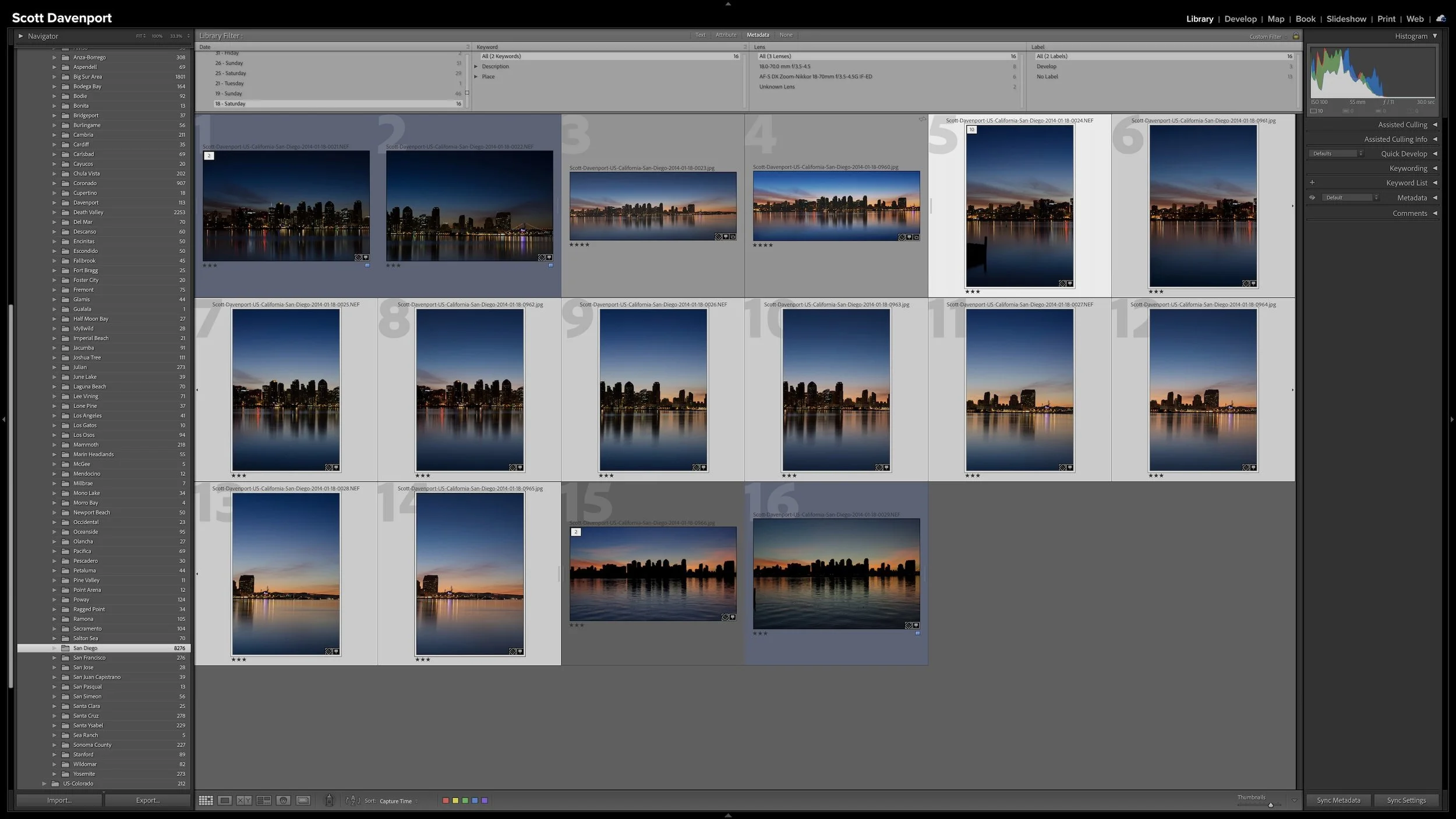
A group of photographs can belong together without every frame needing equal space in Lightroom Classic. Several variations of the same composition, panorama segments, exposure brackets, or a rapid burst can quickly fill Grid view with photographs you don't need to see individually all the time.
Stacks keep those related photographs together while letting one useful photograph represent the group. I use them so the other photographs remain available when I need them without adding unnecessary visual clutter to my catalog.

A workflow is dependable when Lightroom can show what still needs attention without requiring you to remember where you stopped. Color labels provide visible guidance, but ratings, GPS coordinates, keywords, and Develop adjustments record what has actually happened to each photograph.
I use Smart Collections to compare those two kinds of information. They gather unfinished work, preserve photographs in transitional stages, and reveal places where the catalog metadata and the expected color label disagree. You can adapt the same principle to the evidence and stages that matter in your own workflow.