
If you are trying Luminar or upgrading from a prior version, please consider using my affiliate link. There is no extra cost to you and it helps support Luminar tutorials like this one. Ready to buy? Use the offer code SDP10 at checkout and Save US$10!
Skylum Secret Sale! SAVE 20% with offer code SDP20. Offer valid through January 21st, 2026.
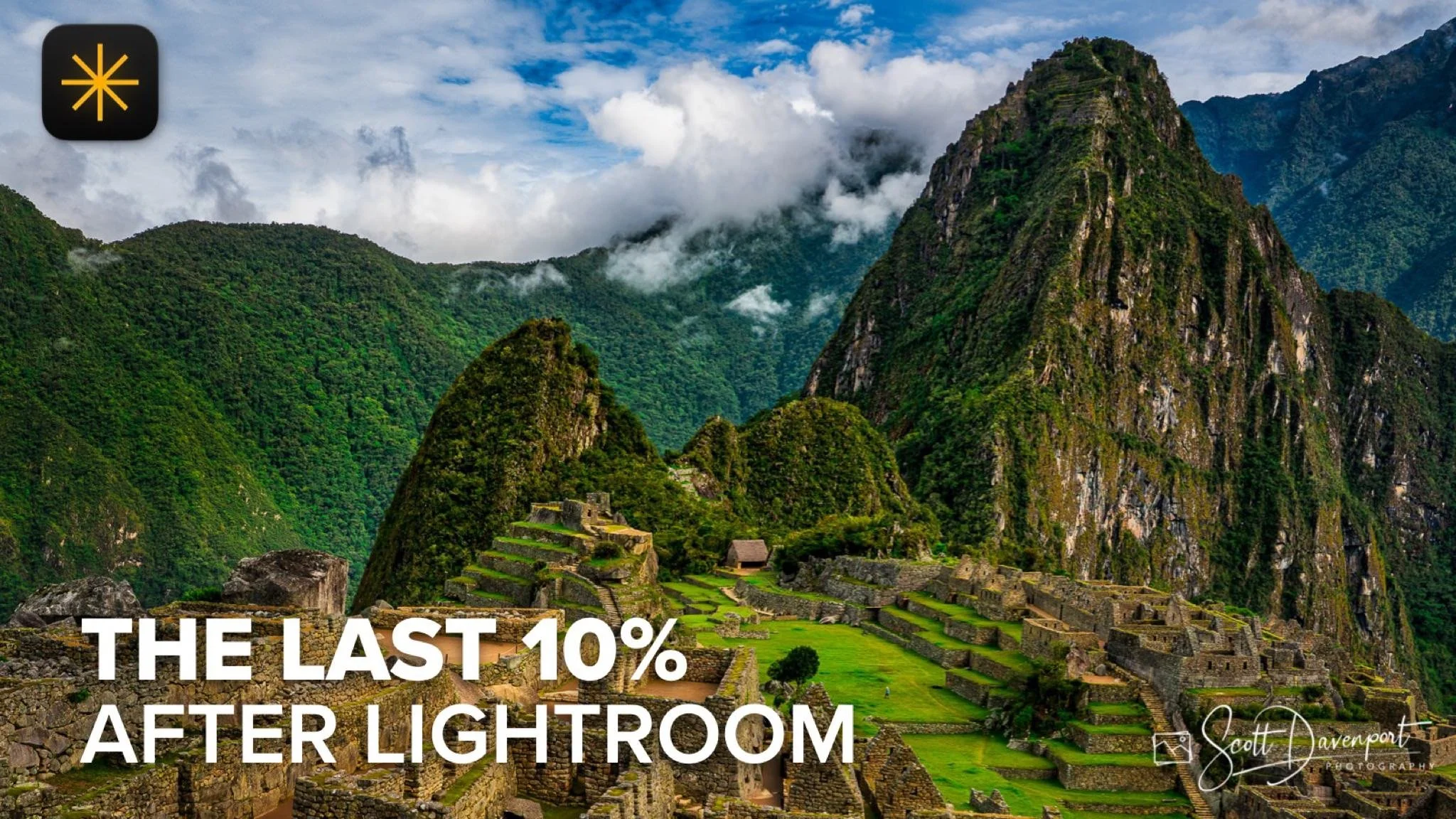
I do the heavy lifting on my landscape photos in Lightroom. That’s where I dial in exposure, contrast, and overall balance. But every now and then, a photo needs just a little extra — not a complete rework, just a subtle push to bring out mood or atmosphere. That’s when I’ll take an image into Luminar Neo as a finishing step, not a replacement for my core workflow.
In this tutorial, I walk through the three Luminar Neo tools I use most often at the end of the process: Enhance AI, Landscape, and Mystical. Enhance AI and Landscape help refine the overall light and contrast of the scene, adding depth and presence without changing the character of the photo. Used carefully, they round out the image and help it feel more complete rather than more processed.
Mystical is where restraint really matters. It can add a soft, ethereal quality that works beautifully for certain landscapes, but it’s very easy to overdo. I use it with a light hand, just enough to introduce atmosphere without calling attention to the effect itself. The goal with all three tools is the same: finish the photo, not overpower it.
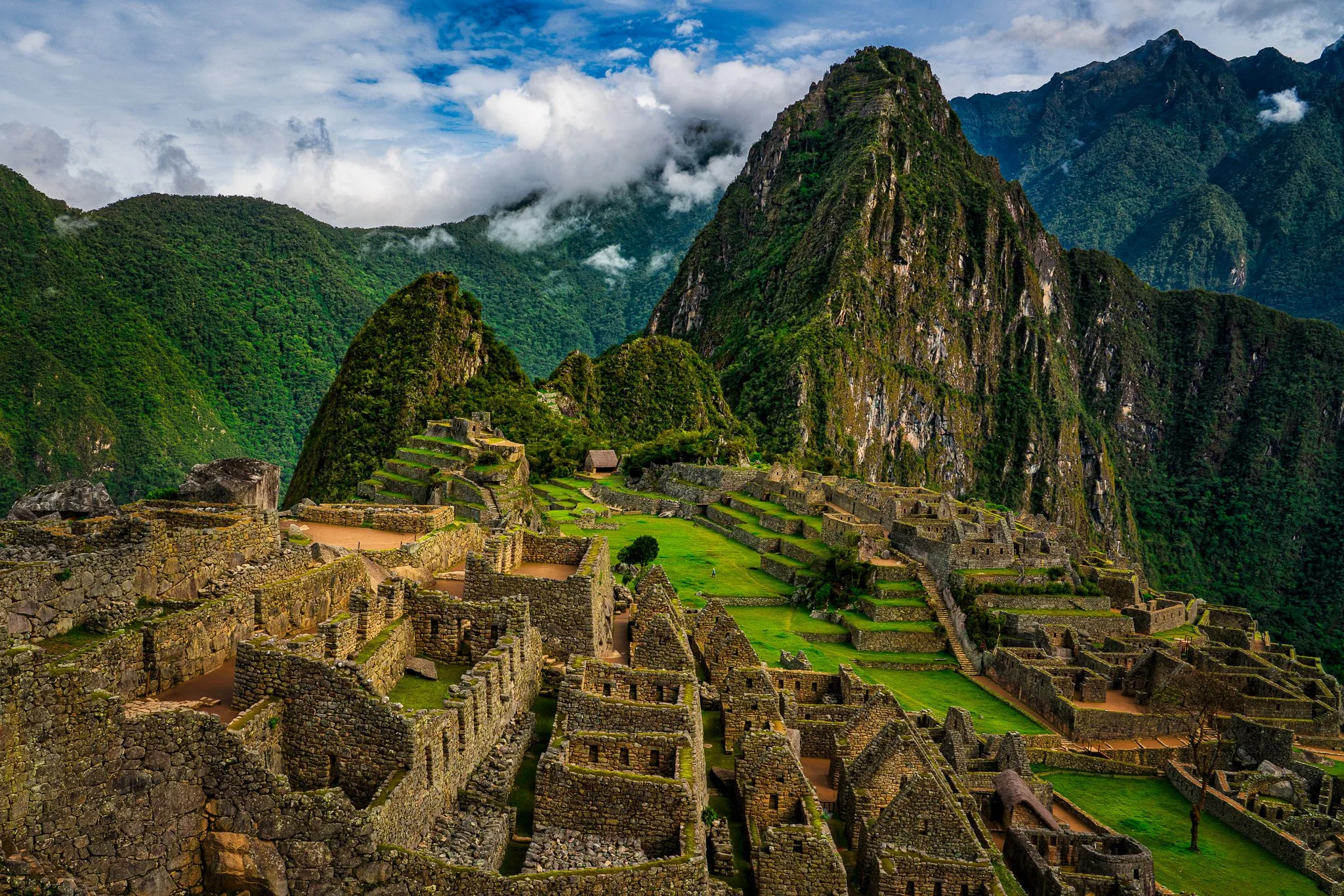
Machu Picchu, Morning
Contact Scott to commission a print or license this image.





A cityscape can have plenty of bright lamps and still feel a little flat. Luminar Magic Light tool can bring more atmosphere to those artificial light sources, but applying the same glow everywhere may pull attention away from the parts of the photograph that matter most.
The useful decision is where to let the light shine and where to hold it back. A modest starting adjustment, followed by a few selective changes, can give the scene more life while keeping its lighting believable.